# Add an account with Google SSO as your preferred login method

{% hint style="info" %}
**Who can use this feature?**

* Workspace **Owners**, **Super Admins**, **Admins**, and **Users**
* Account **Owners**
* Supported using the Cerby web app and browser extension
  {% endhint %}

With Cerby, you can use your existing Google single sign-on (SSO) to access your apps, whether you configured the login method for your account or the account was provisioned and configured by your identity provider (IdP), such as Okta.

Cerby can autosave this account and set Google SSO as your preferred login method for future automated logins. For more information about social login in Cerby, read the article [Manage social login for your accounts](https://help.cerby.com/tips-and-troubleshooting/best-practices/accounts/manage-social-login-for-your-accounts).

## Requirements

The following are the requirements to add an account with Google SSO as your preferred login method:

* The Cerby browser extension must be installed and have an active session. For instructions, read the following articles:
  1. [Install the Cerby browser extension](https://help.cerby.com/cerby-browser-extension/installation/install-the-cerby-browser-extension)
  2. [Log in to the Cerby browser extension](https://help.cerby.com/cerby-browser-extension/installation/log-in-to-the-cerby-browser-extension)
* The **Enforced account autosave** feature must be on, and the specific app domain added to the list. For instructions, read the article [Turn on enforced autosave in your workspace](https://help.cerby.com/setup-and-admin/workspace-settings/extension-settings/account-autosave/turn-on-enforced-autosave-in-your-workspace).

## Add an account with Google SSO as your preferred login method

To add an account with Google SSO as your preferred login method, you must complete the following steps:

1. Access the app’s login page through either of the following ways:

   * A chiclet in your Okta dashboard
   * A Cerby business hub integration
   * The app’s login page

   <div data-gb-custom-block data-tag="hint" data-style="warning" class="hint hint-warning"><p><strong>IMPORTANT:</strong> If you have an active session and are logged in immediately after accessing the app, Cerby does not autosave the account, meaning steps 2 and 3 are ignored. You must log out of the account and try again.</p></div>
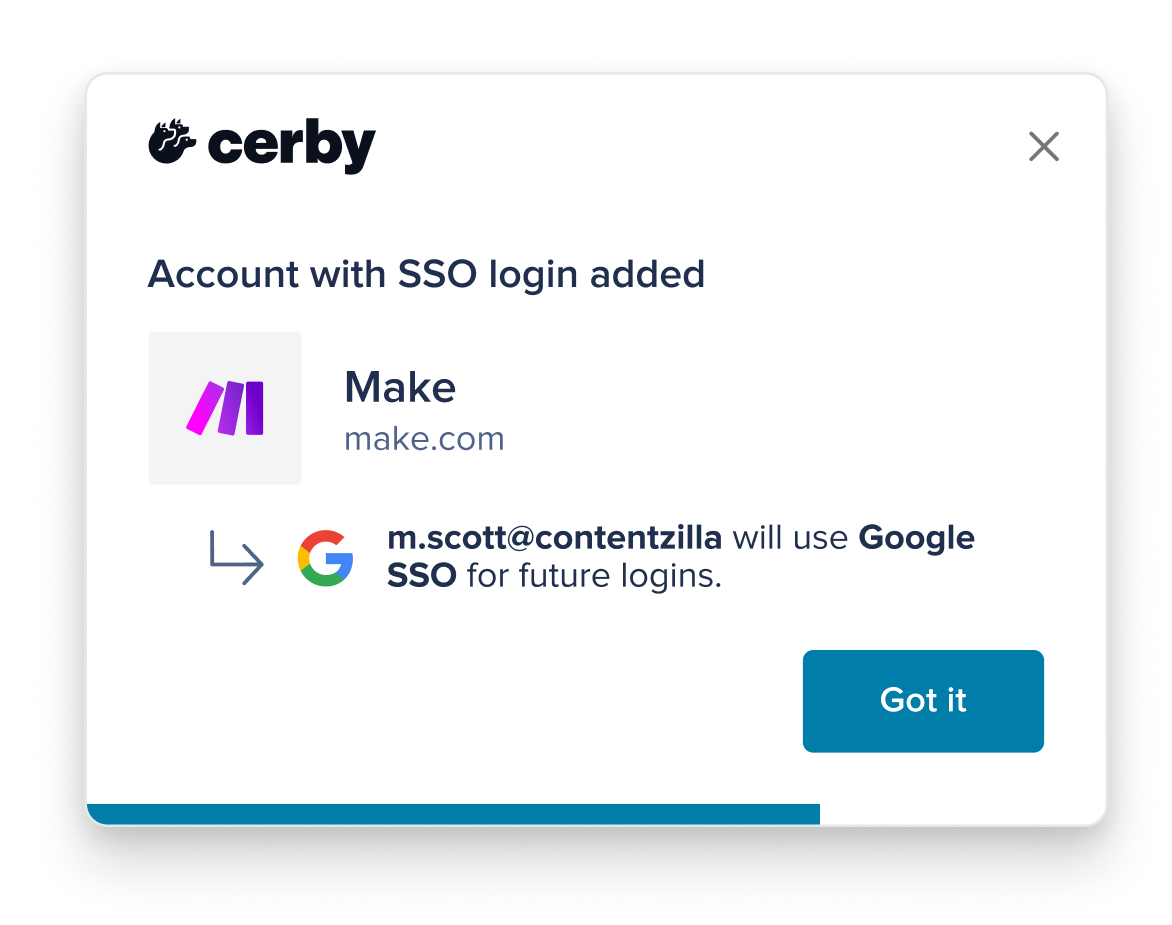
2. Log in to your account using the Google SSO option. The **Account with SSO login added** popup is displayed by the Cerby browser extension, as shown in **Figure 1**.

   <figure><img src="/files/c8dGEzT2yuTrfOIBXTmj" alt=""><figcaption><p>Figure 1. SSO login preference saved popup</p></figcaption></figure>

   <div data-gb-custom-block data-tag="hint" data-style="info" class="hint hint-info"><p><strong>NOTES:</strong> Consider the following scenarios:</p><ul><li>If you have an account in Cerby with the same user email address for the app, Cerby does not save any login preferences for the account.</li><li><p>If Cerby detects more than one app or service for the domain you accessed, the <strong>Account with SSO login added</strong> dialog box is displayed.</p><ol><li>Select the app or service you want to save for the domain.</li><li>Click the <strong>Done</strong> button.</li><li>Skip step 3.</li></ol></li></ul></div>
3. Click the **Got it** button. A new account is added to your Cerby workspace with the **Google SSO** status next to the account name.

Now you are done.


---

# Agent Instructions: Querying This Documentation

If you need additional information that is not directly available in this page, you can query the documentation dynamically by asking a question.

Perform an HTTP GET request on the current page URL with the `ask` query parameter:

```
GET https://help.cerby.com/cerby-browser-extension/accounts/managing-your-accounts/add-an-account-with-google-sso-as-your-preferred-login-method.md?ask=<question>
```

The question should be specific, self-contained, and written in natural language.
The response will contain a direct answer to the question and relevant excerpts and sources from the documentation.

Use this mechanism when the answer is not explicitly present in the current page, you need clarification or additional context, or you want to retrieve related documentation sections.
