# Turn off Cerby autofill in specific fields

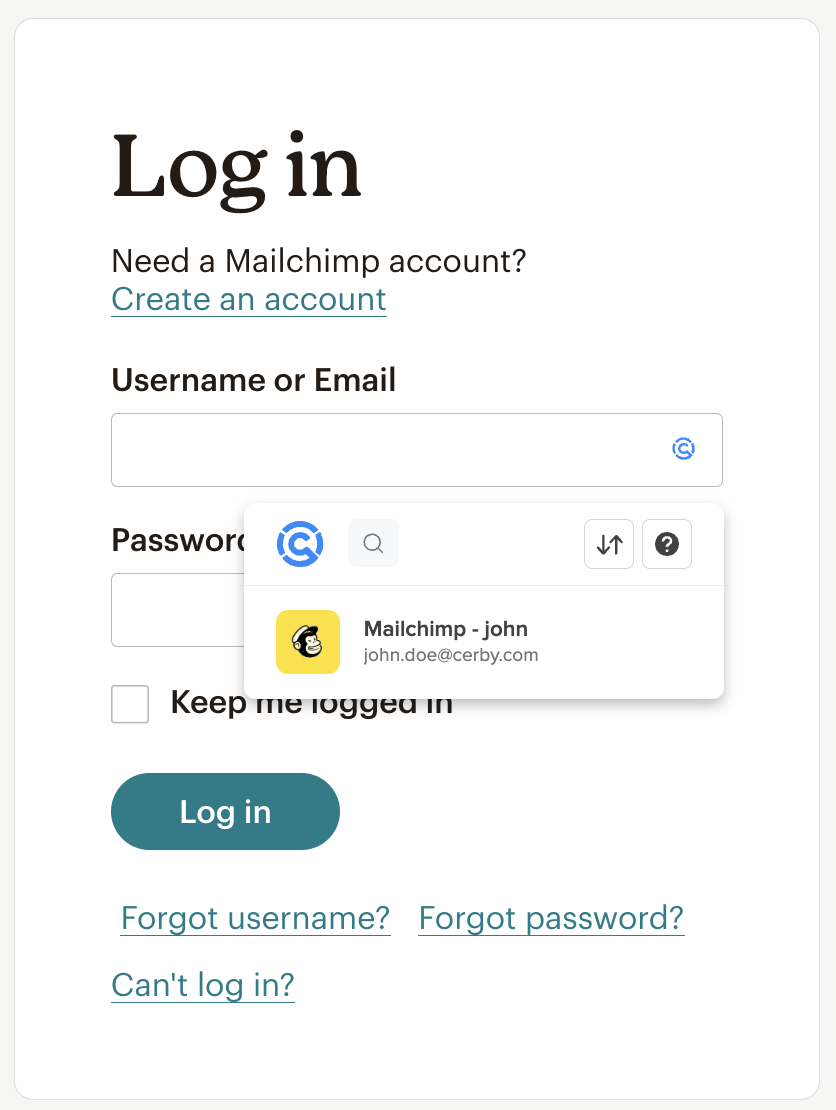
The Cerby browser extension enables you to autofill your login credentials on the login pages of your accounts. When encountering input fields on these pages, the extension displays the Cerby (<img src="/files/ffPmADc07AdykSdC3K07" alt="" data-size="line">) icon within each field. Clicking the input field displays the Cerby inline menu with your stored credentials for autofill, as shown in **Figure 1**.

<figure><img src="/files/7DaZJHn1ty9DnpSqZp15" alt=""><figcaption><p>Figure 1. Cerby inline menu turned on for input fields</p></figcaption></figure>

Now, you can selectively turn off the autofill icon for specific input fields on login pages. This feature offers greater flexibility and control over your browsing and login experience. Additionally, by turning off and on the feature per input field, you can help us correctly identify the input fields of your accounts when the user interface changes or the login flow is different than expected.

***

## Turn off Cerby autofill in a specific field

Upon opening a login page and having an active session in the Cerby browser extension, you can turn off autofill or other related functionalities for specific input fields, such as username or password fields.

If you want to turn off the Cerby icon and the account credentials displayed after you click the field, you can follow either of the following ways:

* [Using the help icon](#using-the-help-icon)
* [Using the context menu](#using-the-context-menu)

The following sections contain the steps to turn off the extension for each way.

{% hint style="danger" %}
**IMPORTANT:** This feature turns off the Cerby browser extension autofill selectively, meaning that you turn off the extension only for the field you choose.
{% endhint %}

### Using the help icon

To turn off autofill in a specific field using the Cerby help icon, you must complete the next steps:

1. Click the input field to display the Cerby inline menu.
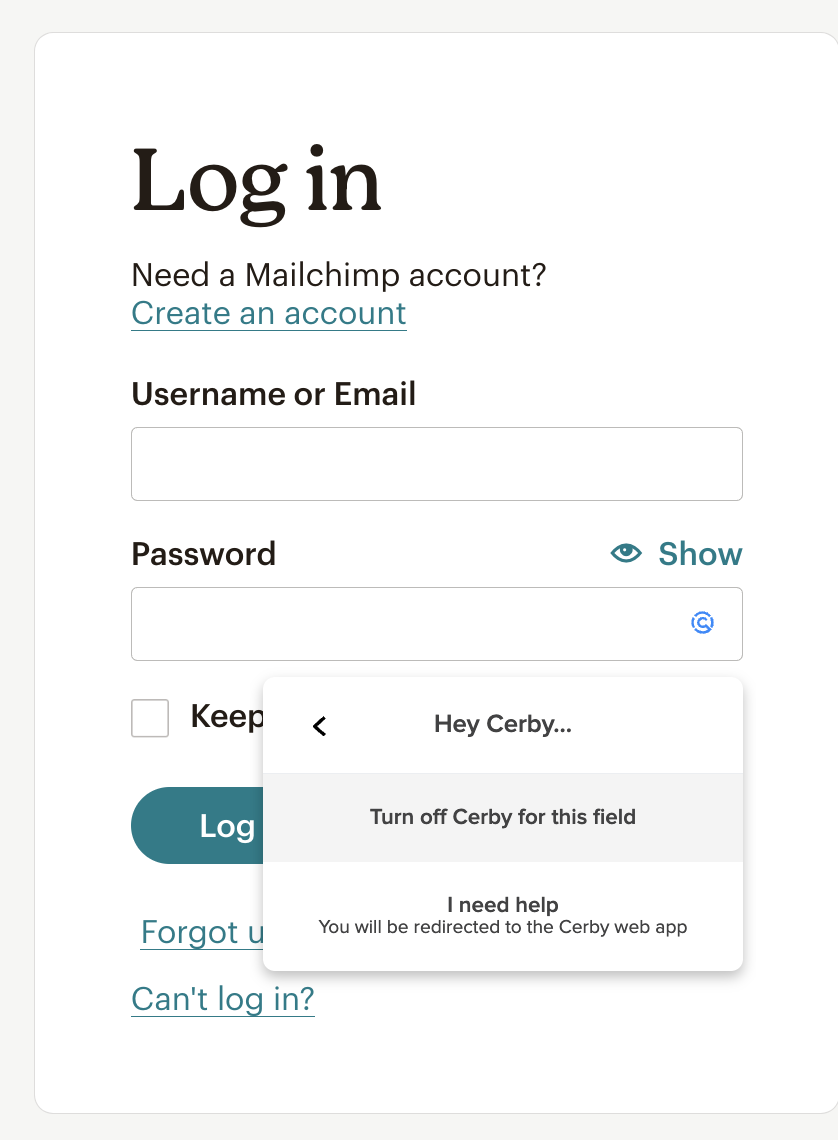
2. Click the **Help** (?) icon located in the top-right corner of the inline menu. A menu is displayed, as shown in **Figure 2**. ​

<figure><img src="/files/rqbHVKKXeZ906zmGwXZU" alt=""><figcaption><p>Figure 2. Turn off Cerby for this field option in the Cerby inline menu</p></figcaption></figure>

3. Select the **Turn off Cerby for this field** option. The following occurs:
   * The **Cerby will not appear in this field** dialog box is displayed.
   * The Cerby icon disappears from the field.
   * The Cerby autofill option is turned off, meaning you won’t be able to use it to fill in your credentials.

{% hint style="info" %}
**NOTE:** To turn autofill back on for the field, follow the instructions in the [Turn on the Cerby autofill](#turn-on-cerby-autofill-in-a-specific-field) option in a specific field section.
{% endhint %}

### Using the context menu

To turn off autofill in a specific field using the context menu, you must complete the next steps:

1. Click the input field to display the Cerby inline menu.
2. Right-click the input field. A context menu is displayed.
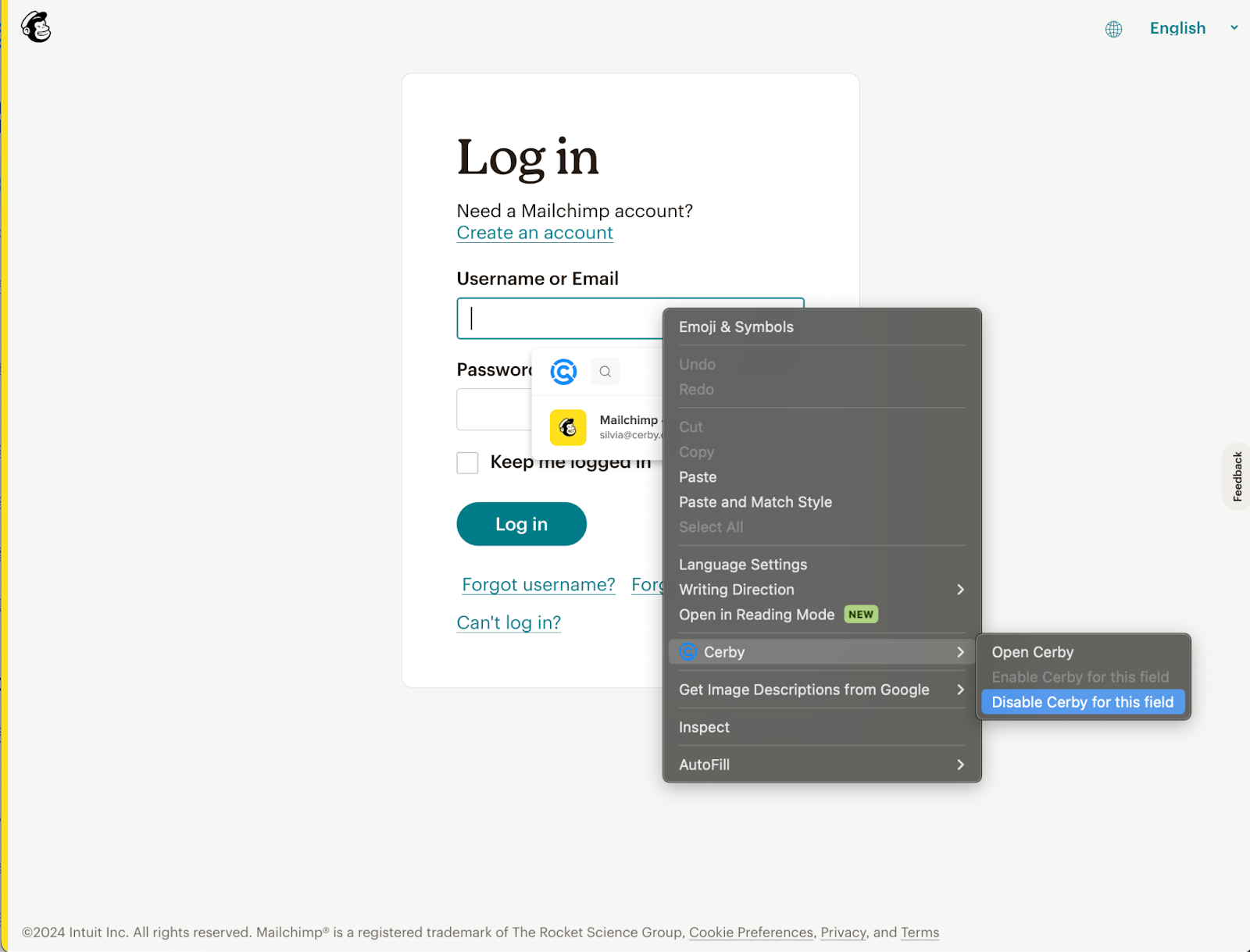
3. Hover the mouse over the **Cerby** option. A submenu is displayed, as shown in **Figure 3**.

   <figure><img src="/files/0UkfgJcRmNccKNecENjP" alt=""><figcaption><p>Figure 3. Context menu with the Disable Cerby for this field option</p></figcaption></figure>
4. Select the **Disable Cerby for this field** option. The following occurs:
   * The **Cerby will not appear in this field** dialog box is displayed.
   * The Cerby icon disappears from the field.
   * The Cerby autofill option is turned off, meaning you won’t be able to use it to fill in your credentials.

***

## Turn on Cerby autofill in a specific field

To turn on autofill in a specific field, you must complete the next steps:

1. Click the input field to display the Cerby inline menu.
2. Right-click the field. A context menu is displayed.
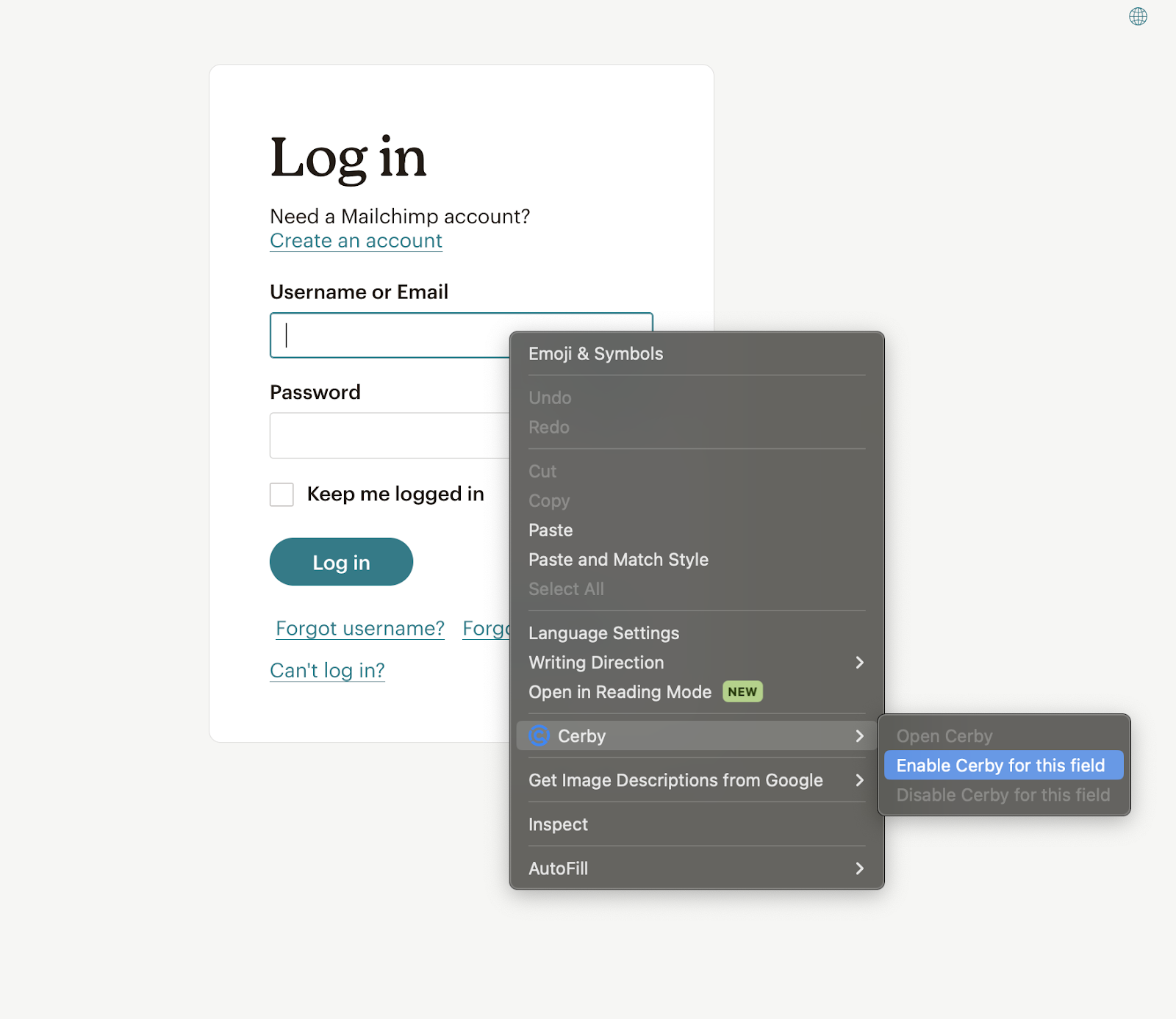
3. Hover the mouse over the **Cerby** option. A submenu is displayed, as shown in **Figure 4**.

   <figure><img src="/files/Tpo7ZRj5bOfNpj3lFLWZ" alt=""><figcaption><p>Figure 4. Context menu with the Enable Cerby for this field option</p></figcaption></figure>
4. Select the **Enable Cerby for this field** option. The following occurs:
   * The Cerby icon appears back in the field.
   * The Cerby autofill option is turned on again, meaning you will be able to use it to fill in your credentials.


---

# Agent Instructions: Querying This Documentation

If you need additional information that is not directly available in this page, you can query the documentation dynamically by asking a question.

Perform an HTTP GET request on the current page URL with the `ask` query parameter:

```
GET https://help.cerby.com/cerby-browser-extension/accounts/managing-your-accounts/turn-off-cerby-autofill-in-specific-fields.md?ask=<question>
```

The question should be specific, self-contained, and written in natural language.
The response will contain a direct answer to the question and relevant excerpts and sources from the documentation.

Use this mechanism when the answer is not explicitly present in the current page, you need clarification or additional context, or you want to retrieve related documentation sections.