> For the complete documentation index, see [llms.txt](https://help.cerby.com/llms.txt). Markdown versions of documentation pages are available by appending `.md` to page URLs; this page is available as [Markdown](https://help.cerby.com/getting-started/concepts/audit-and-activity/automation-log.md).
# Automation Log
This article describes the key benefits and settings for using and understanding Cerby’s Automation Log best.
With Cerby, you can use the **Automation Log** to trace every critical step of each automation job triggered to perform identity, account, and user management tasks, from provisioning users in an app to rotating your account passwords.
This log shows the precise automation status in the target app, so you always know how your users, credentials, and security settings are being protected and synchronized.
The following are the benefits of Cerby’s Automation Log:
* **Transparency:** You can see exactly what is running, where it came from, and why it was triggered.
* **Speed:** You can quickly identify stalled or incomplete jobs that Cerby triggers.
* **Accountability:** You can trace every update to its source, helping you audit changes across all apps.
As a workspace **Owner**, **Super Admin**, or **Admin**, you can view all automation jobs in your workspace; as a **User**, you can only view the jobs you have triggered for the accounts and business hubs you own.
***
## Key concepts
**Table 1** contains the key concepts that are essential for understanding the Automation Log.
| **Concept** | **Description** |
| --------------- | -------------------------------------------------------------------------------------------------------------------------------------------------------------------------------------------------------------------------------------------------------------------------------------------------------------------------------------------------------------------------------------------------------------------------------------------------------------------------------------------------------------------------------------------------------------------------------------------------------------- |
| Automation job | An automation job is a single execution of an automated process. It includes details such as when it started, its current status, and related logs. Jobs can be scheduled to run at specific times or triggered by system events or user actions; also, they can trigger nested jobs to accomplish a task. Automation jobs perform identity, account, and access management tasks. For example, provisioning a user like John Doe in an app or rotating the password for a Marketing account. In the Automation Log, each recorded execution is called an automation job, and a specific ID is assigned to it. |
| Nested job | Some automation jobs involve executing one or more jobs as part of the process. All jobs are nested into one and called nested jobs for those cases. |
| Execution group | An execution group is the top-level entry in the Automation Log that represents a single operation from start to finish. It contains the parent automation job and any nested jobs that were triggered as part of the same process, and its status always reflects the overall progress of all its jobs. |
**Table 1.** Automation Log key concepts
***
## The Automation Log page
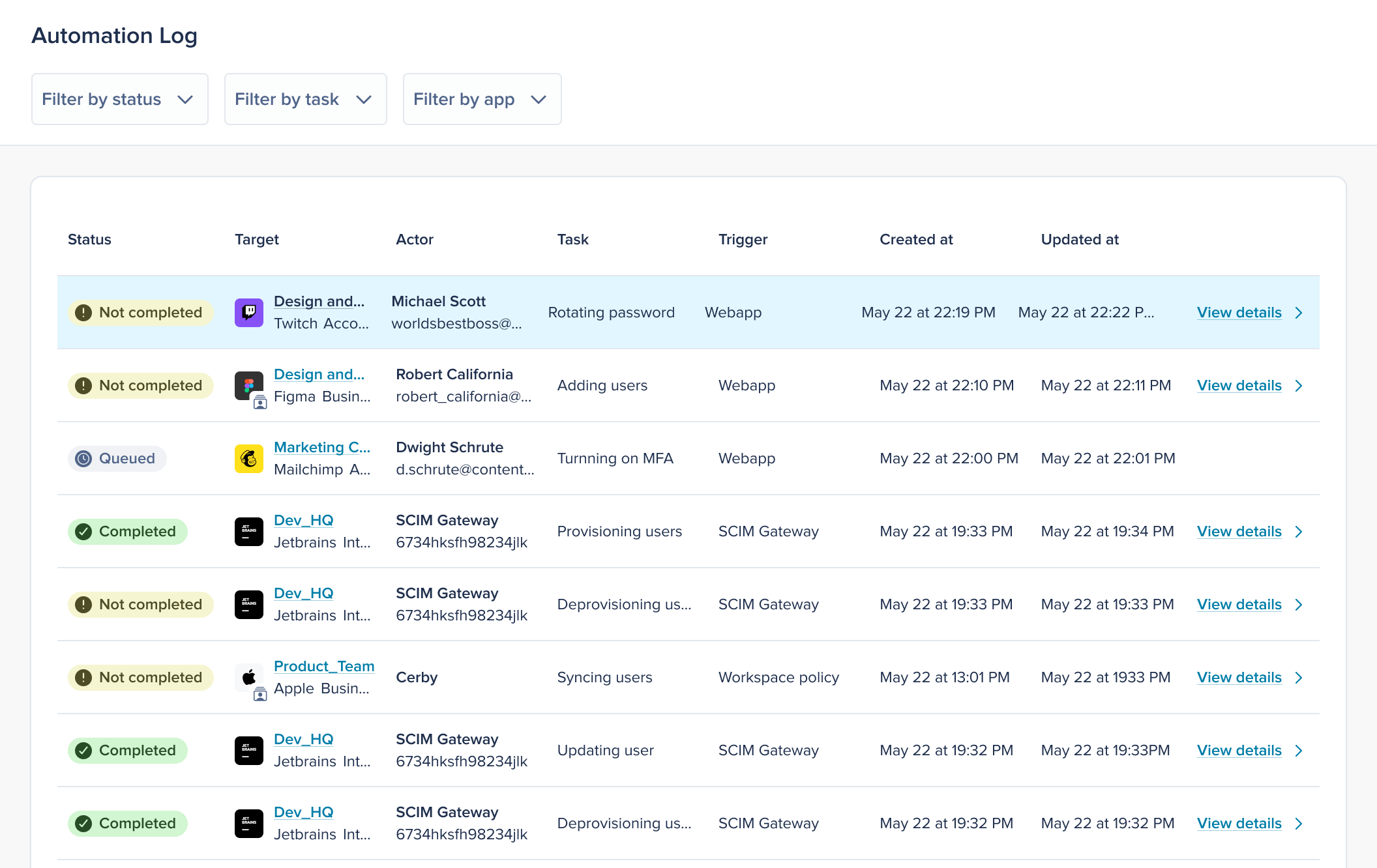
The **Automation Log** page in the Cerby web app dashboard is the centralized view of all the automation jobs triggered within your Cerby workspace, as shown in **Figure 1**.
Figure 1. Automation Log page in the Cerby web app dashboard
The following is the information you can find in each column of the Automation Log:
* **Status:** The current phase of each automation job. For more information, refer to the [Status types](#status-types) section.
* **Target:** The specific resource affected by the job. For example, accounts, business hubs, and teams.
* **Actor:** The entity that triggered the job. For example, Cerby or a user.
* **Task:** The identity, account, or user management action to be accomplished with the job. For more information, refer to the [Task types](#task-types) section.
* **Trigger:** The underlying rule or context that triggered the job. For more information, refer to the [Trigger types](#trigger-types) section.
* **Created at:** The date and time when the job was triggered.
* **Updated at:** The date and time of the most recent status change.
### Task types
To provide valuable insights within your workspace, the Automation Log captures the following tasks:
* Identity lifecycle management
* **Adding users:** It involves creating a user account and inviting a new user to an external app connected to Cerby.
* **Adding users to Cerby:** It involves adding users to a Cerby workspace without provisioning them in the external app in the same step.
* **Syncing users:** It involves retrieving the user and asset data from an external app connected to Cerby.
* **Updating user roles:** It involves updating the existing role of a user within an external app connected to Cerby.
* **Updating user assets:** It involves updating the asset assignments of a user in an external app connected to Cerby.
* **Syncing asset access:** It involves synchronizing the access permissions of users on assets in an external app connected to Cerby.
* **Syncing asset ownership:** It involves propagating the ownership of assets within a business hub integration.
* **Removing users:** It involves removing users from an external app connected to Cerby.
* **Removing workspace user:** It involves removing a user account from the Cerby workspace.
* **Matching users:** It involves matching users found in an external app to their corresponding Cerby user accounts.
* **Claiming access:** It involves a user claiming access to an external app connected to Cerby.
* **Claiming asset access:** It involves a user claiming access to an asset for an external app connected to Cerby.
* **Canceling user invite:** It involves canceling a pending invite for a user to an external app connected to Cerby.
* **Resending user invite:** It involves resending a pending invitation for a user to an external app connected to Cerby.
* **Updating team members:** It involves updating the membership of a Cerby team in response to access management changes.
* **Updating team:** It involves updating the configuration or structure of a Cerby team.
* Native partner management
* **Syncing native partners' users:** It involves retrieving the users and roles of native partners in a paid social app connected to Cerby.
* **Adding native partners' users:** It involves adding users to an asset on behalf of a native partner in a paid social app connected to Cerby.
* **Removing native partners' users:** It involves removing users from an asset on behalf of a native partner in a paid social app connected to Cerby.
* **Applying partner user sync report:** It involves applying the results of a native partner user sync to the corresponding assets in Cerby.
* Security posture
* **Rotating password:** It involves rotating the password of an account.
* **Setting up MFA:** It involves turning on multi-factor authentication (MFA) for an account with a Cerby-managed method.
* **Turning off MFA:** It involves turning off MFA for an account.
* **Checking MFA health:** It involves verifying that MFA is correctly configured and active for an account managed by Cerby.
* Universal Logout
* **Executing Cerby logout:** It involves logging a user out from all active sessions managed by Cerby.
* **Executing Okta logout:** It involves logging a user out from all active sessions via an Okta Universal Logout event.
* System tasks
* **System actions:** It involves an internal process performed by Cerby that does not correspond to a specific user-facing task.
### Trigger types
The following are the sources that add a new log entry displayed in the Automation Log:
* **Web app:** A manual action performed by a user via the Cerby web app.
* **Web extension:** A manual action performed by a user via the Cerby browser extension.
* **Workspace policy:** A workspace-level policy that schedules automations, such as recurring syncs for business hub integrations.
* **Account policy:** A policy configured for an account that enforces automations, such as password rotations, for all accounts belonging to the same app within a workspace.
* **Account event:** An event triggered by a change in the state or configuration of an account.
* **SCIM event:** An event triggered by an identity provider (IdP) and propagated to Cerby via the System for Cross-domain Identity Management (SCIM) protocol.
* **Team event:** A change in the structure, roles, or permissions of a Cerby team.
* **Collection event:** A change in a Cerby collection.
* **Universal Logout:** A manual action performed by a user via the Cerby interface or an Okta Universal Logout event extended to a workspace that initiates Cerby’s Universal Logout.
* **Cerby API:** A call made to the platform using the [Cerby API](https://developer.cerby.com/#welcome-to-the-cerby-developer-portal).
* **Cerby Admin API:** A call made to the platform to perform manual admin actions in customer workspaces.
### Status types
The following are the statuses for each log entry displayed in the Automation log:
* **Not started:** It is the state of individual nested jobs that have not yet begun when a main automation is first created.
* **Not completed:** It is the state that applies when even a single nested job fails.
* **Retrying:** It is the state where a single nested job is retrying.
* **Running:** It is the state where a single nested job is still running.
* **Started:** It is the state where nothing is running, but at least one nested job has started.
* **Queued:** It is the default state if no jobs have started.
* **Completed:** It is the state where all nested jobs finished successfully.
***
## The Automations tray
The **Automations** tray is a floating panel anchored to its trigger icon in the top navbar that provides you quick access to your most recent automation jobs without leaving the current page, as shown in **Figure 2**. The automations in this tray are the top-level operations within an execution group, and they are triggered by user actions in the Cerby web app, with status updates and a direct link to each entry in the Automation Log.
This tray displays automations in two tabs: **All recent automations** and **Not completed**. Each listed automation contains the item name, app name, item type, the created and updated date for the automation, and the automation job status.
As a workspace **Owner**, **Super Admin**, **Admin**, **User**, **Login-Only**, or **Guest User**, you can only view the automation jobs you have triggered for the accounts and business hubs you own.
For instructions on how to view the automations in this tray, read the article [View your recent automations in the Automations tray](https://help.cerby.com/cerby-web-app/automation-log/view-your-recent-automations-in-the-automations-tray).
***
## Related articles
The following articles contain more information about the Automation Log:
* [Filter jobs in the Automation Log](https://help.cerby.com/cerby-web-app/automation-log/filter-jobs-in-the-automation-log)
* [View the details of a nested job in the Automation Log](https://help.cerby.com/cerby-web-app/automation-log/view-the-details-of-a-nested-job-in-the-automation-log)
* [View your recent automations in the Automations tray](https://help.cerby.com/cerby-web-app/automation-log/view-your-recent-automations-in-the-automations-tray)
---
# Agent Instructions
This documentation is published with GitBook. GitBook is the documentation platform designed so that both humans and AI agents can read, navigate, and reason over technical content effectively. Learn more at gitbook.com.
## Querying This Documentation
If you need additional information that is not directly available in this page, you can query the documentation by asking a question.
Perform an HTTP GET request on the following URL with the `ask` and `goal` query parameters:
```
GET https://help.cerby.com/getting-started/concepts/audit-and-activity/automation-log.md?ask=&goal=
```
`ask` is the immediate question: it should be specific, self-contained, and written in natural language.
`goal` is what the user is ultimately trying to achieve, the reason they need the answer. Sharing it helps GitBook give you a better, more relevant answer. A goal is most helpful when it describes the outcome the user wants rather than restating the question. For example, with `ask=how do I create an API token`, a goal like `automate deployments from our CI pipeline` lets GitBook tailor the answer to that use case.
The response will contain a direct answer to the question and relevant excerpts and sources from the documentation.
Use this mechanism when the answer is not explicitly present in the current page, you need clarification or additional context, or you want to retrieve related documentation sections.