> For the complete documentation index, see [llms.txt](https://help.cerby.com/llms.txt). Markdown versions of documentation pages are available by appending `.md` to page URLs; this page is available as [Markdown](https://help.cerby.com/getting-started/concepts/credential-management/extended-account-access.md).
# Extended account access
This article describes the benefits of the Extended account access feature to access your apps from your IdP with Cerby's automated login.
With Cerby, you can centralize access to your disconnected apps in your identity provider (IdP) while still providing Cerby's automated login experience.
The **Extended account access** feature helps you sync and extend your accounts to your IdP, including user and team access grants to them. The goal is to allow you and your collaborators to trigger secure automated logins from your IdP’s user interface (UI) by leveraging the Cerby browser extension, which takes over the work of autofilling the credentials and verification codes when Cerby manages multi-factor authentication (MFA).
Additionally, to keep consistency, updates in user and team access to Cerby accounts propagate unidirectionally to your IdP as soon as they happen.
Cerby's role-based access control (RBAC) system is the source of truth for determining who sees an account in the UI of their IdP (whether it’s a dashboard, login portal, or app launcher) and if the Cerby browser extension can retrieve the user’s credentials. The following are the actions users can perform with this feature based on their workspace and item role in Cerby:
* Workspace **Admins**, **Super Admins**, and **Owners** can turn on and off this feature.
* Account and collection **Owners** can start syncing accounts and collections with their IdP.
* Account **Owners** and **Collaborators** can see the corresponding accounts in their IdP’s UI for logging-in purposes.
* Users with the **Login-only** workspace role cannot use this feature because they are unable to access an account’s credentials.
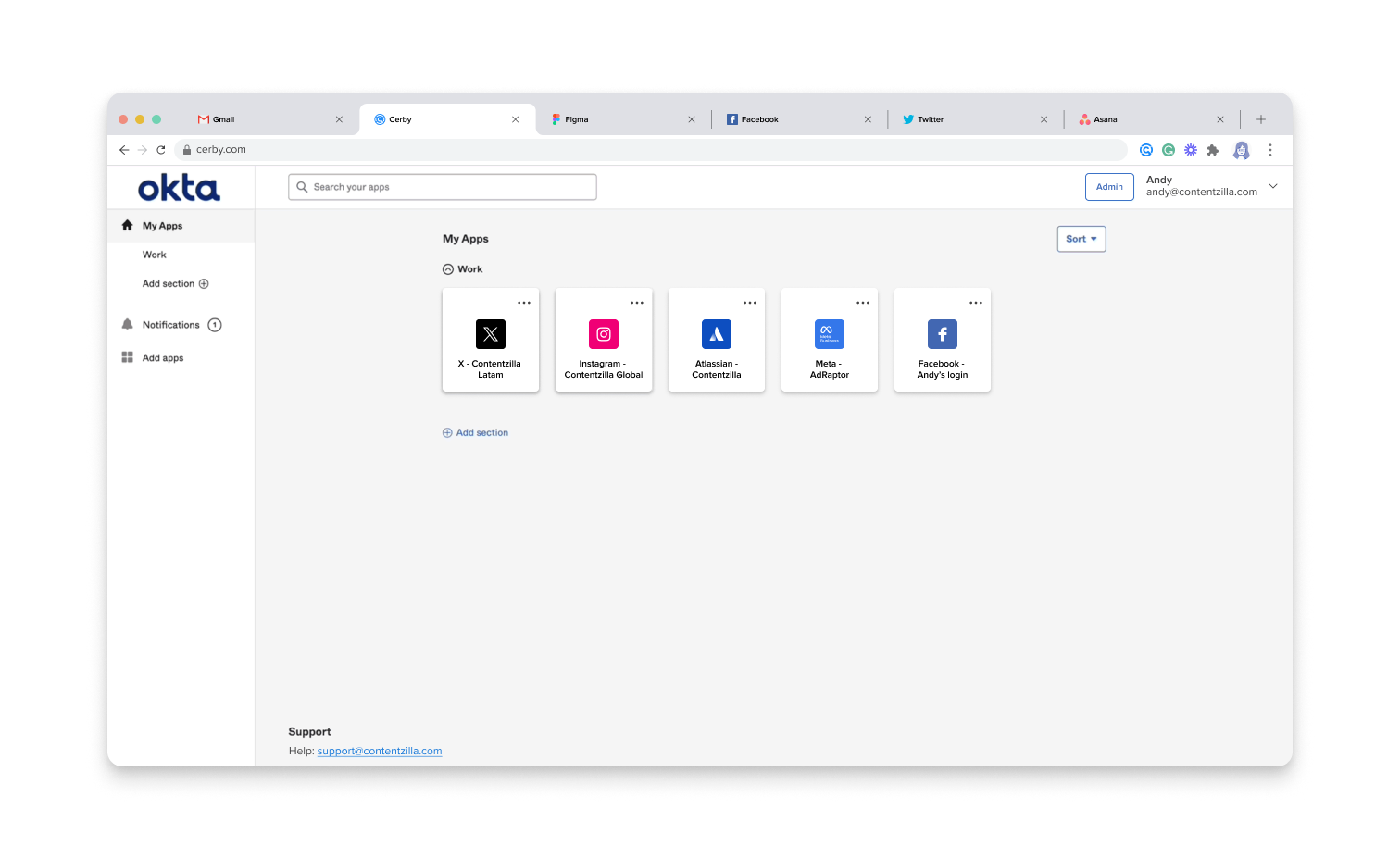
Currently, Cerby supports this feature for Okta. Therefore, Cerby accounts become applications in Okta with their corresponding chiclet on the main page of the dashboard, and user and team grants to the account become individual assignments in Okta.
According to the roles mentioned above, the chiclets are created in the Okta dashboard only for users with the **Owner** or **Collaborator** role on an account, as shown in **Figure 1**.
Figure 1. Chiclets in the Okta dashboard synced from accounts in Cerby
{% hint style="info" %}
**NOTE:** If you are interested in the Extended account access feature but don't see it available in your workspace, contact our Customer Support team via email at .
{% endhint %}
***
## Learn how the Extended account access feature works
When a workspace **Admin**, **Super Admin**, or **Owner** turns on the Extended account access feature and the Cerby Customer Support team enables it, all workspace members can start syncing and extending to Okta the accounts they own.
Data requests from Cerby to Okta are performed through API calls and only for users with a SCIM external ID assigned by Okta to ensure their identity is consistent. The first sync may take from minutes to hours, depending on the number of accounts and users with shared access to them, while subsequent syncs happen faster whenever an update is registered in Cerby.
Because Cerby’s RBAC is the source of truth, IT admins cannot update user and group assignments in Okta to propagate them to Cerby; if they do, Cerby overwrites these changes in the next sync. Additionally, if an IT admin assigns a synced application in Okta to a user who doesn’t have access in Cerby as **Owner** or **Collaborator**, the chiclet will be displayed, but the user will be unable to log in to the account.
The following are the actions synced with Okta as soon as they happen in Cerby:
* Share and remove access from an account to users or teams. This action includes assigning or unassigning users to Okta groups, which propagates to teams in Cerby with shared access to accounts.
* Updates to account labels.
User provisioning and deprovisioning events and account deactivation in Okta via SCIM can impact user access in Okta and Cerby as follows:
* When access to an account is shared via a team in Cerby, and that team is provisioned from an Okta group, new users assigned to the Okta group will see the corresponding Okta chiclet right after the data sync.
* Deprovisioned or deactivated users in Okta lose all access both to the Okta tenant and Cerby workspace; therefore, they lose access to all items. Additionally, Cerby performs automated password rotations for the security of the managed accounts.
{% hint style="danger" %}
**IMPORTANT:** No sensitive data is shared with Okta; all account data remains stored in the corresponding Cerby workspace so users can perform automated logins. The Cerby browser extension is required for the automated login to happen.
{% endhint %}
Each Okta chiclet serves as a bookmark that enables users to trigger an automated login in the Cerby browser extension without additional manual intervention. The automated login process is the following:
1. A user clicks the corresponding chiclet in the Okta dashboard.
2. Okta redirects the user to the Cerby platform. One of the following scenarios occurs depending on whether the user has an active session on the Cerby browser extension or not:
* **Active session:** The Cerby platform detects the active session and proceeds to step 3.
* **Inactive session:** The Cerby platform starts an authentication flow between Cerby and Okta to automatically log the user in to the browser extension, and proceeds to step 3.
3. The Cerby browser extension verifies in Cerby’s RBAC system if the user has access to the account as **Owner** or **Collaborator**. One of the following scenarios occurs depending on whether the user has access to the account or not:
* **Access:** The Cerby browser extension proceeds to step 4.
* **No access: The Cerby browser extension blocks the login process.**
4. The Cerby browser extension performs the automated login by autofilling the username, password, and verification code if Cerby manages multi-factor authentication (MFA).
{% hint style="danger" %}
**IMPORTANT:** Cerby always verifies the RBAC system to ensure users have access to an account through any type of share: account, collection, or team.
{% endhint %}
***
## Related articles
The following articles contain more information about the Extended account access feature:
* [Turn on Extended account access for Okta](https://help.cerby.com/setup-and-admin/workspace-settings/extended-account-access/turn-on-extended-account-access-for-okta)
* [Turn off Extended account access for Okta](https://help.cerby.com/setup-and-admin/workspace-settings/extended-account-access/turn-off-extended-account-access-for-okta)
* [Update the Extended account access settings for Okta](https://help.cerby.com/setup-and-admin/workspace-settings/extended-account-access/update-the-extended-account-access-settings-for-okta)
* [Log in to your extended accounts from Okta chiclets](https://help.cerby.com/cerby-web-app/accounts/extending-your-accounts-to-okta/log-in-to-your-extended-accounts-from-an-okta-chiclet)
* [Sync and extend an account to Okta](https://help.cerby.com/cerby-web-app/accounts/extending-your-accounts-to-okta/sync-and-extend-an-account-to-okta)
* [View the status of an extended account](https://help.cerby.com/cerby-web-app/accounts/extending-your-accounts-to-okta/view-the-status-of-an-extended-account)
* [Remove an account extended to Okta](https://help.cerby.com/cerby-web-app/accounts/extending-your-accounts-to-okta/remove-an-account-extended-to-okta)
* [Troubleshooting Extended account access](https://help.cerby.com/tips-and-troubleshooting/troubleshooting/extended-account-access/troubleshooting-extended-account-access)
---
# Agent Instructions
This documentation is published with GitBook. GitBook is the documentation platform designed so that both humans and AI agents can read, navigate, and reason over technical content effectively. Learn more at gitbook.com.
## Querying This Documentation
If you need additional information that is not directly available in this page, you can query the documentation by asking a question.
Perform an HTTP GET request on the following URL with the `ask` and `goal` query parameters:
```
GET https://help.cerby.com/getting-started/concepts/credential-management/extended-account-access.md?ask=&goal=
```
`ask` is the immediate question: it should be specific, self-contained, and written in natural language.
`goal` is what the user is ultimately trying to achieve, the reason they need the answer. Sharing it helps GitBook give you a better, more relevant answer. A goal is most helpful when it describes the outcome the user wants rather than restating the question. For example, with `ask=how do I create an API token`, a goal like `automate deployments from our CI pipeline` lets GitBook tailor the answer to that use case.
The response will contain a direct answer to the question and relevant excerpts and sources from the documentation.
Use this mechanism when the answer is not explicitly present in the current page, you need clarification or additional context, or you want to retrieve related documentation sections.