# Secrets

With Cerby, you have a secure way to save and share your important corporate information through **Secrets**. This feature helps you write, edit, view, and share text-based information and attachments with other users and teams in Cerby.

Currently, Cerby supports the following secret items:

* **Secret:** It is the equivalent of a secure note in a password management platform. A secret contains sensitive and valuable information to which you want to restrict access.
* **WiFi:** It contains information about your WiFi network.
* **SSH keys:** They contain the Secure Shell (SSH) key pairs and details, such as passphrases, for secure remote access to servers and systems.
* **Database:** It contains the login credentials and details of a database, such as MySQL, Oracle, or SQL Server.
* **Server:** It contains the login credentials and details of a server.
* **Software license:** It contains vital information about a software license, such as the license key, the publisher, and support contact.
* **Custom item:** It contains customized information that doesn’t fit any of the other secret types.

{% hint style="info" %}
**NOTE:** You can add attachments to any secret item. For more information on the size limits and supported formats of secrets and attachments, read the [Attachment and input specifications](#attachment-and-input-specifications) section.
{% endhint %}

You can set up the following protection measures for your secrets:

* Set up an identity confirmation challenge for other workspace users who want to view or edit a secret that was shared with them. Identity challenges are also required for other actions. For more information, read the article [Confirm your identity with Cerby's MFA methods](https://help.cerby.com/tips-and-troubleshooting/best-practices/set-up-your-identity-with-cerby-s-mfa-methods).
* Make a secret temporary by setting up an expiration date, after which the secret is automatically deleted. For more information about this feature, read the [Temporary secrets](#temporary-secrets) section.

You can add your secret items and attachments to Cerby manually or import them from your [LastPass](https://help.cerby.com/cerby-web-app/item-importer/migrate-from-lastpass-to-cerby), [1Password](https://help.cerby.com/cerby-web-app/item-importer/migrate-from-1password-to-cerby), or a [CSV file](https://help.cerby.com/cerby-web-app/item-importer/import-your-items-from-a-csv-file-to-cerby). When you add a secret item manually, you automatically become its **Owner**, and when you share it with other workspace users or teams, you can assign them one of the following two roles:

* **Owner:** They can share access, edit, add attachments, and manage the secret item settings.
* **Collaborator:** They can only view the secret item and download the attachments.

For more information about roles and the actions users can perform on a secret item, read the article [Roles and permissions](/getting-started/concepts/user-management/roles-and-permissions.md).

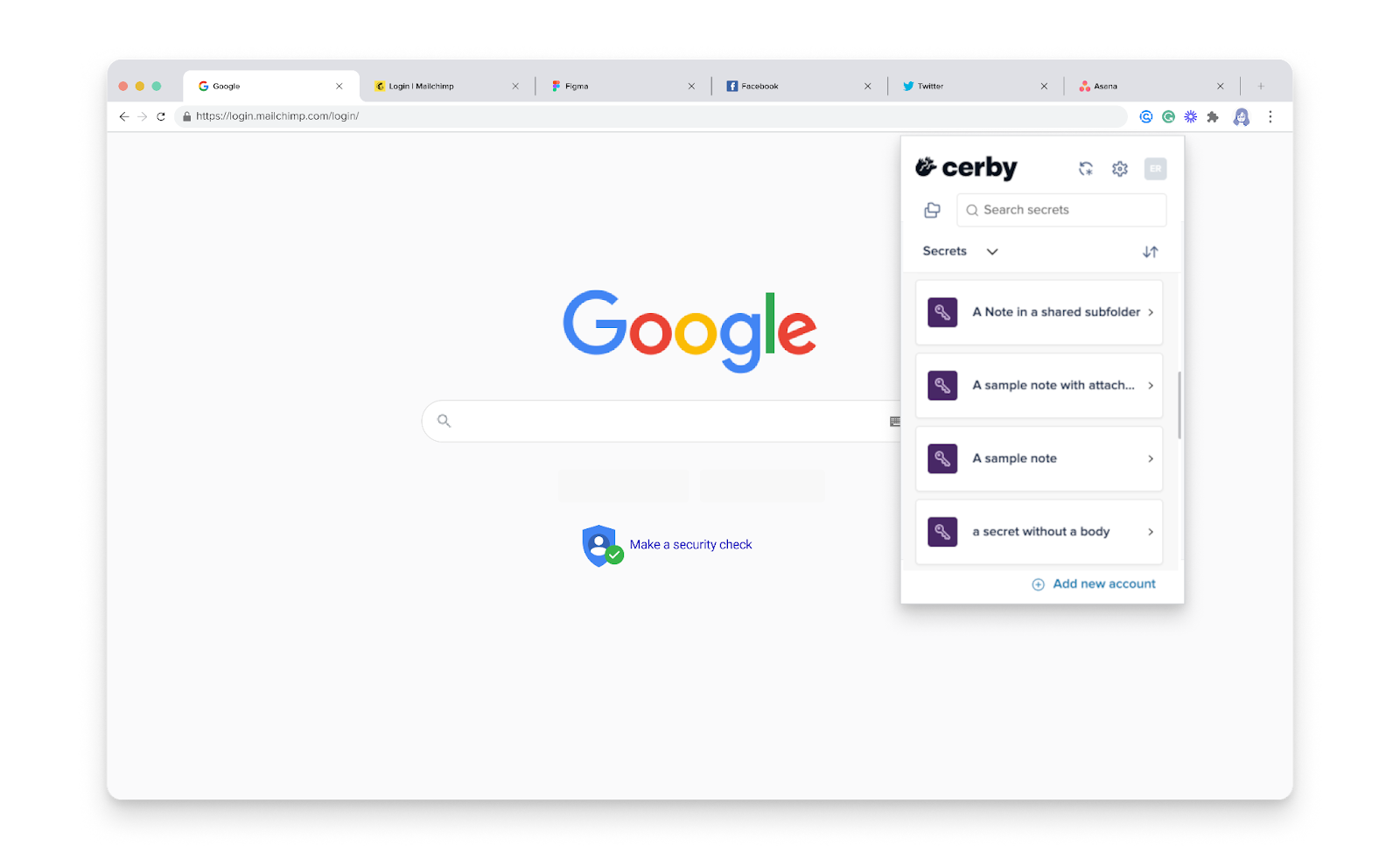
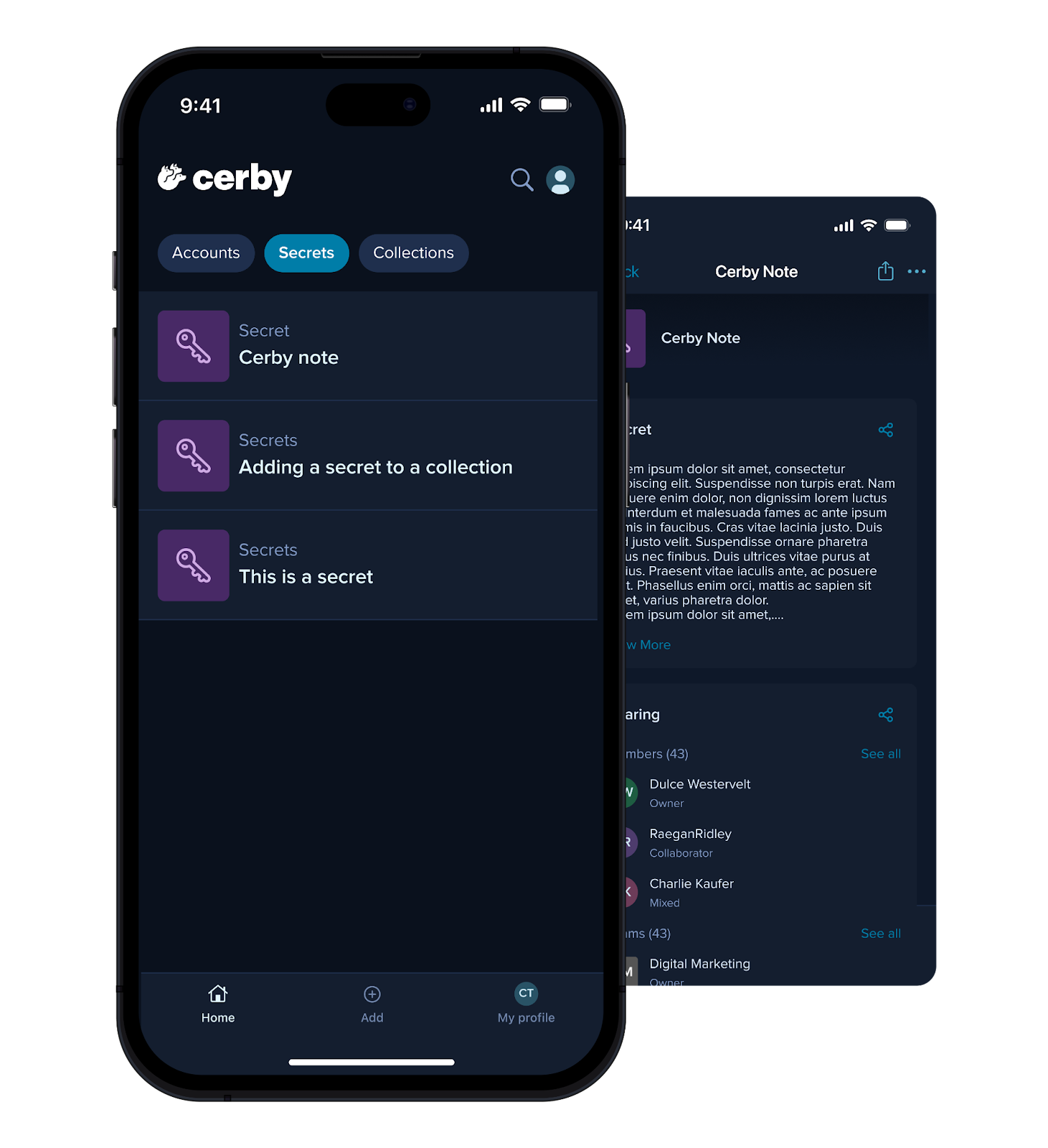
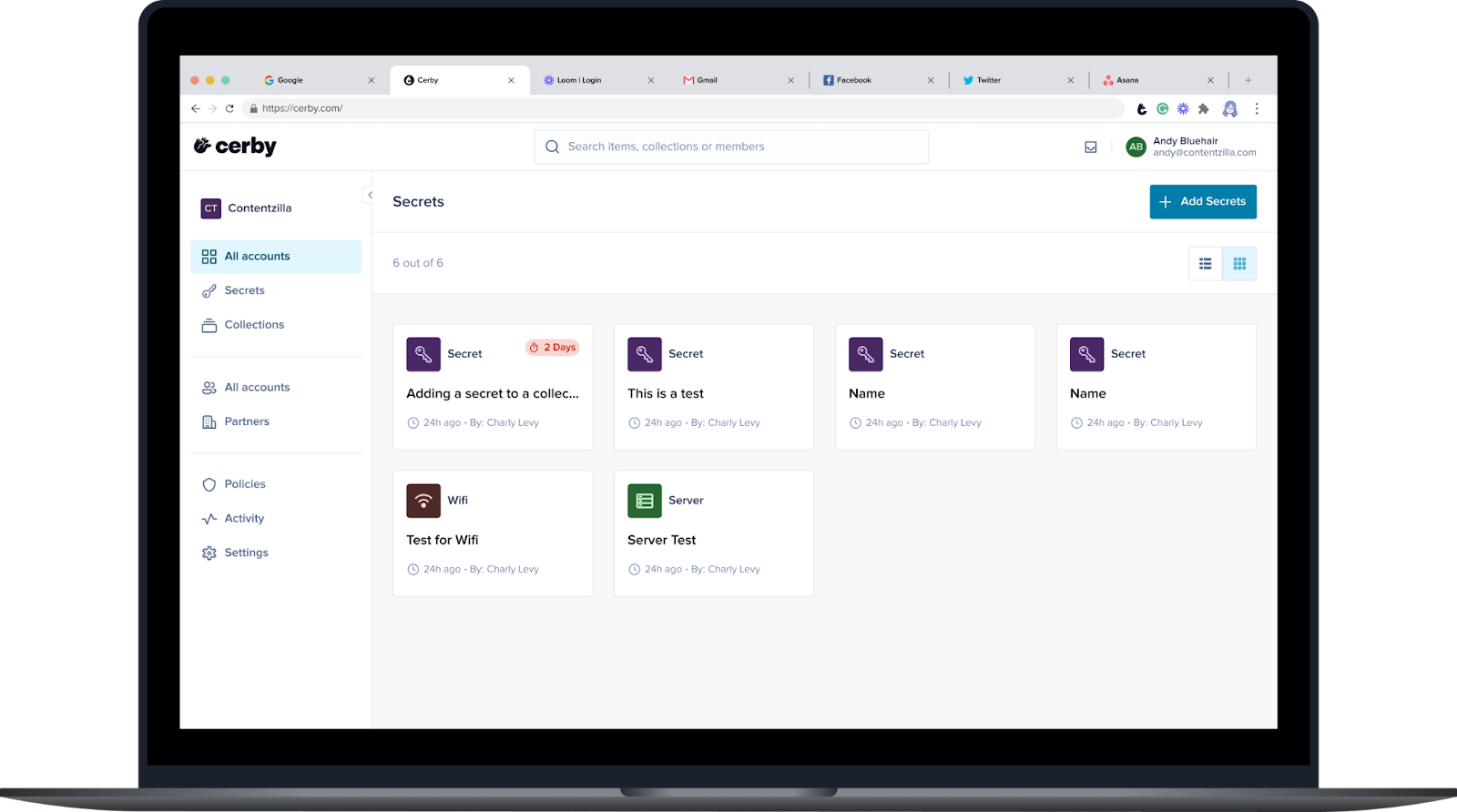
All secret types are displayed as cards in your dashboard, whether you use the Cerby web app, browser extension, or mobile app. **Figure 1**, **Figure 2**, and **Figure 3** show secret cards on these client apps, respectively.

<figure><img src="/files/URzShWgLmLpGY6DmNFXc" alt="Alt-text: Screenshot of the Cerby web app dashboard. The Secrets page is displayed with multiple secret cards and a button at the top right to add a secret."><figcaption><p>Figure 1. Secret cards in the Secrets view of the Cerby web app dashboard</p></figcaption></figure>

<figure><img src="/files/lW66ALS6hpdzWgkMegpZ" alt="Alt-text: Screenshot of the Cerby browser extension popup on top of a website. The Secrets tab is activated with a list of secret cards."><figcaption><p>Figure 2. Secret cards in the Secrets tab of the Cerby browser extension dashboard</p></figcaption></figure>

<figure><img src="/files/8wNRzVwWNm53NX9I52WG" alt=""><figcaption><p>Figure 3. Secret cards in the Secrets tab of the Cerby mobile app dashboard</p></figcaption></figure>

***

## Attachment and input specifications

The following are the specifications on the size limits and supported formats of secrets, secret items, and attachments:

* **Notes field:** You can enter up to 45,000 characters in the **Notes** field of a secret and secret item.
* **Input fields** : You can enter up to 255 characters in the input fields, except the **Notes** field, of any secret and secret item.
* **Password field:** Secret items that support the **Password** field (such as server, database, and WiFi) have their value masked.
* **Attachments:** You can add as many file attachments as you want to a secret, and these files must not exceed 10 MB in size. The following are the supported file formats:
  * CSV
  * JSON
  * DOC
  * DOCX
  * ODT
  * PPT
  * PPTX
  * TXT
  * LOG
  * XLS
  * XLSX
  * PDF
  * PNG
  * JPG
  * JPEG
  * MPEG
  * MP4
  * M4A
  * WAV
  * AVI
  * RTF
  * HTML
  * HTM
  * MOV
  * TIFF
  * TIF
  * WMV
  * ZIP
  * RAR
  * KEY
  * P7B
  * P7C
  * P7R
  * P8
  * P10
  * P12
  * CSR
  * CER
  * CRL
  * CRT
  * DER
  * PEM
  * PFX
  * SPC
  * CERT

***

## Temporary secrets

Secrets can be set as temporary to enhance protection and streamline secret management. Upon reaching the specified expiration time, they are automatically deleted.

Currently, you can only make a secret temporary when you are adding the secret to Cerby using the Cerby web app. Additionally, as a secret **Owner**, you can edit the expiration whenever and as many times as you want before reaching the expiration date.

The following rules apply to a temporary secret:

* Only secrets can be temporary; all other secret items, like databases and servers, don't support this feature.
* The expiration time is limited from one day to one month or 30 days.
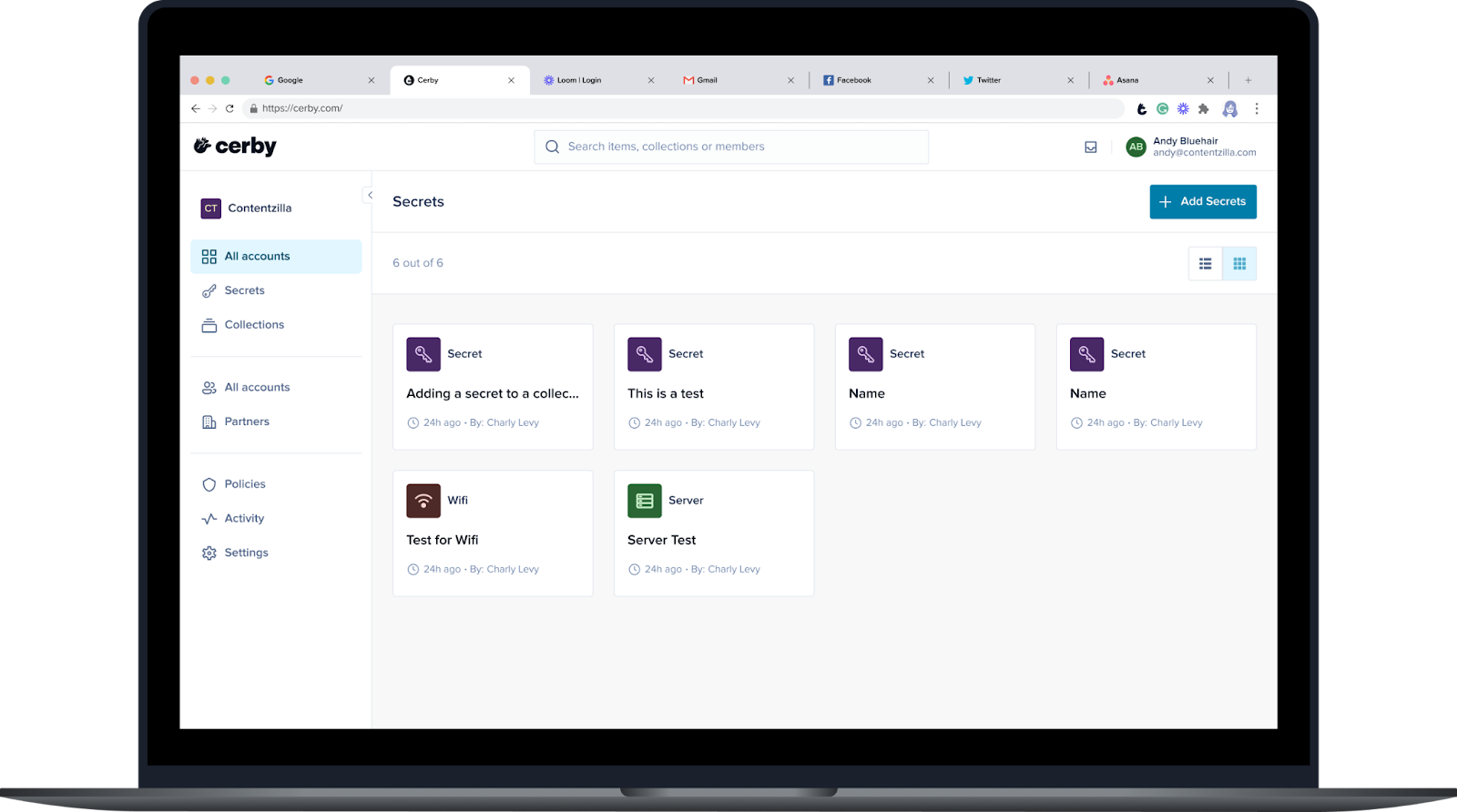
* Temporary secret cards have a visual identifier in the dashboard indicating the remaining days until expiration, as shown in **Figure 4**. You can also view and edit the expiration time on the secret details page.

<figure><img src="/files/TtKAwpbErNSd4yFuugLW" alt="Screenshot of the Cerby web app dashboard. The Secrets page is displayed with multiple secret cards. The temporary secret card has an identifier of “2 Days” indicating the remaining days until expiration."><figcaption><p>Figure 4. Temporary secret card in the Secrets page of the Cerby web app dashboard</p></figcaption></figure>

* Deletion events after the expiration time are logged in the **Activity** page.
* When secrets are deleted after expiration, they are unrecoverable.

***

## Related articles

The following articles contain more information about the Secrets feature:

* [Add a secret](https://help.cerby.com/cerby-web-app/secrets/managing-your-secrets/add-a-secret)
* [Add a WiFi item](https://help.cerby.com/cerby-web-app/secrets/managing-your-secrets/add-a-wifi-item)
* [Add an SSH key item](https://help.cerby.com/cerby-web-app/secrets/managing-your-secrets/add-an-ssh-key-item)
* [Add a database item](https://help.cerby.com/cerby-web-app/secrets/managing-your-secrets/add-a-database-item)
* [Add a server item](https://help.cerby.com/cerby-web-app/secrets/managing-your-secrets/add-a-server-item)
* [Add a software license item](https://help.cerby.com/cerby-web-app/secrets/managing-your-secrets/add-a-software-license-item)
* [Add a custom item](https://help.cerby.com/cerby-web-app/secrets/managing-your-secrets/add-a-custom-item)
* [View a secret](https://help.cerby.com/cerby-web-app/secrets/managing-your-secrets/view-a-secret)
* [View a secret item](https://help.cerby.com/cerby-web-app/secrets/managing-your-secrets/view-a-secret-item)
* [Edit a secret](https://help.cerby.com/cerby-web-app/secrets/managing-your-secrets/edit-a-secret)
* [Edit a secret item](https://help.cerby.com/cerby-web-app/secrets/managing-your-secrets/edit-a-secret-item)
* [View the secret history and restore a secret](https://help.cerby.com/cerby-web-app/secrets/managing-your-secrets/view-the-secret-history-and-restore-a-secret)
* [Manage access to your secrets and secret items](https://help.cerby.com/cerby-web-app/secrets/managing-access-to-your-secrets/share-a-secret-or-secret-item)
* [Manage the attachments of a secret and secret item](https://help.cerby.com/cerby-web-app/secrets/managing-your-secrets/manage-the-attachments-of-a-secret-and-secret-item)
* [Delete a secret and secret item](https://help.cerby.com/cerby-web-app/secrets/managing-your-secrets/delete-a-secret-and-secret-item)
* [Monitor events on the Activity page](https://help.cerby.com/cerby-web-app/activity/monitor-events-in-the-activity-page)


---

# Agent Instructions: Querying This Documentation

If you need additional information that is not directly available in this page, you can query the documentation dynamically by asking a question.

Perform an HTTP GET request on the current page URL with the `ask` query parameter:

```
GET https://help.cerby.com/getting-started/concepts/credential-management/secrets.md?ask=<question>
```

The question should be specific, self-contained, and written in natural language.
The response will contain a direct answer to the question and relevant excerpts and sources from the documentation.

Use this mechanism when the answer is not explicitly present in the current page, you need clarification or additional context, or you want to retrieve related documentation sections.