# Members

At Cerby, members are individuals with a user account to access an organization’s workspace.

When a workspace is connected to an identity provider (IdP), such as Okta or Entra ID, user accounts are synced with the corporate directory. Therefore, their access to Cerby can be automatically granted or revoked by IT admins based on provisioning and deprovisioning events, respectively, in the IdP.

Meanwhile, user accounts in local workspaces are provisioned by Cerby and managed by IT admins. For more information, read the article [Create a local workspace](https://help.cerby.com/setup-and-admin/workspace-identity-federation/local-workspace/create-and-configure-a-local-workspace).

***

## The All Members page

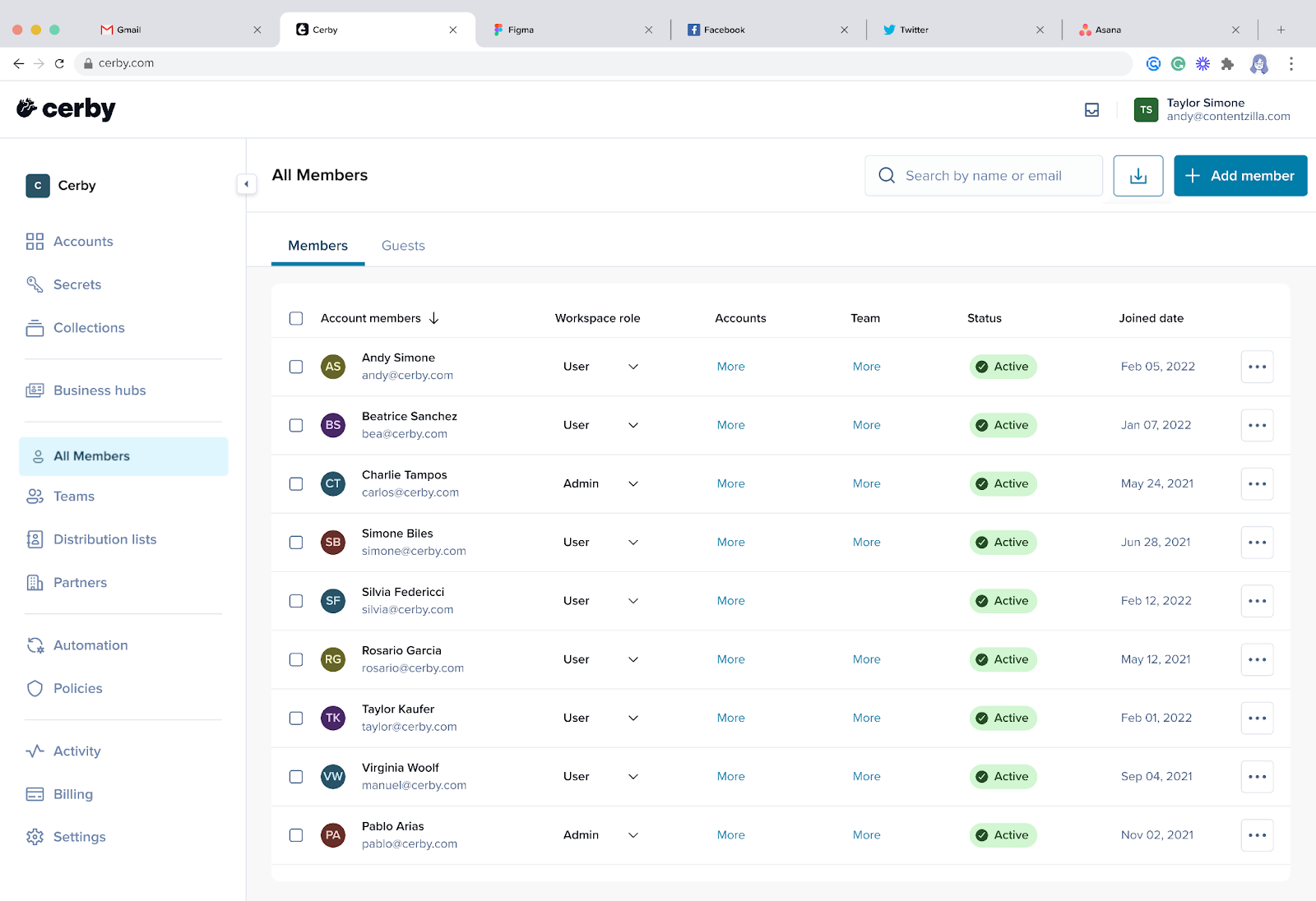
The **All Members** page, as shown in **Figure 1**, contains tables with all the workspace members and guest users. This page is accessible only to workspace **Admins**, **Super Admins**, and **Owners**.

<figure><img src="/files/hLs3SV4uDPo9oUsEi5Ab" alt="Screenshot of the Cerby web app dashboard. The All Members page is displayed with a table of workspace members"><figcaption><p>Figure 1. All Members page in the Cerby web app dashboard</p></figcaption></figure>

The table in the **All Members** tab provides information about workspace members in the following columns:

* **Account members:** It lists the username and email address of each member.
* **Workspace role:** It lists the workspace role of each member:
  * **Owner**
  * **Super Admin**
  * **Admin**
  * **User**
  * **Login-Only**

For more information about roles, read the article [Roles and permissions](/getting-started/concepts/user-management/roles-and-permissions.md).

* **Accounts:** It lists a More button for each member to view all the accounts to which the member has shared access as **Owner** or **Collaborator**.
* **Team:** It lists a **More** button for each member to view all the teams to which the member belongs.
* **Status:** It lists the status of the member:
  * **Active:** It means the Cerby user account was created and configured.
  * **Pending:** It means the Cerby user account was created, but the member has not configured it.
  * **Removed:** It means the Cerby user account was removed from the Cerby workspace.
* **Joined date:** It lists the date when each member’s Cerby user account was configured.
* **Last activity:** It lists the date when each member was last active in the workspace.
* **Unnamed column:** The table contains an unnamed column that lists a **More options** (...) icon for each member with the following options in a drop-down menu:
  * **Export:** It exports the member details in a CSV file.
  * **Trigger Universal Logout:** It triggers the [Cerby Universal Logout](https://help.cerby.com/setup-and-admin/security-governance/universal-logout/trigger-cerby-universal-logout) feature.
  * **Remove from workspace:** It removes the member from the workspace by disabling their user account.

The table in the **Guests** tab provides information about users with the **Guest User** workspace role. It contains the same columns as the table in the **Members** tab, except for **Workspace role** ; additionally, in the **More options** (...) drop-down menu, you can select the **Reset** **MFA** and **Force Password Reset** options.

The **All Members** page also contains a search bar to look up workspace members by their name or email address.

An **Export** (<img src="/files/vy5dM9mJKHF4v5LUQvgG" alt="" data-size="line">) icon located at the top right of the page enables you to export the information of the members table in a CSV file. For more information, read the article Export the workspace members.


---

# Agent Instructions: Querying This Documentation

If you need additional information that is not directly available in this page, you can query the documentation dynamically by asking a question.

Perform an HTTP GET request on the current page URL with the `ask` query parameter:

```
GET https://help.cerby.com/getting-started/concepts/user-management/members.md?ask=<question>
```

The question should be specific, self-contained, and written in natural language.
The response will contain a direct answer to the question and relevant excerpts and sources from the documentation.

Use this mechanism when the answer is not explicitly present in the current page, you need clarification or additional context, or you want to retrieve related documentation sections.
