# Connect a business hub for Meta Business Manager

{% hint style="info" %}
**Who can use this feature?**

* Workspace **Owners**, **Super Admins**, **Admins**, and **Users**
* Only supported using the Cerby web app
  {% endhint %}

As a user with any workspace role in Cerby, except **Guest User** and **Login-Only**, you can connect a business hub integration to centrally manage the users and assets (such as Facebook Pages and Ad accounts) of Meta Business Manager (now Meta Business Portfolio).

When you connect the business hub, you become its **Owner**, and you can perform the following user and access management tasks through automated tasks and API calls executed by the Cerby agent:

* Check for updates
* Add users
* Update user roles
* Remove users

{% hint style="success" %}
**TIP:** For more details about the automated tasks of a business hub, how it works, and the supported apps, read the article [Explore Business Hubs](https://help.cerby.com/setup-and-admin/business-hubs/business-hub-catalog).
{% endhint %}

Additionally, you can perform the following actions to manage access to your Meta Business Manager for external collaborators:

* Invite users to your workspace as [guest users](https://help.cerby.com/getting-started/concepts/user-management/guest-users) or [local partners](https://help.cerby.com/getting-started/concepts/user-management/partners#h-7e4add33a2), with secure credentials provided and managed by Cerby.
* Connect a [native partner](https://help.cerby.com/getting-started/concepts/user-management/partners#h-e7fa9c355c) to your workspace to gain visibility on the partner’s users with shared access to the assets of your Meta Business Manager. For more information, read the article [Connect a Meta Business Manager native partner to Cerby](/setup-and-admin/business-hubs/connecting-your-paid-social-apps/meta-business-manager/connect-a-meta-business-manager-native-partner-to-cerby.md).

This article provides instructions on how to connect a business hub for ChatGPT. For other app-specific articles and videos, review the [Connecting business hubs for your apps](https://help.cerby.com/setup-and-admin/business-hubs/connecting-your-apps) and [Connecting business hubs for your paid social apps](https://help.cerby.com/setup-and-admin/business-hubs/connecting-your-paid-social-apps) collections in the Cerby Help Center.

***

## Requirements

The following are the requirements to connect the business hub:

* Meta Business Manager
  * A user account with the **Full control** role on your Meta Business Manager
  * An existing primary page associated with your Meta Business Manager. For instructions, read the article [Change your primary Page in Meta Business Suite or Business Manager](https://www.facebook.com/business/help/1809771339071540?id=180505742745347)
  * The user management and login method for your business hub identified to select the corresponding option when connecting your app. For more information, read the **User management and login method** section of the article [Explore Business Hubs](https://help.cerby.com/setup-and-admin/business-hubs/business-hub-catalog)
  * The Business Manager ID of your Meta Business Manager. To find it, complete the instructions in the article [Find your business ID in Meta Business Manager](https://www.facebook.com/business/help/1181250022022158?id=180505742745347)
* Cerby
  * A Cerby workspace
  * A Cerby user account with the **Owner**, **Super Admin**, **Admin**, or **User** role
  * Groups configured in your identity provider (IdP) If you want to leverage automatic user provisioning and deprovisioning from your apps based on group assignment events. For more information, read the articles available in the [Managing users via an IdP and business hub](https://help.cerby.com/setup-and-admin/business-hubs/managing-users-and-assets-via-a-business-hub) collection in the Cerby Help Center

***

## Connect a business hub for Meta Business Manager

To connect a business hub for Meta Business Manager, you must complete the following main steps in Meta and the Cerby web app dashboard:

1. [Connect your Meta Business Manager to the Cerby Assets Manager app](#id-1.-connect-your-meta-business-manager-to-the-global-assets-manager-app)
2. [Create a system user in Meta Business Manager](#id-2.-create-a-system-user-in-meta-business-manager)
3. [Generate a token for the Meta Business Manager system user](#id-3.-generate-a-token-for-the-meta-business-manager-system-user)
4. [Add a business hub and connect it to Meta Business Manager](#id-4.-add-a-business-hub-and-connect-it-to-meta-business-manager)
5. [Check for updates to import users, roles, and assets to Cerby](#id-5.-check-for-updates-to-import-users-roles-and-assets-to-cerby)
6. [Connect your Meta Business Manager user account to the business hub](#id-6.-connect-your-meta-business-manager-user-account-to-the-business-hub)
7. [Auto-claim the Owner role in Cerby](#id-7.-auto-claim-the-owner-role-in-cerby)
8. [Manage unmatched users](#id-8.-manage-unmatched-users)

The following sections describe each main step.

### 1. Connect your Meta Business Manager to the Global Assets Manager app

To connect your Meta Business Manager to the Global Assets Manager app, you must complete the following steps:

1. Log in to your [Meta Business Manager](https://business.facebook.com/).
2. Navigate to your business portfolio.
3. Select the **Settings** option from the left navigation drawer. The **Settings** view is displayed.
4. Select the **Apps** option from the **Accounts** drop-down menu in the left pane. The **Apps** page is displayed.
5. Click the **Add** button. The **What do you want to do?** dialog box is displayed.
6. Select the **Request access to an app ID** option. The **Request an app** dialog box is displayed. ​**NOTE:** If the **How Will You Work With Cerby, Inc.?** dialog box is displayed instead the **Request an app** dialog box, complete the following steps: a. Select the **Other** option. b. Enter **Security provider to help with identity and access governance** in the **Other** input field. c. Click the **Next** button. The **Request an app** dialog box is displayed.
7. Enter **1084910789409157** in the **App ID** field.
8. Click the **Request app** button. The dialog box closes.

The next step is [2. Create a system user in Meta Business Manager](#id-2.-create-a-system-user-in-meta-business-manager).

### 2. Create a system user in Meta Business Manager

To create a system user with an **Admin** role in Meta Business Manager, you must complete the following steps in your Meta Business Manager:

{% hint style="info" %}
**NOTE:** Meta allows having only one system user with an **Admin** role. If you already have a system user, you can reuse it for this configuration.
{% endhint %}

1. Select the **System users** option from the **Users** drop-down menu in the left pane. The **System users** page is displayed.

**NOTE:** If you have already created a system user with an **Admin** role, continue to step 6.

2. Click the **Add** button. The **Create system user** dialog box is displayed.
3. Enter a name for the system user in the **System user name** field. For example, **Cerby**.
4. Select the **Admin** option from the **System user role** drop-down menu.
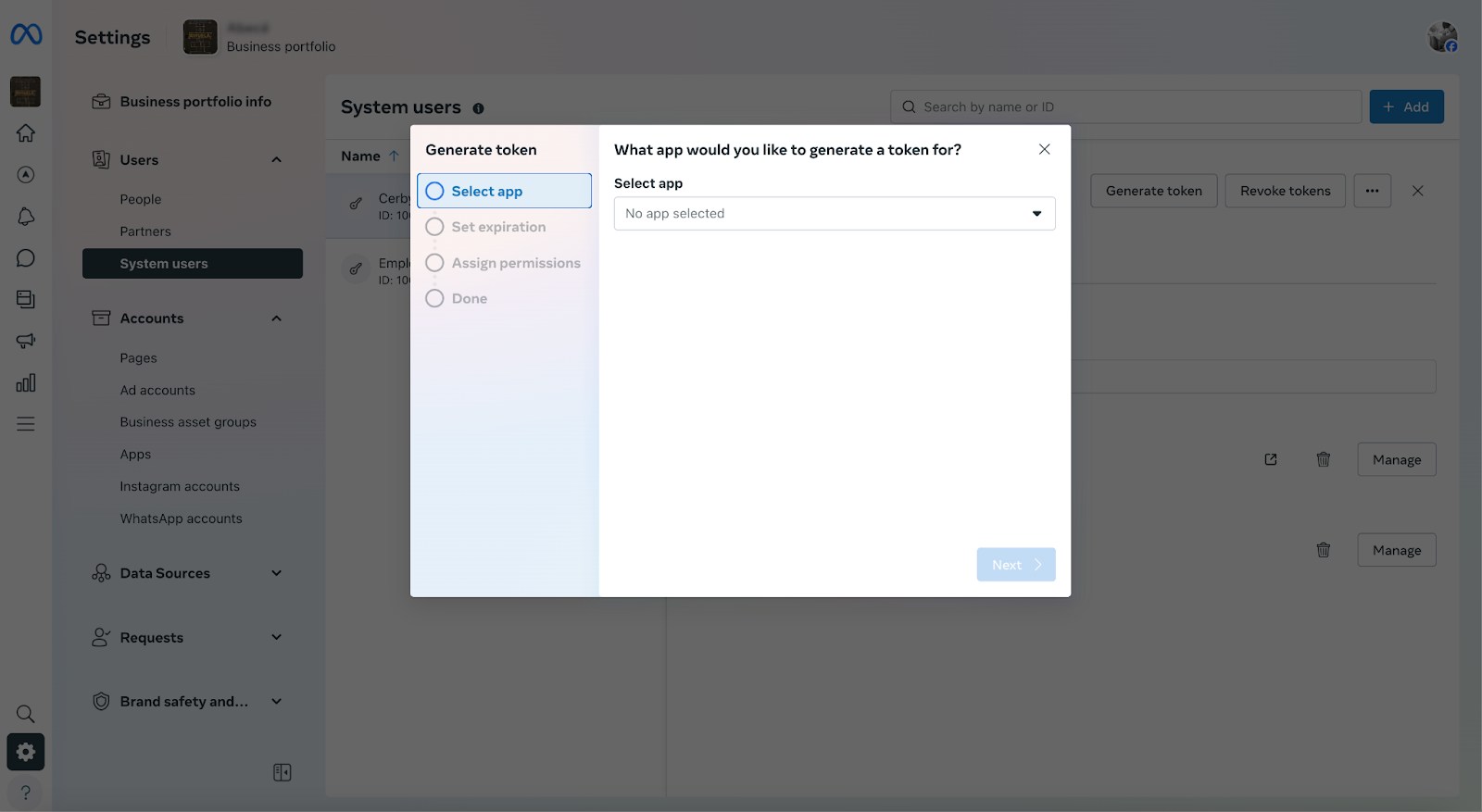
5. Click the **Create system user** button. The dialog box closes, and the **Cerby** system user is displayed on the **System users** page, as shown in **Figure 1**.

   <figure><img src="/files/czbthVpvNfqEGX72IvYO" alt=""><figcaption><p>Figure 1. System Users page</p></figcaption></figure>
6. Note down the **ID** of the system user.
7. Contact the Cerby Support team via email at <support@cerby.com> or through the help chat to let them know that you have requested access to the Global Assets Manager app. Also, you must share the system user **ID** with them.

{% hint style="danger" %}
**IMPORTANT:** Take the following into consideration:

* Meta may restrict user management actions from Cerby (add, update, and remove users) for at least seven days after creating a system user. Therefore, Cerby recommends waiting seven days to start managing access to Meta Business Manager through your business hub.
* You must wait until the Cerby Support team grants you access to the Global Assets Manager app to continue. On the **Apps** page, the Global Assets Manager app must change its status from “Request sent” to active with the “Cerby, Inc. owns this” message.
  {% endhint %}

The next step is [3. Generate a token for the Meta Business Manager system user](#id-3.-generate-a-token-for-the-meta-business-manager-system-user).

### 3. Generate a token for the Meta Business Manager system user

To generate a token for the Meta Business Manager system user, you must complete the following steps in your Meta Business Manager:

1. Select the **System users** option from the **Users** drop-down menu in the left pane. The **System users** page is displayed.
2. Select the system user with the **Admin** role. A collapsible pane is displayed to the right with the details of the system user.
3. Generate and copy the token by completing the following steps:

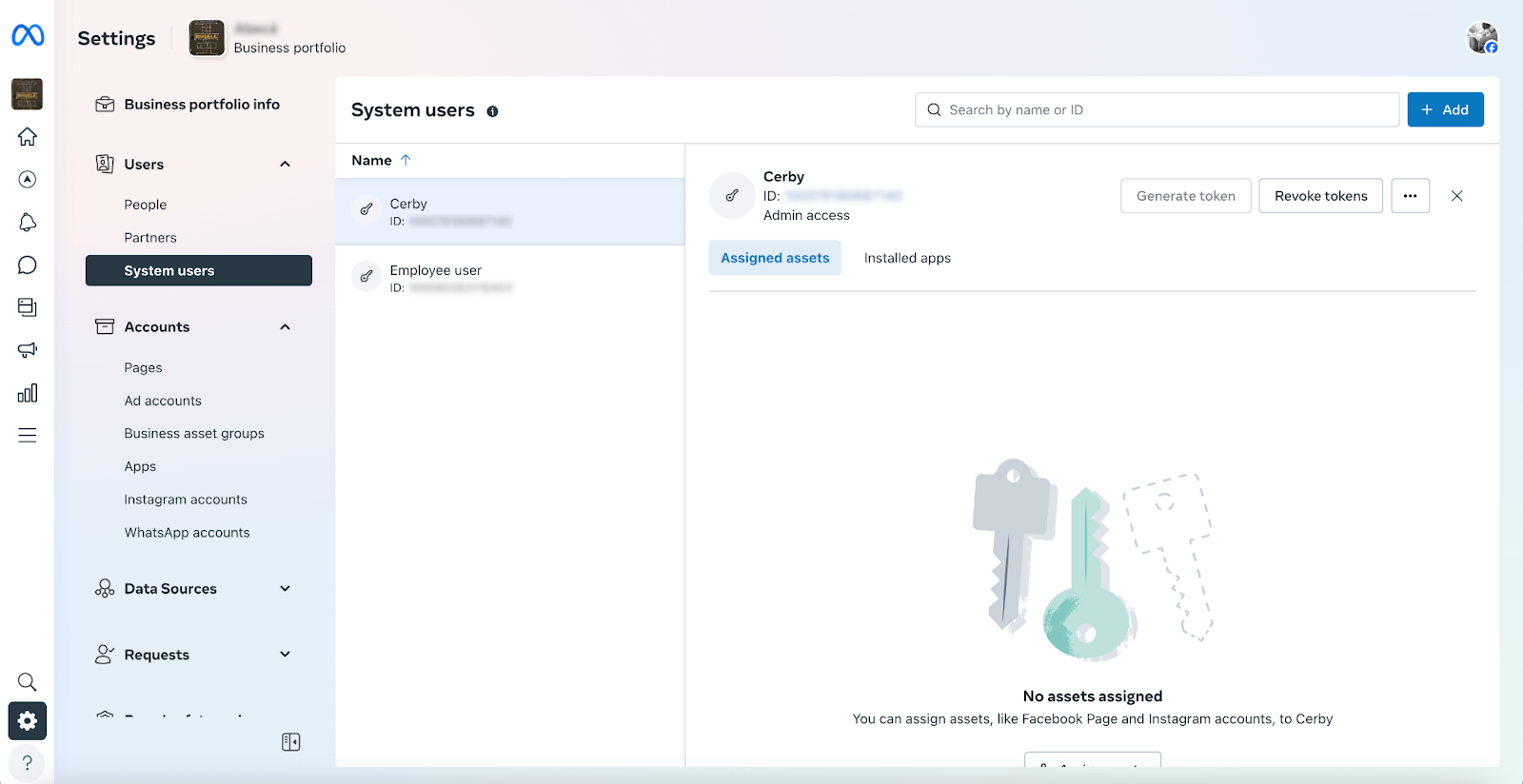
   1. Click the **Generate token** button. The **Generate token** wizard is displayed on the **Select app** page, as shown in **Figure 2**.

   <figure><img src="/files/ZiK6BI0itZL3VUP0T3iT" alt=""><figcaption><p>Figure 2. Select app page of the Generate token wizard</p></figcaption></figure>

   2. Select the **Global Assets Manager** option from the **Select app** drop-down menu.
   3. Click the **Next** button. The **Set expiration** page of the wizard is displayed.
   4. Select the **Never** option from the **Token expiration** section.
   5. Click the **Next** button. The **Assign permissions** page of the wizard is displayed.
   6. Select the following options from the **Select permissions** drop-down menu:
      * **ads\_management**
      * **business\_management**
      * **catalog\_management**
      * **pages\_manage\_metadata**
      * **pages\_read\_engagement**
      * **pages\_show\_list**
   7. Click the **Generate token** button. The **Done** page of the wizard is displayed with the token.
   8. Click the **Copy** button to copy the token so you can save it, because you need it later.
   9. Click the **Done** button. The wizard closes.
4. Assign the Global Assets Manager app to your system user by completing the following steps:
   1. Select the system user with the **Admin** role for which you generated the token.
   2. Click the **More options** (...) icon located at the top right of the main section. A drop-down menu is displayed.
   3. Select the **Assign Assets** option from the menu. The **Select assets and assign permissions** dialog box is displayed.
   4. Select the **Apps** option from the left pane.
   5. Select the **Global Assets Manager** option from the middle pane.
   6. Activate the **Develop app**switch from the right pane.
   7. Click the **Assign assets** button. A success dialog box for the assigned assets is displayed.
   8. Click the **Done** button. The dialog box closes.

The next step is [4. Add a business hub and connect it to Meta Business Manager](#id-4.-add-a-business-hub-and-connect-it-to-meta-business-manager).

### 4. Add a business hub and connect it to Meta Business Manager

To add a business hub and connect it to Meta Business Manager, you must complete the following steps in the Cerby platform:

1. Log in to your corresponding [Cerby](https://app.cerby.com/) workspace.
2. Select the **Business Hubs** option from the left menu. The **Business Hubs** page is displayed.
3. Click the **Connect Business Hub** button located at the top-right corner of the page. The **Connect your Business Hubs to Cerby** dialog box is displayed. ​**TIP:** Select the **Don’t show this again** option to skip this step the next time you connect a new business hub.
4. Click the **Get started** button. A wizard is displayed on the **Select app** page.
5. Select **Meta Business** from the catalog. The **Enter app details** page is displayed on the wizard.
6. Enter and select your app information in the corresponding fields:
   * **Label in Cerby:** It is the name to assign to your business hub in Cerby, and it will be displayed on the business hub card.
   * **Access Token:** It is the token that you’ve previously generated in your Meta Business Manager.
   * **Business ID:** It is your Meta Business Manager ID. For instructions on how to find it, read the [Requirements](#requirements) section.
   * **App Id:** It is the ID of the Global Assets Manager app to which you requested access previously: **1084910789409157**.
   * **User management and login method:** It is the way your users log in to the app and determines whether they must save their login credentials as a Cerby account connected to the business hub. You must select one of the following methods:
     * **Single sign-on (SSO):** Access is managed by your identity provider, and users log in with SSO authentication. They are not asked to save their credentials in Cerby.
     * **Username and password:** Cerby manages account security and access, and users log in with their credentials after saving them in Cerby.
7. Click the **Connect app** button. The wizard closes, and a success message box is displayed. The corresponding business hub is also displayed on the **Business Hubs** page.

The next step is [5. Check for updates to import users, roles, and assets to Cerby](#id-5.-check-for-updates-to-import-users-roles-and-assets-to-cerby).

### 5. Check for updates to import users, roles, and assets to Cerby

To check for updates in your app to identify and import users, roles, and assets to Cerby, you must complete the following steps in the Cerby platform:

1. Select the **Business Hubs** option from the left menu. The **Business Hubs** page is displayed.
2. Click the **More options** (...) icon of the corresponding business hub card. A drop-down menu is displayed.
3. Select the **Settings** option from the menu. The business hub details page is displayed with the **Settings** tab activated.
4. Click the **Sync** button located at the top right of the page. A message box is displayed with information about the process. ​**NOTE:** The check and import process may take a few minutes depending on the number of users, and because Cerby automatically matches users to their corresponding Cerby user account.
5. Confirm that the automated task to check for updates has the “Completed” status by performing any of the following actions:
   * Click the **More details** button from the message box.
   * Select the **Automation** option from the left menu to open the **Automation** page with a list of automated tasks and their status.

{% hint style="info" %}
**NOTE:** Cerby automatically performs daily checks for updates for all business hubs, but you can trigger them manually, as described in this section. For more instructions, read the article [Sync your app users with your business hub](/setup-and-admin/business-hubs/managing-users-and-assets-via-a-business-hub/sync-your-business-hub-with-your-external-app.md).
{% endhint %}

The next step is [6. Connect your Meta Business Manager user account to the business hub](#id-6.-connect-your-meta-business-manager-user-account-to-the-business-hub).

### 6. Connect your Meta Business Manager user account to the business hub

To connect your Meta Business Manager user account to the business hub so Cerby can manage and protect it, you must complete the following steps:

1. Select the **Accounts** option from the left menu. The **All accounts** page is displayed.
2. Click the **Log in** button of the corresponding Meta Business account card. The **Connect your Meta Business Account** dialog box is displayed.
3. Enter the login credentials of your Meta Business Manager user account.
4. Click the **Connect account** button. The dialog box closes, and a success message box and a new account card are displayed.

The next step is [7. Auto-claim the Owner role in Cerby](#id-7.-auto-claim-the-owner-role-in-cerby).

### 7. Auto-claim the Owner role in Cerby

When your Cerby account has a different email than your Facebook profile, the integration does not automatically match the **Owner** role in Cerby with the **Admin** role in your Meta Business Manager. Therefore, you must manually claim ownership.

To claim the **Owner** role for your business hub, you complete the following steps:

1. Select the **Business Hubs** option from the left menu. The **Business Hubs** page is displayed.
2. Click the **More options** (...) icon of the Meta Business card. A drop-down menu is displayed.
3. Select the **View Members** option from the menu. The business hub details page is displayed with the **Users** tab activated.
4. Activate the **Unmatched users** tab in the **User Overview** section.
5. Auto-claim the **Owner** role on the business hub by completing the following steps:
   1. Click the **Match user** button that is displayed when you hover over the corresponding user from the table. The **Match user** dialog box is displayed.
   2. Enter your username or email address in the **Match with** search bar. A list of users that match your search is displayed.
   3. Select the corresponding option from the list.
   4. Click the **Next** button. The **Select Cerby role** dialog box is displayed.
   5. Select the **Owner** option from the drop-down menu.
   6. Click the **Match user** button. The dialog box closes, and a success message box is displayed.

{% hint style="info" %}
**NOTE:** To verify that you have the correct roles, activate the **Onboarded** users tab in the **User Overview** section. The **Owner** and **Admin** roles must be displayed in the **Cerby Role** and **App access** columns for your Cerby account.
{% endhint %}

The next step is [8. Manage unmatched users](#id-8.-manage-unmatched-users).

### 8. Manage unmatched users

During a check for updates, Cerby automatically matches app members to the Cerby user accounts that correspond to their email addresses, including existing [guest users](https://help.cerby.com/getting-started/concepts/user-management/guest-users), [local partners](https://help.cerby.com/getting-started/concepts/user-management/partners#h-7e4add33a2), and [native partners](https://help.cerby.com/getting-started/concepts/user-management/partners#h-e7fa9c355c). Manual matching is required when apps don't provide email addresses and for app members using personal or external accounts that couldn’t be identified or are not in the corporate directory.

To view the status of the imported app members, you must complete the following steps:

1. Select the **Business Hubs** option from the left navigation drawer. The **Business Hubs** view is displayed.
2. Click the **More options** (...) icon of the corresponding business hub card. A drop-down menu is displayed.
3. Select the **View Members** option from the menu. The business hub details page is displayed with the **Members** tab activated. App members are displayed in the following tabs of the **User Overview** section:
   * **Unmatched users:** This tab displays the users who were not automatically matched.
   * **Onboarded users:** This tab displays the users matched to their Cerby user account.
   * **Guest users:** This tab displays the users who were matched to an existing Cerby user account but it doesn’t exist in the corporate directory, such as external collaborators.

For unmatched users, you can perform one of the following actions:

* [Match users](#match-users)
* [Remove unmatched users](#remove-unmatched-users)
* [Exempt unmatched users](#exempt-unmatched-users)

The following sections describe each action.

#### Match users

To match users, you must complete the following steps from the **Unmatched users** tab of the business hub details page:

1. Click the **Match user** button of the corresponding user. The **Match user** dialog box is displayed.
2. Enter the username or email address of the user you want to match and invite in the **Match with** field. The user is displayed on a list.
3. Select the user from the list.
4. Click the **Next** button. The **Select Cerby role** dialog box is displayed.
5. Select the role to assign to the user on the business hub **Cerby role** drop-down menu:
   * **Owner:** This role enables sharing access and managing business hub settings in Cerby.
   * **Collaborator:** This role enables only logging in to the app from Cerby.
6. Click the **Match user** button. The dialog box closes, and a success message box is displayed. The user is moved to the **Onboarded** **users** tab.

#### Remove unmatched users

To remove unmatched users, you must complete the following steps from the **Unmatched users** tab of the business hub details page:

{% hint style="danger" %}
**IMPORTANT:** When removing an unmatched user, Cerby performs an automated task to revoke the user’s seat and permissions in Meta Business Manager.
{% endhint %}

1. Click the **More options** (...) icon of the corresponding user. A drop-down menu is displayed.
2. Select the **Remove user** option from the menu. The **Remove user?** dialog box is displayed.
3. Click the **Remove user** button. The dialog box closes, and a success message box is displayed. The user is removed from the app via an automated task.

#### Exempt unmatched users

Exempted users keep their user accounts or seats active in your app, but you cannot manage them through Cerby.

To exempt unmatched users, you must complete the following steps from the **Unmatched users** tab of the business hub details page:

1. Click the **More options** (...) icon of the corresponding user. A drop-down menu is displayed.
2. Select the **Exempt user** option from the menu. The exempt user dialog box is displayed.
3. Enter a reason for exempting the user in the **Provide a reason** field.
4. Click the **Exempt member** button. The dialog box closes, and a success message box is displayed. The user is moved to the **Exempted users** tab.

***

## Use your business hub

The following are the supported features of business hubs you can use:

* [Join Meta Business Manager and connect your profile and account to Cerby](/setup-and-admin/business-hubs/connecting-your-paid-social-apps/meta-business-manager/join-meta-business-manager-and-connect-your-profile-and-account-to-cerby.md)
* [Add users to your app via a business hub](/setup-and-admin/business-hubs/managing-users-and-assets-via-a-business-hub/add-users-and-teams-to-your-apps-via-a-business-hub.md)
* [Provision users to your apps via an IdP and business hub](/setup-and-admin/business-hubs/managing-users-and-assets-via-a-business-hub/provision-users-to-your-apps-via-an-idp-and-business-hub.md)
* [Remove users from your app via a business hub](/setup-and-admin/business-hubs/managing-users-and-assets-via-a-business-hub/remove-users-from-your-app-via-a-business-hub.md)
* [Remove teams from your app via a business hub](/setup-and-admin/business-hubs/managing-users-and-assets-via-a-business-hub/remove-teams-from-your-app-via-a-business-hub.md)
* [Deprovision users from your apps via an IdP and business hub](/setup-and-admin/business-hubs/managing-users-and-assets-via-a-business-hub/deprovision-users-from-your-apps-via-an-idp-and-business-hub.md)
* [Update user roles in your app via a business hub](/setup-and-admin/business-hubs/managing-users-and-assets-via-a-business-hub/update-user-roles-in-your-app-via-a-business-hub.md)
* [Update user roles in your apps via an IdP and business hub](/setup-and-admin/business-hubs/managing-users-and-assets-via-a-business-hub/update-user-roles-in-your-apps-via-an-idp-and-business-hub.md)
* [Sync your app users with your business hub](/setup-and-admin/business-hubs/managing-users-and-assets-via-a-business-hub/sync-your-business-hub-with-your-external-app.md)
* [Protect your app user accounts via a business hub](/setup-and-admin/business-hubs/managing-users-and-assets-via-a-business-hub/protect-your-app-user-accounts-via-a-business-hub.md)
* [Log in to your app via a business hub](https://help.cerby.com/cerby-web-app/business-hubs/log-in-to-your-app)
* [Track the activity of business hub users](/setup-and-admin/business-hubs/managing-users-and-assets-via-a-business-hub/track-activity-on-app-members-user-accounts.md)
* [Remove a business hub](/setup-and-admin/business-hubs/managing-your-business-hubs/remove-a-business-hub.md)


---

# Agent Instructions: Querying This Documentation

If you need additional information that is not directly available in this page, you can query the documentation dynamically by asking a question.

Perform an HTTP GET request on the current page URL with the `ask` query parameter:

```
GET https://help.cerby.com/setup-and-admin/business-hubs/connecting-your-paid-social-apps/meta-business-manager/connect-a-business-hub-for-meta-business-manager.md?ask=<question>
```

The question should be specific, self-contained, and written in natural language.
The response will contain a direct answer to the question and relevant excerpts and sources from the documentation.

Use this mechanism when the answer is not explicitly present in the current page, you need clarification or additional context, or you want to retrieve related documentation sections.