# Meta for Work tools for admins

As a Meta Business Manager admin, you can grant and manage access to the Meta for Work tools for other users.

With [Meta Work Accounts](https://developers.facebook.com/docs/work-accounts/), your users log in to Meta devices and services for professional use, such as [Meta Business Manager](https://www.facebook.com/business/tools/meta-business-suite?content_id=oRbDTGyc1K1Tonc\&refsem_smb\&utm_termaud-1392154218369%3Adsa-1598818772368\&gclidCjwKCAiA_OetBhAtEiwAPTeQZ-4_cu6T5zP336gm9f5cXgwtaqT3NlhowO4OMuXlfojOJEdnofZl-hoCTdIQAvD_BwE\&gclid=CjwKCAiA_OetBhAtEiwAPTeQZ-4_cu6T5zP336gm9f5cXgwtaqT3NlhowO4OMuXlfojOJEdnofZl-hoCTdIQAvD_BwE), without requiring them to have a personal Facebook profile. These accounts offer organizations greater security control over employee accounts with features like single sign-on (SSO) authentication and automatic user provisioning from an identity provider (IdP), such as Okta.

This article describes how you can best use Meta Work Accounts and Meta Business Manager to perform the following management actions:

* [Manage the Meta for Work interfaces](#manage-the-meta-for-work-interfaces)
* [Invite external users to your Meta Business Manager](#invite-external-users-to-your-meta-business-manager)
* [Configure Meta Work Accounts for SSO and automatic user provisioning with Okta](#configure-meta-work-accounts-for-sso-and-automatic-user-provisioning-with-okta)
* [Deprovision users](#deprovision-users)
* [Troubleshooting and support](#troubleshooting-facebook-refused-to-connect-error-when-activating-your-work-account)

{% hint style="danger" %}
**IMPORTANT:** [Meta for Work](https://forwork.meta.com/), released in July 2023 for beta testing, is being transitioned by some organizations to replace personal Facebook profiles as the default login for Meta Business Manager.

Note that this feature is currently available to **selected customers only**. For more information or to inquire about eligibility, please contact your Meta support representative.
{% endhint %}

The following sections describe each management action.

***

## Manage the Meta for Work interfaces

Admins of Meta Work Accounts can manage the following three main components of the Meta for Work interfaces:

* [Admin Center](#admin-center)
* [Business Manager](#business-manager)
* [Migration Center](#migration-center)

The following sections describe each component.

### Admin Center

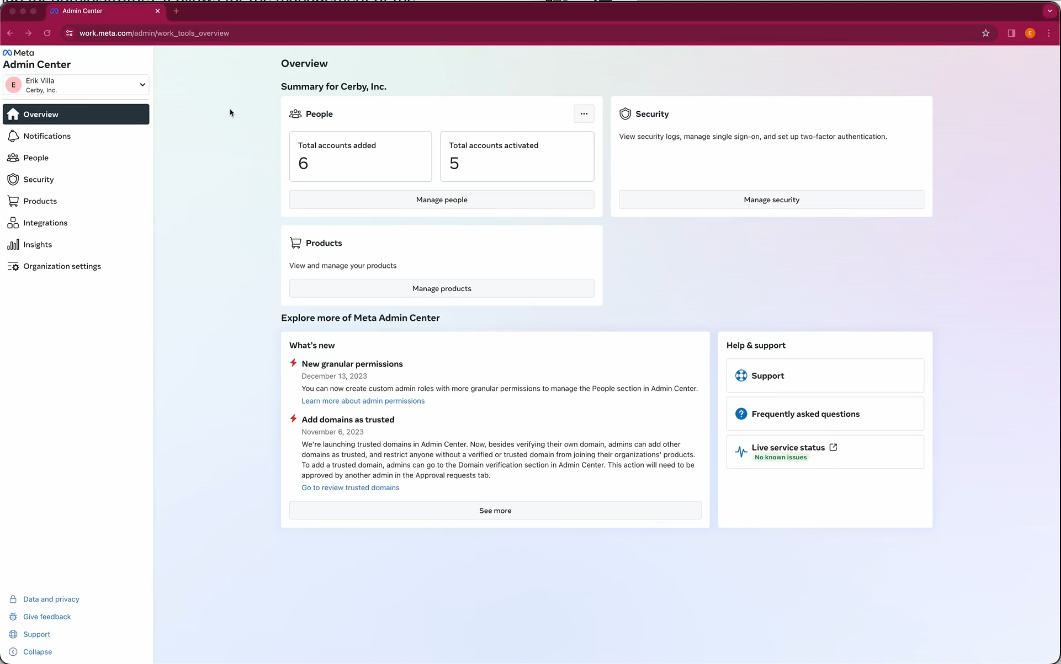
The [Admin Center console](https://work.meta.com/) of the Meta Work Accounts is the central hub for admins, enabling them to manage the organization, including adding or removing members, verifying domains, and managing IdP integration settings.

**Figure 1** shows the home page of the Admin Center console.

<figure><img src="/files/IzUgZNWXS6QTPtnMaCPj" alt="The figure shows the home page of the Admin Center console of Meta Work Account"><figcaption><p>Figure 1. Home page of the Admin Center console for Meta Work Accounts</p></figcaption></figure>

You can find more information about the Admin Center and how to use it in the following official documentation:

* [About Admin center](https://work.meta.com/help/302615495083233/?helpref=related_articles)
* [Creating and managing accounts](https://work.meta.com/help/316550897730268/?helpref=hc_fnav)
* [Give access to Meta products connected in Admin Center to specific people or groups](https://work.meta.com/help/834021611131492?helpref=faq_content)
* [Keep your managed Meta account secure](https://work.meta.com/help/6500157926724783/?helpref=hc_fnav)
* [Different admin roles and permissions for managed Meta accounts in Admin Center](https://work.meta.com/help/1045408149576739)

### Business Manager

[Business Manager](https://business.facebook.com/) is the standard settings console used by Meta Business Manager owners. With Meta Work Accounts, you can assign assets to users through their work credentials instead of a personal Facebook profile.

### Migration Center

The [Migration Center](https://business.facebook.com/meta_business_admin_center/migration/) is essential for tracking the transition to Meta Work Accounts. It provides admins with the tools to monitor and manage the migration progress.

**Figure 2** shows the migration status report of the people in the portfolio.

<figure><img src="/files/atsQSf29AlthPYrC9Vtq" alt=""><figcaption><p>Figure 2. Migration status report in Meta Migration Center</p></figcaption></figure>

To see the migration report, complete the following steps:

1. Log in to your [Meta Business Manager](https://business.facebook.com/). The **IT set up** page is displayed.
2. Select the **People in business portfolios** option from the left navigation drawer. The **People in business portfolios** page is displayed. On this page, you can see the following user information:
   * Name
   * Email
   * Business portfolio
   * Access
   * Migration status
3. Click the **Migrate people** button. The **Migrate page** is displayed. On this page, you can see your company's high-level migration status report.
4. Click the **Manage** button on the right side of your company. The **Overview of the Migration Status** page is displayed. On this page, you can see more details about the people who migrated and the business portfolio details.

For more information about how to plan and migrate your portfolio, read the [Overview of managed Meta accounts setup and migration in Business Manager](https://www.facebook.com/business/help/1428374961242667) official documentation.

***

## Invite external users to your Meta Business Manager

To invite external users to your Meta Business Manager, complete the following steps:

1. Log in to your [Meta Business Manager](https://business.facebook.com/).
2. Select the **People** option from the left navigation drawer under the **Users** section. The **People** page is displayed. On this page, you can see the list of people who belong to your Meta Business Manager.
3. Click the **Invite** **people** button from the menu at the top of the people list. The **Invite** **people** dialog box is displayed.
4. Perform the following actions in this dialog box:
   1. Enter the email address of the user you want to invite.
   2. Click the **Next** button. The **Partial access** dialog box is displayed.
   3. Configure the access to apps and integrations and the controls the user can have in your instance.
   4. Click the **Confirm** button. The **User** **added** dialog box is displayed.
   5. Click the **Done** button. The dialog box closes, and the user you invited is added to the **People** list with the **Inactive** status.
5. Assign assets to the user you have just invited by performing the following actions:
   1. Click the user name on the **People** page. The **Summary** of assigned assets is displayed. Because the user is new, no assets are displayed on the page.
   2. Click the **Assign assets** button located at the top menu. The **Assign assets and set permissions** dialog box is displayed.
   3. Select the assets and permission you want to assign to the user.
6. Click the **Save** **changes** button. The **Assets Added** dialog box is displayed.
7. Click the **Done** button. The dialog box closes, and you can now see the assets the user has assigned.

After inviting and assigning the user assets and permissions, the end user must accept the invitation and access your Meta Business Manager.

***

## Configure Meta Work Accounts for SSO and automatic user provisioning with Okta

While the Cerby platform can be configured directly with Okta for SSO and automatic user provisioning via SCIM, with Meta Work Accounts, the configuration is now between Meta and Okta.

For instructions on how to perform the configuration, read the [Configure SSO and user provisioning between Meta and Okta via Meta Work Accounts](/setup-and-admin/business-hubs/connecting-your-paid-social-apps/meta-for-work/configure-sso-and-user-provisioning-between-meta-and-okta-via-meta-work-accounts.md) article.

***

## Deprovision users

When you deprovision a user from the IdP, either by entirely removing them or unassigning the app, the status of the deprovisioned user is different depending on the tool:

* [Admin Console](#admin-console)
* [Business Manager](#business-manager)

Regardless of how the status is displayed, Meta will stop redirecting users to the SSO authentication page when they are deprovisioned.

The following sections explain the different statuses of deprovisioned users.

### Admin Console

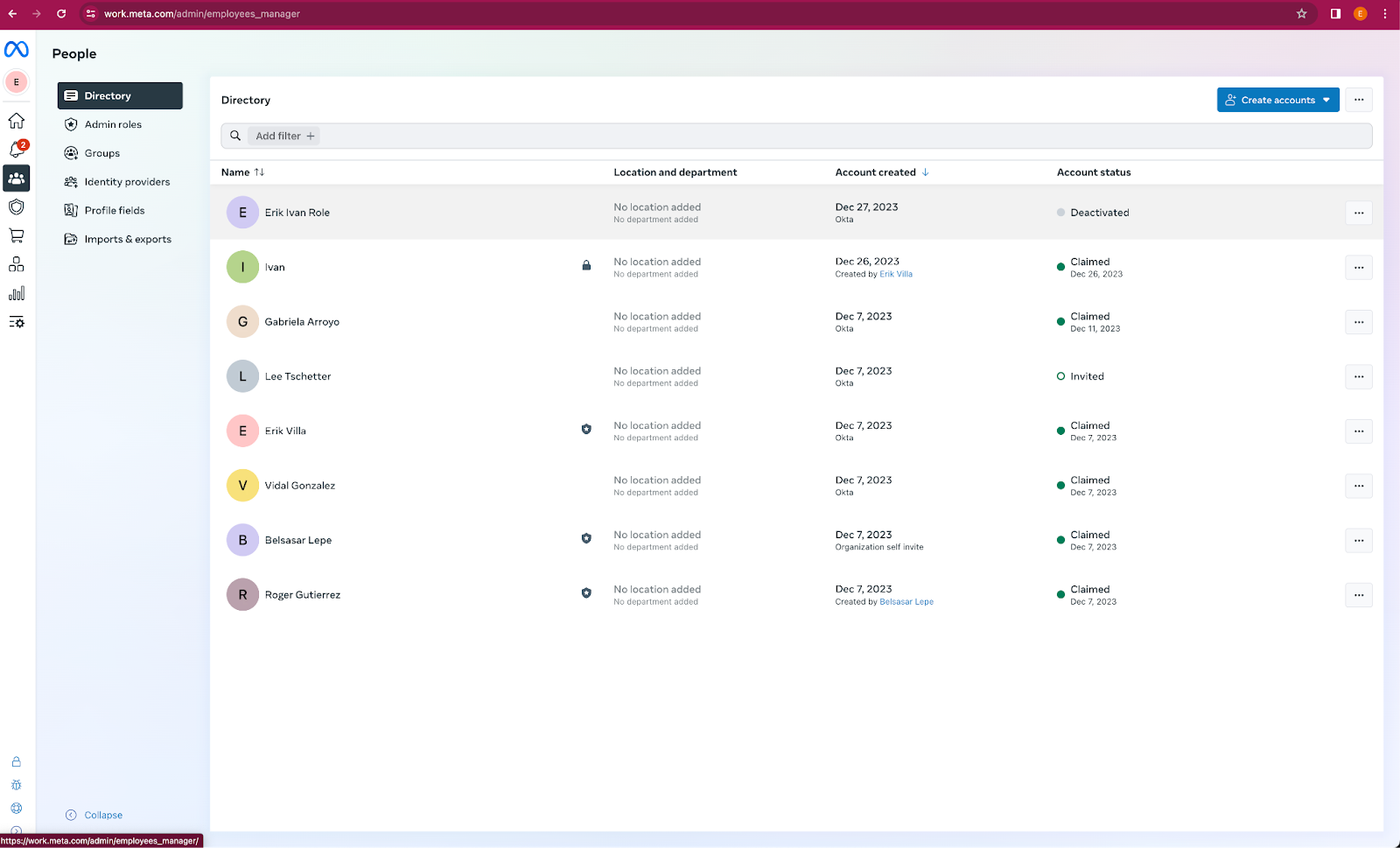
When you access the **People** section in the [Admin Console](http://work.meta.com/), the deprovisioned user’s status is **Deactivated**, as shown in **Figure 3**.

<figure><img src="/files/FCQBgHVC2ywUZyZoDqDv" alt=""><figcaption><p>Figure 3. View of a deprovisioned user in the Meta Admin console</p></figcaption></figure>

### Business Manager

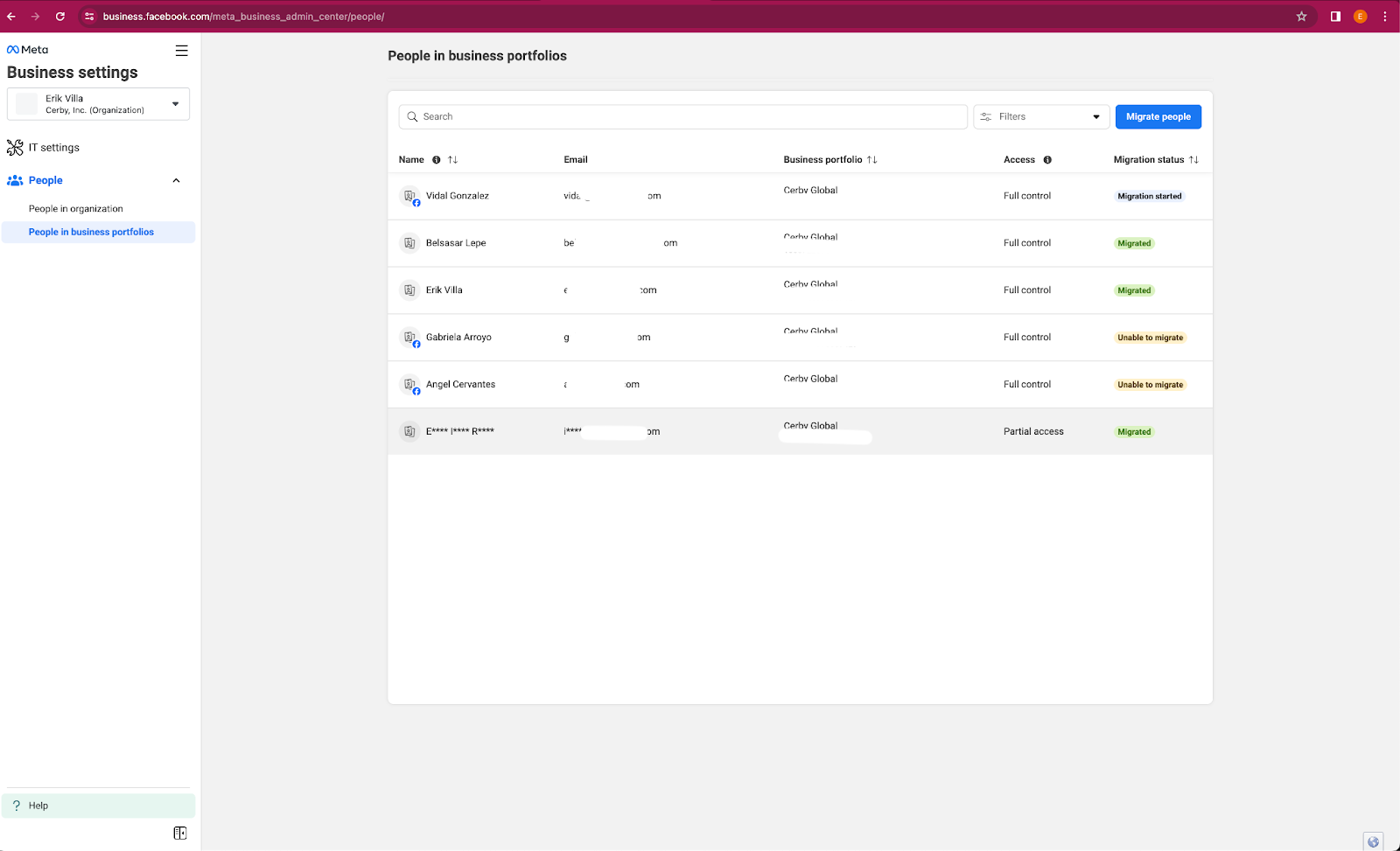
When you access the **People** option from the **Users** drop-down list of the [Business Manager](http://business.meta.com/) main page, the deprovisioned user’s information is displayed with asterisks, as shown in **Figure 4**.

<figure><img src="/files/7qLjaPWxLfhg24RC2ZBn" alt=""><figcaption><p>Figure 4. View of a deprovisioned user on the Meta Business Manager page</p></figcaption></figure>

***

## Troubleshooting: Facebook refused to connect error when activating your work account

When following the next steps to activate a Meta Work Account, you may encounter the error message “business.facebook.com refused to connect”:

1. Access the [Business Manager](http://business.meta.com/) main page.
2. Select the **Business Account info** option from the left navigation drawer. The invitation window appears, directing you to activate your Meta Work Account.
3. Click the **Activate your work account** button. The **Activate your Meta work** **account** page is displayed.
4. Click the **Continue** button. The information of your organization’s business account appears.
5. Click the **Activate** button.
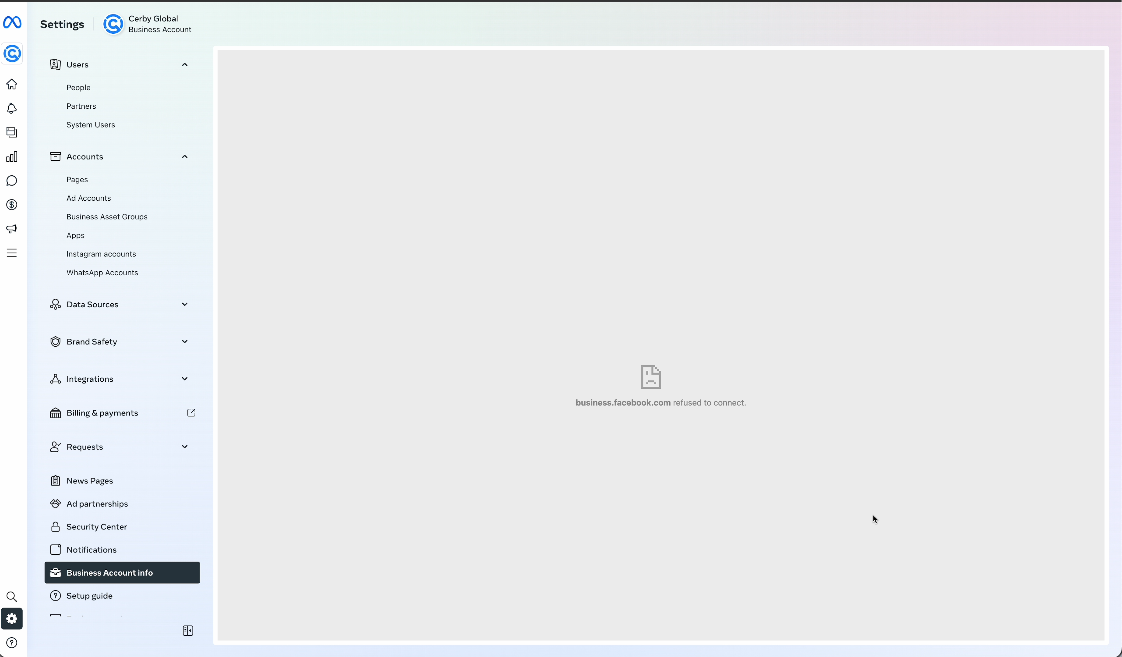
   * If the “business.facebook.com refused to connect” error message is displayed, as shown in **Figure 5**, share another item within the platform.

<figure><img src="/files/ICPz3b6Xi6xo61P3xJy7" alt=""><figcaption><p>Figure 5. “business.facebook.com refused to connect” error message in the Settings view of your Meta Business Manager</p></figcaption></figure>

***

## Troubleshooting: “Some people couldn’t be added” error when adding a user from an unknown domain

Meta enables users to be created at the organization level, but these users cannot be added to portfolios (Meta Business Managers) until domains get verified.

When inviting members from domains that are not verified within the organization, the “**Some People Couldn’t Be Added** ” error is shown, disabling the **Next** button.

To solve this problem, IT administrators must add and verify the domain as part of the organization’s profile in the Meta Work Accounts settings. After verification, invitations to members from these domains can be processed successfully.


---

# Agent Instructions: Querying This Documentation

If you need additional information that is not directly available in this page, you can query the documentation dynamically by asking a question.

Perform an HTTP GET request on the current page URL with the `ask` query parameter:

```
GET https://help.cerby.com/setup-and-admin/business-hubs/connecting-your-paid-social-apps/meta-for-work/meta-for-work-tools-for-admins.md?ask=<question>
```

The question should be specific, self-contained, and written in natural language.
The response will contain a direct answer to the question and relevant excerpts and sources from the documentation.

Use this mechanism when the answer is not explicitly present in the current page, you need clarification or additional context, or you want to retrieve related documentation sections.