# View the status of your business hub integration

{% hint style="info" %}
**Who can use this feature?**

* Business hub **Owners** and **Managers**
* Only supported using the Cerby web app
  {% endhint %}

As a business hub **Owner** or **Manager**, you can view the status of your business hub integration directly in the **Business Hubs** page.

When you connect the first business hub in your workspace for an external app, Cerby runs a validation to confirm that the integration is correctly configured and working in your environment. After validation, the integration status might change over time due to account misconfigurations or changes in the external app.

In any case, viewing the status helps you quickly determine if the integration is working correctly, if it requires your attention, or if Cerby is actively addressing an issue.

To view the status of your business hub integration, you must complete the following steps:

1. Log in to your corresponding [Cerby](https://app.cerby.com/) workspace.
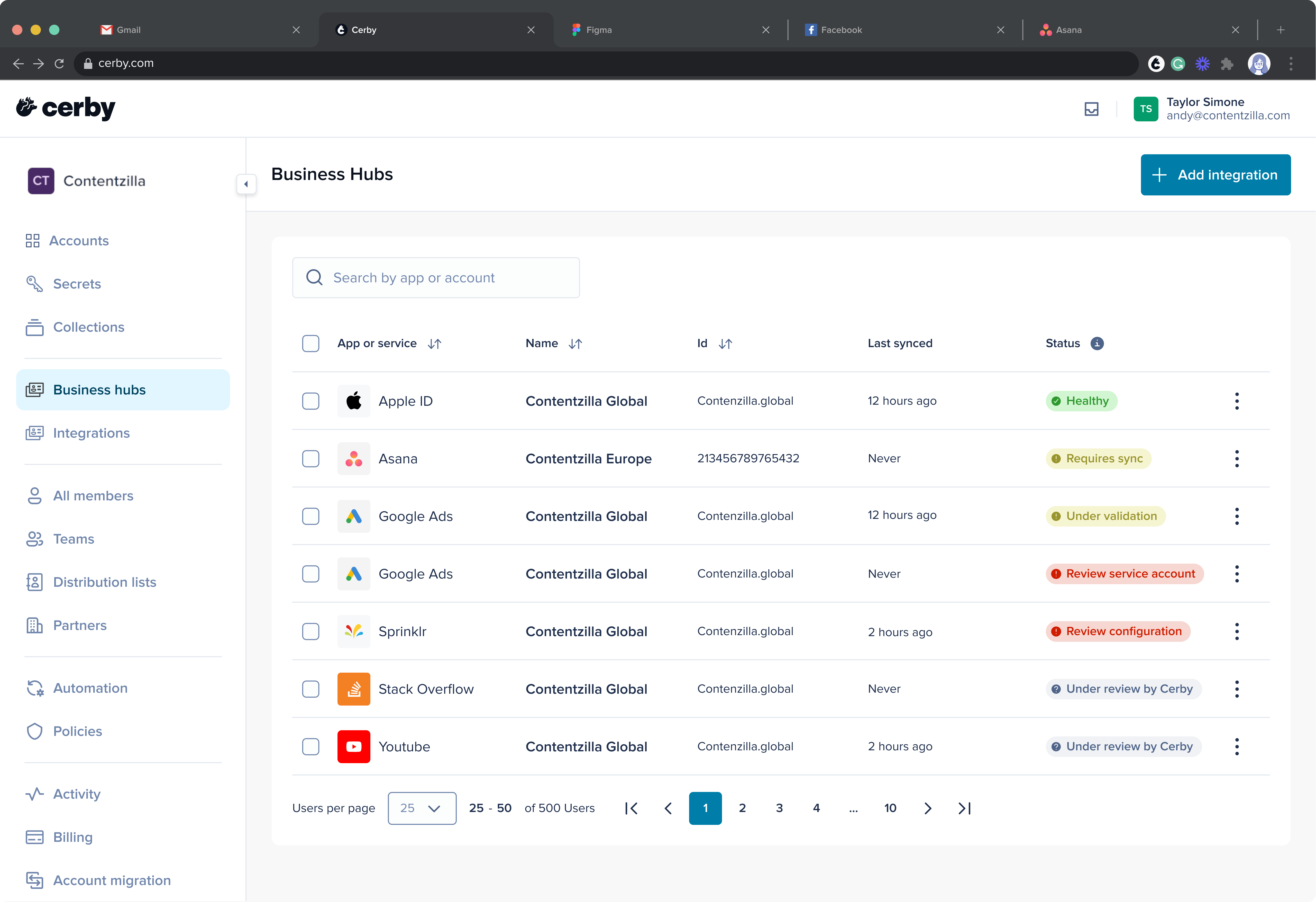
2. Select the **Business Hubs** option from the left menu. The **Business Hubs** page is displayed with a table of integrations and a column indicating their status, as shown in **Figure 1.**

   <figure><img src="/files/5Y8XInE0L0ebfUWZW9pE" alt=""><figcaption><p>Figure 1. The Business Hubs page in the Cerby web app dashboard</p></figcaption></figure>

You can see your integration status under the **Status** column. The following are the possible statuses:

* **Under validation:** The business hub has been successfully connected to an external app, and Cerby is currently validating if the integration works correctly in your environment. ​**NOTE:** This status appears while Cerby completes the validation for a business hub. After validation is completed, subsequent business hubs for the same application will not enter this status.
* **Under review by Cerby:** Cerby is currently reviewing and addressing issues identified during validation.
* **Review configuration:** Cerby has detected a configuration issue in this business hub that prevents it from completing its tasks. The integration **Owner** must address the misconfiguration.
* **Review service account:** Cerby has detected a configuration issue with the service account that prevents it from completing its tasks. The integration **Owner** must address the misconfiguration caused by any of the following reasons:
* The service account’s login credentials are incorrect.
* Cerby-managed MFA is not turned on for the account.
* **Requires sync:** Cerby has detected that the data for this business hub is outdated. The integration **Owner** must perform a manual data sync.
* **Healthy:** The business hub integration is working correctly, and the data for this business hub is up to date.

Now you are done.


---

# Agent Instructions: Querying This Documentation

If you need additional information that is not directly available in this page, you can query the documentation dynamically by asking a question.

Perform an HTTP GET request on the current page URL with the `ask` query parameter:

```
GET https://help.cerby.com/setup-and-admin/business-hubs/managing-your-business-hubs/view-the-status-of-your-business-hub-integration.md?ask=<question>
```

The question should be specific, self-contained, and written in natural language.
The response will contain a direct answer to the question and relevant excerpts and sources from the documentation.

Use this mechanism when the answer is not explicitly present in the current page, you need clarification or additional context, or you want to retrieve related documentation sections.