> For the complete documentation index, see [llms.txt](https://help.cerby.com/llms.txt). Markdown versions of documentation pages are available by appending `.md` to page URLs; this page is available as [Markdown](https://help.cerby.com/setup-and-admin/business-hubs/managing-your-business-hubs/view-the-users-of-your-business-hub.md).

# View the users of your business hub

{% hint style="info" %}
**Who can use this feature?**

* Business hub **Owners** and **Managers**
* Only supported using the Cerby web app
  {% endhint %}

As a business hub **Owner** or **Manager,** you can manage and protect your external app users directly from the **Users** tab in your business hub integration. This tab provides a centralized view of all users and teams with access to your app, enabling you to perform the following tasks:

* Add users and teams to your app
* Remove users and teams from your app
* Update user and team roles
* Match and exempt users
* Download the list of users in a CSV file

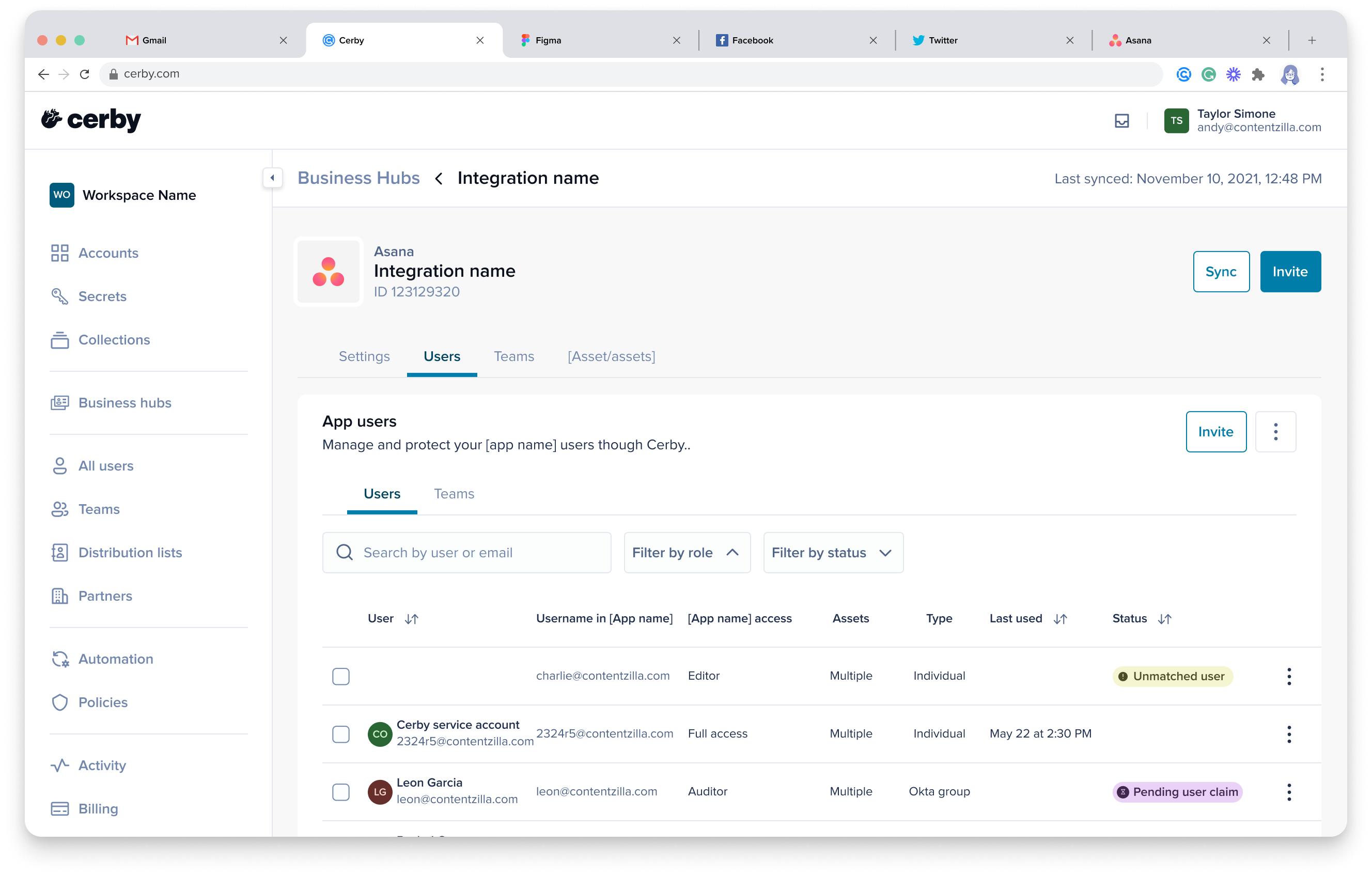
The **Users** tab, as shown in **Figure 1**, groups users and teams into two independent tables, each with relevant details to help you manage access efficiently.

<figure><img src="/files/vr7vw8DiK9N4omy5habL" alt=""><figcaption><p>Figure 1. Users tab in the business hub details page</p></figcaption></figure>

The **Users** table provides information about external app users in the following columns:

* **User:** It lists the username and email of the Cerby user accounts matched with the app user accounts. This column is empty for **unmatched users**.
* **Username in :** It lists the username given to the users in the external app.
* **access:** It lists the roles assigned to the users in the external app. If the user has been granted multiple roles, click the **More options** icon and select the **Overview** option to see the assigned role details.
* **Assets:** It indicates the number of assets assigned to the users in the external app. If multiple assets have been assigned to a user, click the **More options** (...) icon and select the **Overview** option for the assets details.
* **Type:** It indicates the method by which the users were granted access to the external app. The possible values are the following:
  * **Individual:** The access was directly granted.
  * **Team:** The access was granted via a Cerby team.
  * **Organization**, **Workspace**, **Account**, **Partnership**, or **External:** The access was granted via the corresponding source type.
  * **Multiple:** The access was granted by multiple sources.
* **Last used:** It is the date and time of the user's most recent activity.
* **Status:** It indicates the status of the users. The possible values are the following:

  * **Provisioned:** The user was successfully provisioned and has access to the app.
  * **Removed:** The user was removed from the app. The removal could be triggered by the identity provider (IdP), Cerby, or the app itself.
  * **Unmatched user:** The user was synced, but Cerby couldn’t match it with a Cerby user account.
  * **Exempted:** The user was exempted from the business hub integration, meaning their account or seat remains active in the app but cannot be managed through Cerby.
  * **Awaiting provisioning:** The user provisioning to the app is queued or in progress.
  * **Pending invite:** The user has a pending invite in the app that hasn’t been accepted yet.
  * **Awaiting invite:** The user invite is queued or in progress.
  * **Awaiting update:** The user’s role or assignment update is queued or in progress.
  * **Pending user claim:** The user must claim access to the app.
  * **Awaiting deprovisioning:** The user account deprovisioning is queued or in progress.
  * **Invite failed:** The process to send the user invite failed.
  * **Deprovisioning failed:** The user account deprovisioning failed.
  * **Pending approval:** An admin needs to approve the action before it takes effect.

  <div data-gb-custom-block data-tag="hint" data-style="info" class="hint hint-info"><p><strong>NOTE:</strong> If a user has no status chip, it means their status has not been set or there is nothing to report.</p></div>

Meanwhile, the **Teams** table provides information about the external app teams in the following columns:

* **External application teams:** It lists the names of the teams in the external app.
* **access:** It lists the roles assigned to the teams in the external app.
* **Type:** It indicates the source type of the team in the external application. For example, team, workspace, or organization.


---

# Agent Instructions
This documentation is published with GitBook. GitBook is the documentation platform designed so that both humans and AI agents can read, navigate, and reason over technical content effectively. Learn more at gitbook.com.

## Querying This Documentation
If you need additional information that is not directly available in this page, you can query the documentation dynamically by asking a question.

Perform an HTTP GET request on the current page URL with the `ask` query parameter, and the optional `goal` query parameter:

```
GET https://help.cerby.com/setup-and-admin/business-hubs/managing-your-business-hubs/view-the-users-of-your-business-hub.md?ask=<question>&goal=<endgoal>
```

`ask` is the immediate question: it should be specific, self-contained, and written in natural language.
`goal` is optional and describes the broader end goal you are ultimately trying to accomplish on behalf of the user. GitBook uses it to tailor the answer towards what is most useful for that goal.

The response will contain a direct answer to the question and relevant excerpts and sources from the documentation.

Use this mechanism when the answer is not explicitly present in the current page, you need clarification or additional context, or you want to retrieve related documentation sections.