# Install the Cerby browser extension via an MDM platform

With Cerby, you can deploy the Cerby browser extension across all of your company endpoints using a Mobile Device Management (MDM) platform, such as Jamf (macOS) and Tanium (Windows), and configuration files.

The deployment comprises the following web browsers running on [macOS](#macos) and [Windows](#windows):

* Safari
* Microsoft Edge
* Mozilla Firefox
* Google Chrome

You must set up the deployment and payloads for the four web browsers on the device management platform and then release the payloads to all the intended devices.

This article describes the process to achieve a seamless installation and ensure a consistent user experience.

{% hint style="info" %}
**NOTE:** As part of the setup, you can optionally edit the XML snippets and scripts to enable **Auto sign-in**. This feature automatically signs in users in the background to the Cerby browser extension when they access their IdP's dashboard, utilizing their active session. Currently, the Auto sign-in feature is available for Okta-based workspaces.
{% endhint %}

***

## macOS

The deployment setup on macOS endpoints is different depending on the web browser:

* [Safari](#safari)
* [Chrome](#chrome)
* [Firefox](#firefox)

The following sections describe the setup process for each browser.

### Safari

The deployment setup for Safari is done via an app assignment through Apple Business Manager using a location token integrated with your MDM service.

When you complete the setup, you can select the Cerby browser extension from the App Store to include it in any configuration profiles, blueprints, or payloads within your MDM system.

#### Requirements

The following are the requirements to set up the deployment:

* An [Apple Business Manager](https://business.apple.com/) account with the **Content Manager** role (minimum)
* Access to an MDM service with the necessary permissions to create and deploy configuration profiles and their payloads

#### Deployment setup

To set up the deployment and payloads of the Cerby browser extension, you must complete the following steps:

1. Log in to your [Apple Business Manager](https://business.apple.com/) account.
2. Select the **Apps** or **Apps and Books** option from the left navigation drawer to open a page with a list of assigned apps.
3. Click the **Store** button located below the search bar.
4. Click the **View Store** button located in the right pane. The **Store** page is displayed.
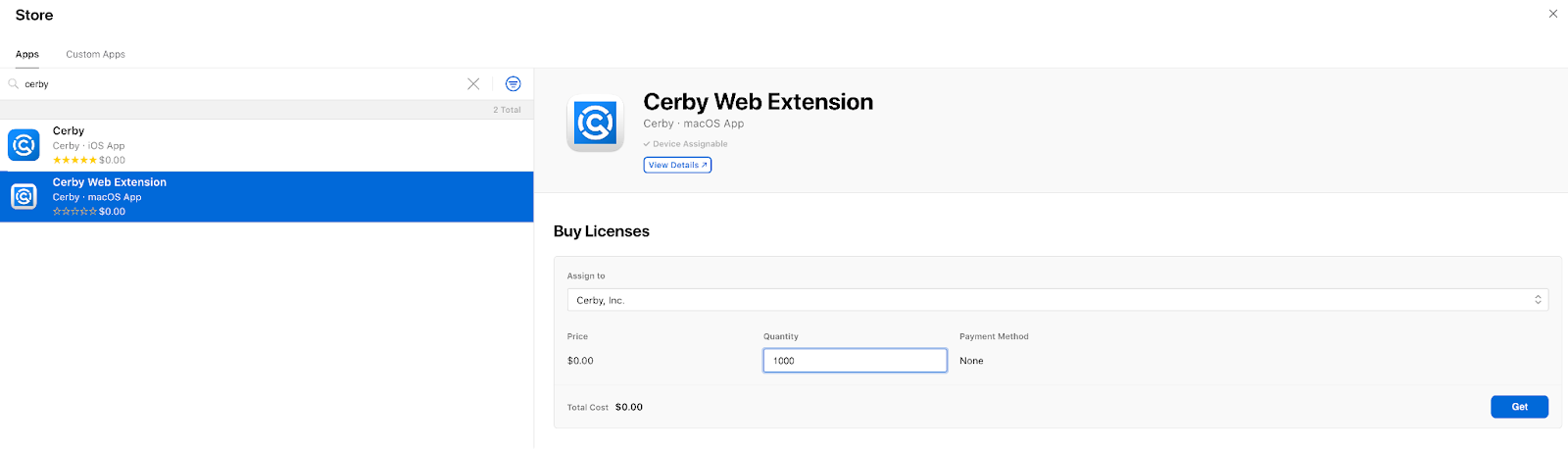
5. Search for the **Cerby Web Extension** app and select it. The app license details are displayed on the right pane, as shown in **Figure 1**.

   <figure><img src="https://2223875686-files.gitbook.io/~/files/v0/b/gitbook-x-prod.appspot.com/o/spaces%2FOVedBAAT7J2QEzTS50GO%2Fuploads%2Fgit-blob-7d3bd4eff5491aefeca25406dedd9a79f1694419%2F_hw_JIafquH0PVuIX-fXzH8pYhIgc63bswTrtDRP3S6gqD-nxU7_HcsdGmO54VkIsPAnq2SabryPsuCIQ_41NFocqpIEvVxkcTldCd-KPP3m5lerRxIjllVwblGvvUJOR_81FVDGvpyaqvkaQ3hIcAU.png?alt=media" alt=""><figcaption><p>Figure 1. Cerby Web Extension license details on the Store page</p></figcaption></figure>
6. Select the corresponding location token to assign to your MDM service from the **Assign to** drop-down list.
7. Enter the number of licenses you want to make available for deployment through your MDM service in the **Quantity** field.
8. Click the **Buy** or **Get** button. The **Store** page closes.

Now you are done with the setup for Safari. The Cerby browser extension will be displayed in the **App Store Apps** section of your MDM’s library, and you can now include the extension in any of your configuration profiles, blueprints, or payloads.

### Chrome

The deployment setup for Chrome is done via a configuration file and payload that you must set up in Jamf Pro using custom XML snippets provided by Cerby.

After the setup, Jamf Pro distributes the configuration and payload according to the distribution method and target endpoints you define, and the Cerby browser extension is installed automatically.

#### Deployment setup

To set up the configuration file, payload, deployment, and roll out the installation, you must complete the following steps:

1. Log in to your [Jamf Pro](https://www.jamf.com/login/) account.
2. Click the **Computers** button located at the top of the left navigation drawer.
3. Select the **Configuration Profiles** option from the **CONTENT MANAGEMENT** section in the left navigation drawer. The **Configuration Profiles** page is displayed.
4. Create a new configuration profile by performing the following actions:
   1. Click the **New** button. The **General** section of the **Options** tab is displayed in the **New MacOS Configuration Profile** page.
   2. Enter and select the corresponding configuration profile details in the **General** section. The fields are the following:
      * **Name:** Enter **`Cerby Google Chrome Web Extension`** in the **Name** field.
      * **Description**
      * **Category**
      * **Level**
      * **Distribution Method**
5. Enter the XML Property Lists to populate the configuration properties by performing the following actions:
   1. Select the **Upload** option from the **Application & Custom Settings** drop-down list located in the left pane of the page. The **Upload** section is displayed.
   2. Click the **Add** button. The **Custom** form is displayed.
   3. Enter **com.google.chrome** in the **Preference Domain** field.
   4. Copy the following XML snippet and paste it in the **Property List** field:

      ```xml
          <?xml version="1.0" encoding="UTF-8"?>
          <!DOCTYPE plist PUBLIC "-//Apple//DTD PLIST 1.0//EN" "http://www.apple.com/DTDs/PropertyList-1.0.dtd">
          <plist version="1.0">
          <dict>
          <key>ExtensionSettings</key>
          <dict>
            <key>clccplmaaeihbagbefjinmclielobnkb</key>
            <dict>
              <key>installation_mode</key>
              <string>force_installed</string>
              <key>update_url</key>
              <string>https://clients2.google.com/service/update2/crx</string>
            </dict>
          </dict>
          </dict>
          </plist>
      ```
6. Click the **Add** button again. A new **Custom** form is displayed.
7. Enter `com.google.chrome.extensions.clccplmaaeihbagbefjinmclielobnkb` in the **Preference Domain** field.
8. Copy the following XML snippet and paste it in the **Property List** field:

   ```xml
       <?xml version="1.0" encoding="UTF-8"?>
       <!DOCTYPE plist PUBLIC "-//Apple//DTD PLIST 1.0//EN" "http://www.apple.com/DTDs/PropertyList-1.0.dtd">
       <plist version="1.0">
       	<dict>
       	    <key>DEFAULT_WORKSPACE</key>
       	    <string>{your-workspace-name}</string>
                      <key>OKTA_DOMAIN</key>
                      <string>{your-subdomain}.Okta.com</string>
       	</dict>
       </plist>
   ```

   **IMPORTANT:** You must replace the `{your-workspace-name}` value with the actual name of your workspace to specify the `DEFAULT_WORKSPACE` key. For example, **contentzilla**. (Optional) To enable the Auto sign-in feature, replace the `{your-subdomain}` value with the actual subdomain of your Okta tenant to specify the `OKTA_DOMAIN` key.
9. Click the **Save** button.
10. Activate the **Scope** tab to add your deployment targets. For more information, read the [Scope](https://learn.jamf.com/bundle/jamf-pro-documentation-current/page/Scope.html) official documentation.
11. Click the **Save** button located at the bottom right of the page.

Now you are done. The macOS endpoints will install the Cerby browser extension automatically according to your distribution method.

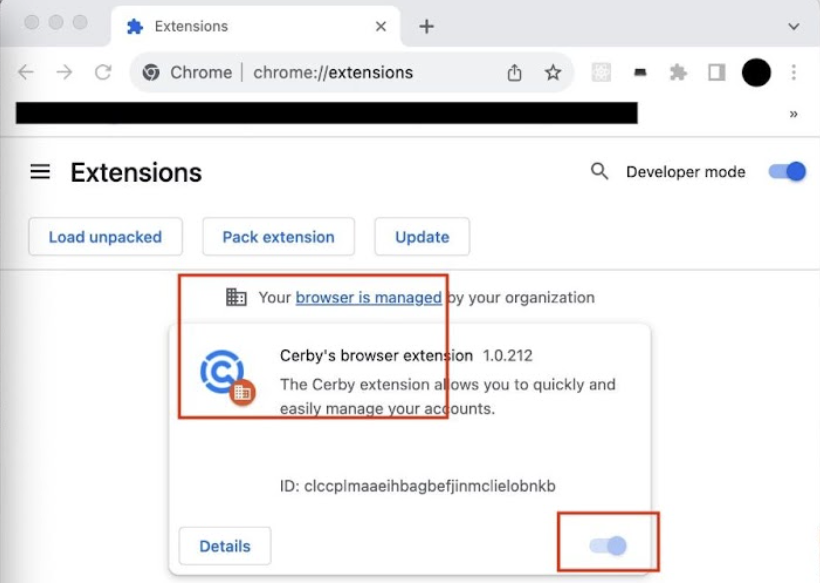
**Figure 2** shows how the Cerby browser extension is displayed on the extension management page of a macOS computer using Google Chrome.

<figure><img src="https://2223875686-files.gitbook.io/~/files/v0/b/gitbook-x-prod.appspot.com/o/spaces%2FOVedBAAT7J2QEzTS50GO%2Fuploads%2Fgit-blob-7b65f1c25f7e49309d62429ee7aef43e6a3ba69b%2FAD_4nXfaelE-4JGagJVstoA7CDiHBcAwWUPp6EGRvSNDuHOL5KWljMlTiwRb5-Az2YPkSVQ0QJ103P7Q2kYv5gvZYhWQZBSVWJjnkiIYCmy6PhNb_grFArlPrByY6v__KstE2FdlFhddZQy3K1gMFz3Rc-yvyPo.png?alt=media" alt=""><figcaption><p>Figure 2. Cerby browser extension in the Extension page of the Chrome web browser</p></figcaption></figure>

{% hint style="danger" %}
**IMPORTANT:** The deployment setup for Chrome blocks the users from uninstalling or disabling the Cerby browser extension.
{% endhint %}

### Firefox

The deployment setup for Firefox is done via a configuration file and payload that you must set up in Jamf Pro using a custom XML snippet provided by Cerby.

After the setup, Jamf Pro distributes the configuration and payload according to the distribution method and target endpoints you define, and the Cerby browser extension is installed automatically.

#### Deployment setup

To set up the configuration file, payload, deployment, and roll out the installation, you must complete the following steps:

1. Log in to your [Jamf Pro](https://www.jamf.com/login/) account.
2. Click the **Computers** button located at the top of the left navigation drawer.
3. Select the **Configuration Profiles** option from the **CONTENT MANAGEMENT** section in the left navigation drawer. The **Configuration Profiles** page is displayed.
4. Create a new configuration profile by performing the following actions:
   1. Click the **New** button. The **General** section of the **Options** tab is displayed in the **New MacOS Configuration Profile** page.
   2. Enter and select the corresponding configuration profile details in the **General** section. The fields are the following:
      * **Name:** Enter **`Cerby Google Chrome Web Extension`** in the **Name** field.
      * **Description**
      * **Category**
      * **Level**
      * **Distribution Method**
5. Enter the XML Property Lists to populate the configuration properties by performing the following actions:

   1. Select the **Upload** option from the **Application & Custom Settings** drop-down list located in the left pane of the page. The **Upload** section is displayed.
   2. Click the **Add** button. The **Custom** form is displayed.
   3. Enter **org.mozilla.firefox** in the **Preference Domain** field.
   4. Copy the following XML snippet and paste it in the **Property List** field:

      ```xml
      <?xml version="1.0" encoding="UTF-8"?>
      <!DOCTYPE plist PUBLIC "-//Apple//DTD PLIST 1.0//EN" "http://www.apple.com/DTDs/PropertyList-1.0.dtd">
      <plist version="1.0">
        <dict>
          <key>ExtensionSettings</key>
          <dict>
            <key>{f961ea35-985c-412d-9b06-aafd75752587}</key>
            <dict>
              <key>installation_mode</key>
              <string>force_installed</string>
              <key>install_url</key>
              <string>https://addons.mozilla.org/firefox/downloads/latest/cerby-s-browser-extension/latest.xpi</string>
            </dict>
          </dict>
          <key>3rdparty</key>
          <dict>
            <key>Extensions</key>
            <dict>
             <key>{f961ea35-985c-412d-9b06-aafd75752587}</key>
              <dict>
                <key>DEFAULT_WORKSPACE</key>
                <string>{your-workspace-name}</string>
                <key>OKTA_DOMAIN</key>
                <string>{your-subdomain}.Okta.com</string>
              </dict>
            </dict>
          </dict>
          <key>EnterprisePoliciesEnabled</key>
          <true/>
        </dict>
      </plist>
      ```

   **IMPORTANT:** You must replace the `{your-workspace-name}` value with the actual name of your workspace to specify the `DEFAULT_WORKSPACE` key. For example, **contentzilla**. (Optional) To enable the Auto sign-in feature, replace the `{your-subdomain}` value with the actual subdomain of your Okta tenant to specify the `OKTA_DOMAIN` key.
6. Click the **Save** button.
7. Activate the **Scope** tab to add your deployment targets. For more information, read the [Scope](https://learn.jamf.com/bundle/jamf-pro-documentation-current/page/Scope.html) official documentation.
8. Click the **Save** button located at the bottom right of the page.

Now you are done. The macOS endpoints will install the Cerby browser extension automatically according to your distribution method.

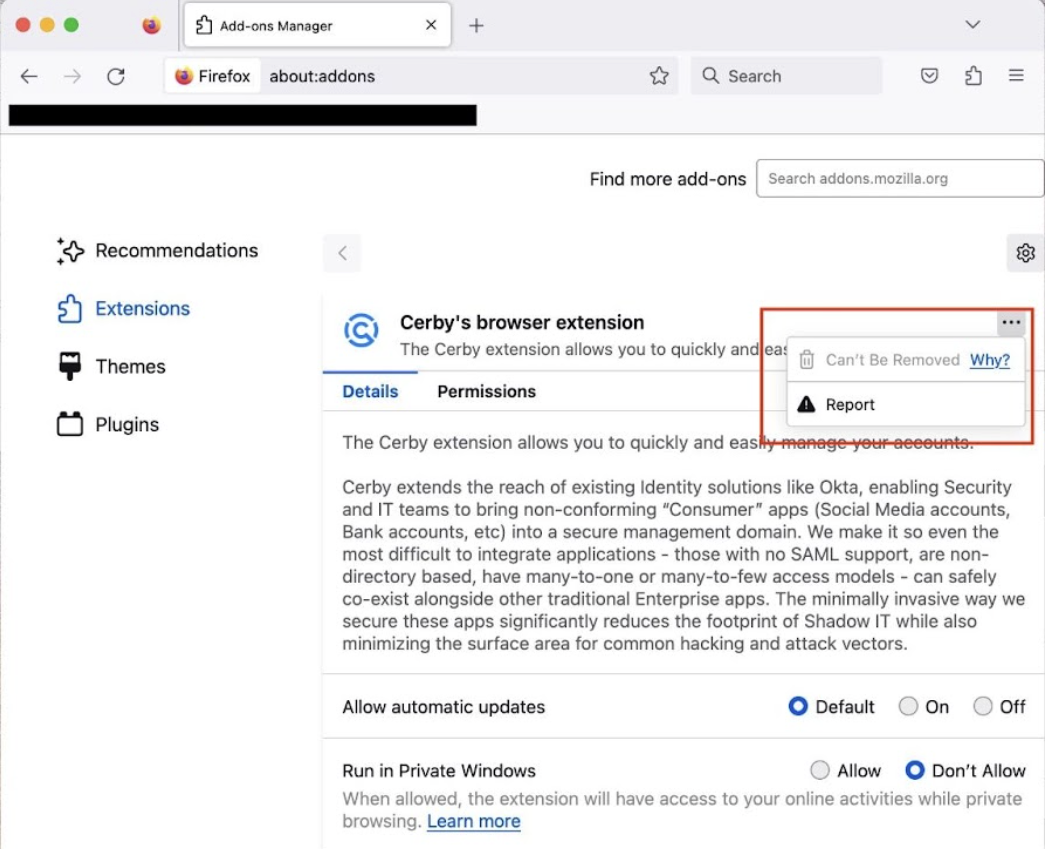
**Figure 3** shows how the Cerby browser extension is displayed on the extension management page of a macOS computer using Mozilla Firefox.

<figure><img src="https://2223875686-files.gitbook.io/~/files/v0/b/gitbook-x-prod.appspot.com/o/spaces%2FOVedBAAT7J2QEzTS50GO%2Fuploads%2Fgit-blob-743e30df14c15313870107dfdb99a25e3f5e4813%2FAD_4nXe8psU2qad6tuIV0WkdOajPcMMM0LmRDn1Bifsl4jfKzbzZk5t8PO3R9Ljy3WJr5f8RCcNpM152egKx_r3Uv3akyP-mK7--2pCciXC8-xPkkeVwyVDFILk4hVwLIGedYydA1KtXeF-jQ0oYJDarXGACMQSY.png?alt=media" alt=""><figcaption><p>Figure 3. Cerby browser extension in the Manage Your Extensions page of the Firefox web browser</p></figcaption></figure>

{% hint style="danger" %}
**IMPORTANT:** The deployment setup for Firefox blocks the users from uninstalling or disabling the Cerby browser extension.
{% endhint %}

***

## Windows

The deployment setup on Windows endpoints for Chrome, Edge, and Firefox is done via PowerShell scripts (one for each web browser) provided by Cerby that you must upload to configuration profiles or payloads.

When each script runs with a command (also provided by Cerby) in your selected endpoints, the Cerby browser extension is installed.

### Requirements

The following are the requirements to set up the deployment and perform the enterprise rollout:

* The PS1 files for each web browser:
  * `chrome_windows_installer.ps1`
  * `edge_windows_installer.ps1`
  * `firefox_windows_installer.ps1`

You must create these files in your code editor by copying and pasting the corresponding scripts from the [Appendix: Scripts](#appendix-scripts) section.

* An MDM service for Windows, such as Intune, Hexnode, Tanium, or ManageEngine, in which you can create a configuration profile or payload to upload the script and set up an execution command

  **IMPORTANT:** The deployment of a PowerShell script depends on your MDM’s capabilities. For more setup information, you can read the official documentation from the following providers:
* **Intune:**[Use PowerShell scripts on Windows 10/11 devices in Intune](https://learn.microsoft.com/en-us/mem/intune/apps/intune-management-extension)
  * **Hexnode:**[Executing custom scripts for Windows](https://www.hexnode.com/mobile-device-management/help/executing-custom-scripts-for-windows/)
  * **Tanium:**[Calling a PowerShell script via Tanium Deploy](https://community.tanium.com/s/question/0D57V00008fqW4ZSAU/calling-a-PowerShell-script-ps1-via-tanium-deploy)
  * **ManageEngine:** [How to add a PowerShell script as a Package?](https://www.manageengine.com/products/desktop-central/powershell-script-as-a-package.html)

### Deployment setup

To set up the deployment, upload the script, set up the execution command, and roll out the installation, you must complete the following steps for each web browser:

1. Log in to your MDM service for Windows.
2. Create a configuration profile or payload.
3. Set up a custom script deployment. The setup involves the following actions:
   * Upload the corresponding PS1 file to the configuration profile or payload.
   * Specify the following as the command to run the script: `PowerShell.exe -ExecutionPolicy Bypass -WindowStyle Hidden -Noninteractive -NoProfile .\<installer_file>.ps1`

     For example, the following command is for Chrome: `PowerShell.exe -ExecutionPolicy Bypass -WindowStyle Hidden -Noninteractive -NoProfile .\chrome_windows_installer.ps1`
4. Select the device groups or specific devices to which the Cerby browser extension must be installed.

Now you are done. All the Windows endpoints will execute the command to install the Cerby browser extension on their next MDM check-in.

***

## Appendix: Scripts

This appendix contains the scripts you must copy and paste into your code editor to create each installer file you need. With these files, you can set up the deployment of the Cerby browser extensions on Windows endpoints.

You must create a file per web browser:

* [Chrome](#chrome)
* [Edge](#edge)
* [Firefox](#firefox)

{% hint style="danger" %}
**IMPORTANT:** Take the following into consideration when copying and pasting the script:

* Replace the `<your-workspace-name>` value with the actual name of your workspace to specify the default workspace in the `Set-ItemProperty` and `New-ItemProperty` commands of each script. For example, **contentzilla**
* (Optional) Replace the `{your-subdomain}` value with the actual subdomain of your Okta tenant to specify the `OKTA_DOMAIN` key and enable the Auto sign-in feature.
  {% endhint %}

### Chrome

The following is the script to create the `chrome_windows_installer.ps1` file for Chrome:

```
    <#
    .Synopsis
       Installs the Cerby browser extension to Chrome
    .DESCRIPTION
       Silent setup for the Cerby browser extension for Windows deployments. This script is designed to be executed through an endpoint management system for Windows devices for a seamless installation. It can also run locally executed manually on Windows endpoints. This script won't install the extensions if browsers are not previously installed.
    #>

    Add-Type -AssemblyName System.IO.Compression.FileSystem

    function installChromeExtension($extensionId) {

        if (!($extensionId)) {
            # Empty Extension
            $result = "No Extension ID"
        }
        else {
            Write-Information "ExtensionID = $extensionID"
            $extensionIdAndUpdateUrl = "$extensionId;https://clients2.google.com/service/update2/crx"
            $regKey = "HKLM:\SOFTWARE\Policies\Google\Chrome\ExtensionInstallForcelist"
            if (!(Test-Path $regKey)) {
                New-Item $regKey -Force
                Write-Information "Created Reg Key $regKey"
            }
            # Add Extension to Chrome
            $extensionsList = New-Object System.Collections.ArrayList
            $number = 0
            $noMore = 0
            do {
                $number++
                Write-Information "Pass : $number"
                try {
                    $install = Get-ItemProperty $regKey -name $number -ErrorAction Stop
                    $extensionObj = [PSCustomObject]@{
                        Name  = $number
                        Value = $install.$number
                    }
                    $extensionsList.add($extensionObj) | Out-Null
                    Write-Information "Extension List Item : $($extensionObj.name) / $($extensionObj.value)"
                }
                catch {
                    $noMore = 1
                }
            }
            until($noMore -eq 1)
            $extensionCheck = $extensionsList | Where-Object { $_.Value -eq $extensionIdAndUpdateUrl }
            if ($extensionCheck) {
                $result = "Extension Already Exists"
                Write-Information "Extension Already Exists"
            }
            else {
                $newExtensionId = $extensionsList[-1].name + 1
                New-ItemProperty HKLM:\SOFTWARE\Policies\Google\Chrome\ExtensionInstallForcelist -PropertyType String -Name $newExtensionId -Value $extensionIdAndUpdateUrl
                $result = "Installed"
            }

            # Set the default workspace
            $policiesKey = "HKLM:\SOFTWARE\Policies\Google\Chrome\3rdparty\extensions\$extensionID\policy"
            if (!(Test-Path $policiesKey)) {
                New-Item $policiesKey -Force
                Write-Information "Created Reg Key $policiesKey"
                New-ItemProperty $policiesKey -PropertyType String -Name "DEFAULT_WORKSPACE" -Value "<your-workspace-name>"
                New-ItemProperty $policiesKey -PropertyType String -Name
    "OKTA_DOMAIN" -Value "<your-subdomain>.Okta.com"
                Write-Information "added value cerby to $policiesKey"
            } else {
                Set-ItemProperty -Path $policiesKey -Name "DEFAULT_WORKSPACE" -Value "<your-workspace-name>"
                Write-Information "added value cerby to $policiesKey"
            }

        }
    }

    $extensionChromeGeneralId = "clccplmaaeihbagbefjinmclielobnkb"

    installChromeExtension($extensionChromeGeneralId);
```

### Edge

The following is the script to create the `edge_windows_installer.ps1` file for Edge:

```
    <#
    .Synopsis
       Installs the Cerby browser extension to Edge
    .DESCRIPTION
       Silent setup for the Cerby browser extension for Windows deployments. This script is designed to be executed through an endpoint management system for Windows devices for a seamless installation. It can also run locally executed manually on Windows endpoints. This script won't install the extensions if browsers are not previously installed.
    #>

    Add-Type -AssemblyName System.IO.Compression.FileSystem

    function installChromeExtension($extensionId) {

        if (!($extensionId)) {
            # Empty Extension
            $result = "No Extension ID"
        }
        else {
            Write-Information "ExtensionID = $extensionID"
            $extensionIdAndUpdateUrl = "$extensionId;https://edge.microsoft.com/extensionwebstorebase/v1/crx"
            $regKey = "HKLM:\SOFTWARE\Policies\Microsoft\Edge\ExtensionInstallForcelist"
            if (!(Test-Path $regKey)) {
                New-Item $regKey -Force
                Write-Information "Created Reg Key $regKey"
            }
            # Add Extension to Chrome
            $extensionsList = New-Object System.Collections.ArrayList
            $number = 0
            $noMore = 0
            do {
                $number++
                Write-Information "Pass : $number"
                try {
                    $install = Get-ItemProperty $regKey -name $number -ErrorAction Stop
                    $extensionObj = [PSCustomObject]@{
                        Name  = $number
                        Value = $install.$number
                    }
                    $extensionsList.add($extensionObj) | Out-Null
                    Write-Information "Extension List Item : $($extensionObj.name) / $($extensionObj.value)"
                }
                catch {
                    $noMore = 1
                }
            }
            until($noMore -eq 1)
            $extensionCheck = $extensionsList | Where-Object { $_.Value -eq $extensionIdAndUpdateUrl }
            if ($extensionCheck) {
                $result = "Extension Already Exists"
                Write-Information "Extension Already Exists"
            }
            else {
                $newExtensionId = $extensionsList[-1].name + 1
                New-ItemProperty HKLM:\SOFTWARE\Policies\Microsoft\Edge\ExtensionInstallForcelist -PropertyType String -Name $newExtensionId -Value $extensionIdAndUpdateUrl
                $result = "Installed"
            }

            # Set the default workspace
            $policiesKey = "HKLM:\SOFTWARE\Policies\Microsoft\Edge\3rdparty\extensions\$extensionID\policy"
            if (!(Test-Path $policiesKey)) {
                New-Item $policiesKey -Force
                Write-Information "Created Reg Key $policiesKey"
                New-ItemProperty $policiesKey -PropertyType String -Name "DEFAULT_WORKSPACE" -Value "<your-workspace-name>"
                Write-Information "added value cerby to $policiesKey"
                New-ItemProperty $policiesKey -PropertyType String -Name
    "OKTA_DOMAIN" -Value "<your-subdomain>.Okta.com"
            } else {
                Set-ItemProperty -Path $policiesKey -Name "DEFAULT_WORKSPACE" -Value "<your-workspace-name>"
                Write-Information "added value cerby to $policiesKey"
                Set-ItemProperty -Path $policiesKey -Name "OKTA_DOMAIN" -Value "<your-subdomain>.Okta.com"
            }

        }
    }

    $extensionChromeGeneralId = "bbaiiaogfdgpbapebajffliefkfipoif"

    installChromeExtension($extensionChromeGeneralId);
```

### Firefox

The following is the script to create the `firefox_windows_installer.ps1` file for Firefox:

```
    <#
    .Synopsis
       Force installs the Cerby browser extension to Firefox while blocking the general extension
    .DESCRIPTION
       Silent setup for the Cerby browser extension for Windows deployments. This script is designed to be executed through an endpoint management system for Windows devices for a seamless installation. It can also run locally executed manually on Windows endpoints. This script won't install the extensions if browsers are not previously installed.
    #>

    Add-Type -AssemblyName System.IO.Compression.FileSystem

    function installFirefoxAddIn($forcedUrl, $forcedId)
    {
        $dest_folder = "C:\Program Files\Mozilla Firefox\distribution"
        $json_content = @"
        {
          "policies": {
            "ExtensionSettings": {
                "$forcedId": {
                    "installation_mode": "force_installed",
                    "install_url": "$forcedUrl"
                }
            },
            "3rdparty": {
              "Extensions": {
                "$forcedId": {
                  "DEFAULT_WORKSPACE": "<your-workspace-name>",
                  "OKTA_DOMAIN": "<your-subdomain>.Okta.com"
                }
              }
            }
          }
        }
    "@

        if (!(Test-Path -Path $dest_folder)) {
            New-Item -ItemType Directory -Path $dest_folder | Out-Null
        }

        $json_content | Set-Content -Path "$dest_folder\policies.json"
    }

    $extensionFirefoxGeneralUrl = "https://addons.mozilla.org/firefox/downloads/latest/cerby-s-browser-extension/latest.xpi"
    $extensionFirefoxGeneralId = "{f961ea35-985c-412d-9b06-aafd75752587}"

    installFirefoxAddIn $extensionFirefoxGeneralUrl $extensionFirefoxGeneralId
```


---

# Agent Instructions: Querying This Documentation

If you need additional information that is not directly available in this page, you can query the documentation dynamically by asking a question.

Perform an HTTP GET request on the current page URL with the `ask` query parameter:

```
GET https://help.cerby.com/setup-and-admin/client-app-deployment/install-the-cerby-browser-extension-via-an-mdm-service-and-a-configuration-file.md?ask=<question>
```

The question should be specific, self-contained, and written in natural language.
The response will contain a direct answer to the question and relevant excerpts and sources from the documentation.

Use this mechanism when the answer is not explicitly present in the current page, you need clarification or additional context, or you want to retrieve related documentation sections.