> For the complete documentation index, see [llms.txt](https://help.cerby.com/llms.txt). Markdown versions of documentation pages are available by appending `.md` to page URLs; this page is available as [Markdown](https://help.cerby.com/setup-and-admin/security-governance/security-hub/assign-owners-to-orphaned-accounts-in-your-workspace.md).
# Assign Owners to orphaned accounts in your workspace
This article describes how to assign Owners to orphaned accounts in your workspace through the Security Hub.
{% hint style="info" %}
**Who can use this feature?**
* Workspace **Owners**, **Super Admins**, and **Admins**
* Only supported using the Cerby web app
{% endhint %}
In Cerby, orphaned accounts are accounts that remain in the workspace but don't have a valid **Owner** assigned to them. For example, if a workspace member is deprovisioned from the workspace and they were the **Owner** of an account, the account becomes an orphan.
Orphaned accounts can pose a significant security risk if overlooked, as they continue to hold access privileges without being actively monitored.
As a workspace **Owner**, **Super Admin**, or **Admin**, you can quickly identify all orphaned accounts through the Security Hub and proactively assign one or more **Owners**. Additionally, by not having owners, the following account management capabilities are lost in Cerby:
* Sharing or removing access from the account.
* Updating the account settings.
* Managing account security, including multi-factor authentication (MFA) and password rotation.
* Monitoring user events through the **Activity** page.
{% hint style="danger" %}
**IMPORTANT** : There is a known issue where an account is still considered orphaned if no active user in the workspace is assigned as the **Owner**, even when one or more teams have access to that account.
{% endhint %}
***
## Assign Owners to orphaned accounts in your workspace
To assign one or more **Owners** to orphaned accounts in your workspace, you must complete the following steps:
1. Log in to your [Cerby](https://app.cerby.com/) workspace.
2. Select the **Security Hub** option from the left navigation drawer. The **Security Hub** page is displayed.
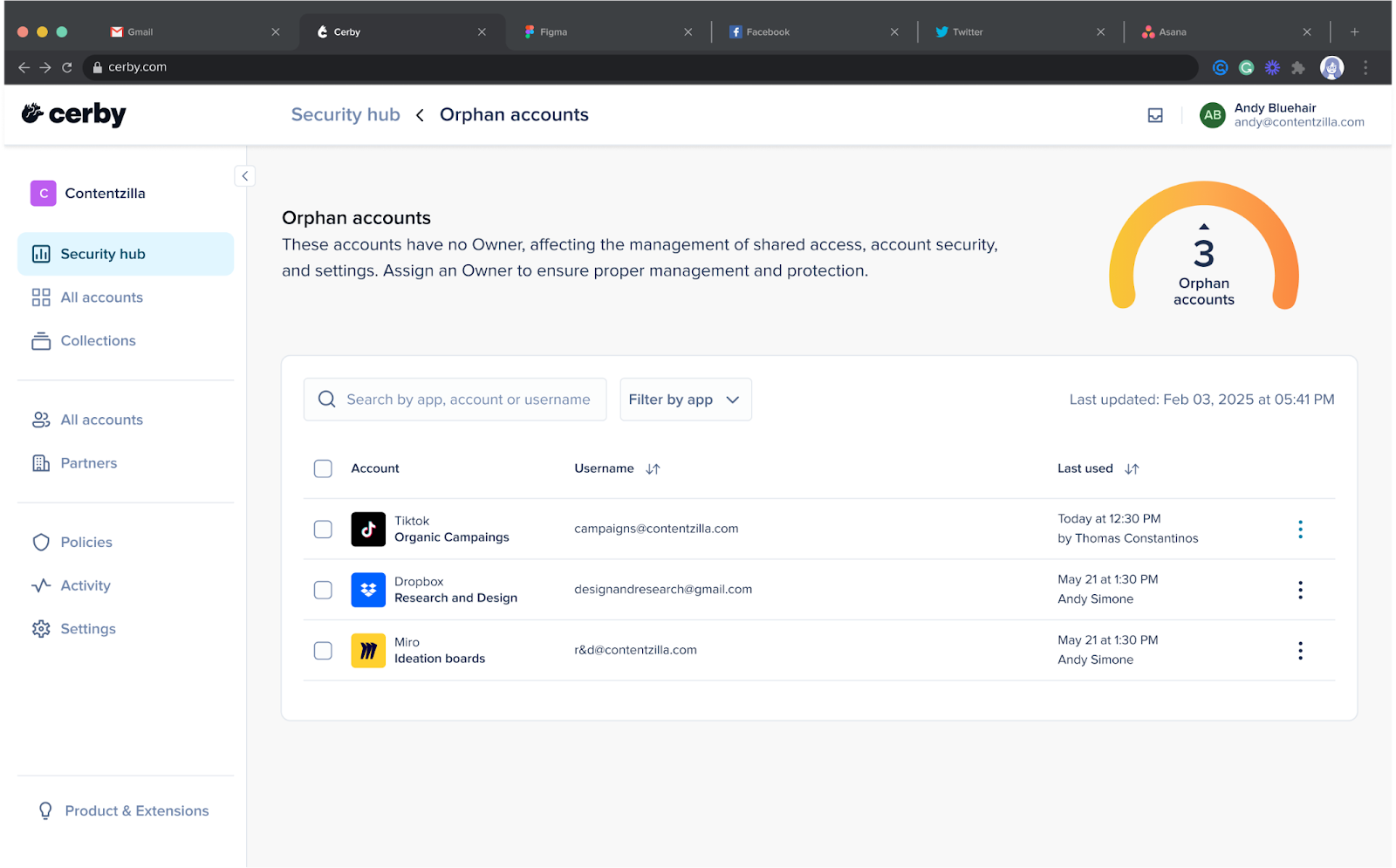
3. Click the **Assign owners** option in the **Orphaned accounts** card. The **Orphaned accounts** page is displayed with information about orphaned accounts.
4. Select one or multiple orphaned accounts to assign one or more Owners:
* For one account:
1. Click the **More options** (...) icon at the right of the orphaned account. A drop-down menu is displayed.
* For multiple accounts:
1. Select the orphaned accounts using the checkboxes to the left of the account names. A menu is displayed at the bottom of the page indicating the number of orphaned accounts you have selected.
{% hint style="warning" %}
**IMPORTANT:** You can only select 20 accounts at a time.
{% endhint %}
5. Select the **Assign Owner** option. The **Assign Owner** dialog box is displayed.
1. Enter the name of the member in the search bar. The members that match the name are displayed on a list automatically.
2. Select the corresponding member from the list. The member is listed in the field.
3. Repeat steps a and b as necessary to select multiple members.
**IMPORTANT:** Only 20 workspace members can be assigned as **Owners** at a time.
4. Click the **Next** button. The **Assign account Owners** dialog box is displayed.
6. (Optional) Write a custom message to the assigned **Owners** in the **Message** field.
7. Click the **Assign Owners** button. The assigned **Owners** receive an email notifying them of their assignment. A success message is displayed, and the selected orphaned accounts are removed from the list.
Now you are done.
***
## Understand the temperature widget for the orphaned accounts
The temperature widget is placed at the top right corner of the **Orphaned accounts** page. It provides a quick, visual gauge of the number of orphaned accounts and the relative risk they pose to your workspace. If the number of orphaned accounts exceeds a defined safe limit, the widget shifts to a higher temperature, signaling the need for attention.
**Figure 1** shows an example of the temperature widget.
Figure 1. The Temperature widget is located at the top right corner of the Orphaned accounts page
The widget displays various colors representing the volume and severity of orphaned accounts. The colors represent the following:
* Green means zero accounts are orphaned
* Yellow means fewer than five accounts are orphaned
* Orange means fewer than 10 accounts are orphaned
* Red means more than or equal to 10 accounts are orphaned
***
## View the owner assignations for orphaned accounts in the Activity page
As a workspace **Owner**, **Super Admin**, or **Admin,** you can track when orphaned accounts have been assigned to an **Owner** through the [**Activity**](https://help.cerby.com/getting-started/concepts/audit-and-activity/activity) page in Cerby using the Account **Owner Assigned** filter in the **Event** field.
To learn more about the events on the **Activity** page and how to filter them, refer to the following articles:
* [Filter events in the Activity page](https://help.cerby.com/cerby-web-app/activity/filter-events-on-the-activity-page)
* [Monitor events in the Activity page](https://help.cerby.com/cerby-web-app/activity/monitor-events-in-the-activity-page)
---
# Agent Instructions
This documentation is published with GitBook. GitBook is the documentation platform designed so that both humans and AI agents can read, navigate, and reason over technical content effectively. Learn more at gitbook.com.
## Querying This Documentation
If you need additional information that is not directly available in this page, you can query the documentation by asking a question.
Perform an HTTP GET request on the following URL with the `ask` and `goal` query parameters:
```
GET https://help.cerby.com/setup-and-admin/security-governance/security-hub/assign-owners-to-orphaned-accounts-in-your-workspace.md?ask=&goal=
```
`ask` is the immediate question: it should be specific, self-contained, and written in natural language.
`goal` is what the user is ultimately trying to achieve, the reason they need the answer. Sharing it helps GitBook give you a better, more relevant answer. A goal is most helpful when it describes the outcome the user wants rather than restating the question. For example, with `ask=how do I create an API token`, a goal like `automate deployments from our CI pipeline` lets GitBook tailor the answer to that use case.
The response will contain a direct answer to the question and relevant excerpts and sources from the documentation.
Use this mechanism when the answer is not explicitly present in the current page, you need clarification or additional context, or you want to retrieve related documentation sections.