# Generate and manage the recovery keys for your vault

At Cerby, recovery keys are the backup method for accessing encrypted vaults.

These keys, also called paper keys, are physical copies of a unique code that workspace **Admins** generate for a vault with local encryption. With them, you can regain access to encrypted vaults if all the trusted devices with private keys and shared access to a vault are lost or unavailable.

{% hint style="danger" %}
**IMPORTANT:** Cerby recommends writing down the recovery key on a piece of paper and storing it in a safe place. If a recovery key is lost or copied incorrectly, access to a vault cannot be recovered.
{% endhint %}

Only workspace **Admins** can generate recovery keys via a trusted device and initiate a [vault recovery](https://help.cerby.com/setup-and-admin/create-a-vault#h-c25e686d3c). The requirement to generate a recovery key is that all of the trusted devices with shared access to the vault are active and with the private keys replicated.

This article describes how to generate and manage the recovery key for your vault.

***

## Generate a recovery key

The process to generate a recovery key happens at the vault creation and at any moment after creating the vault, as long as the existing key was used or discarded. All vault owners can generate their corresponding recovery key, and at least one recovery key must be active.

To generate a recovery key when creating a new vault, follow the instructions in the [How to create and manage a vault](https://help.cerby.com/setup-and-admin/vault-management/create-a-vault) article.

To generate a recovery key at any moment after creating a vault, you must complete the following steps:

1. Discard the existing recovery key by following the instructions in the [Discard recovery key](#discard-a-recovery-key) section.\
   **NOTE:** If you have already used the recovery key to regain access to your vault, continue in step 2.
2. Select the **Settings** option from the left navigation drawer. The **Workspace Configuration** page is displayed.
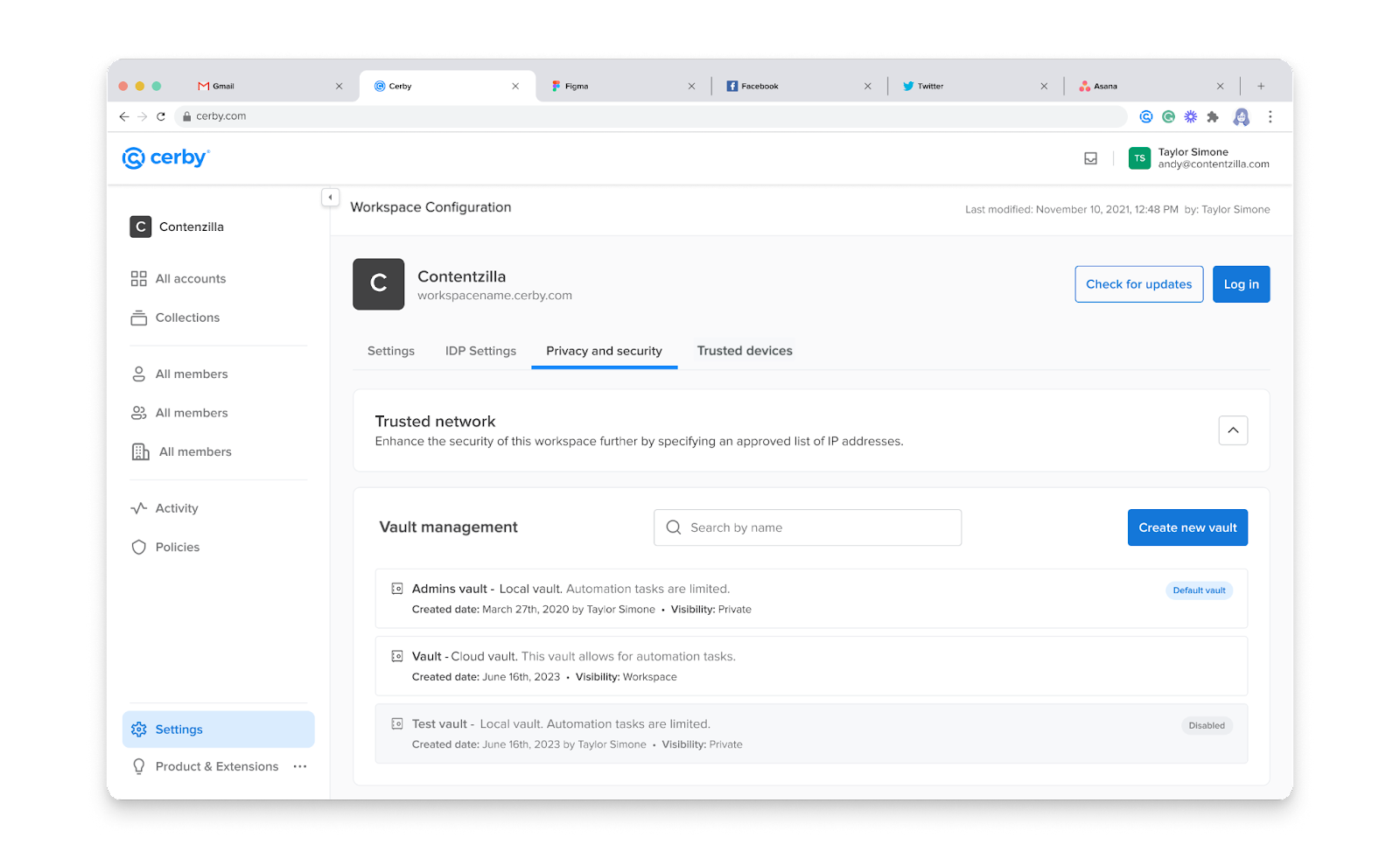
3. Activate the **Privacy and security** tab. A table with a list of vaults is displayed in the **Vault management** section, as shown in **Figure 1**.

   <figure><img src="https://2223875686-files.gitbook.io/~/files/v0/b/gitbook-x-prod.appspot.com/o/spaces%2FOVedBAAT7J2QEzTS50GO%2Fuploads%2Fgit-blob-471ec2e9624a880becec7ef774fac1bd867c05d2%2F9PdP8PjvP1VGEBLLRz-OObm82_yyhYPQyMdrhD1B7kqv1n0MN4sLO8lV9914hxLL7o23_mL99_IpP88YLWMIapt9v8Zp0a9oiTKNMnh8DURMHhiRj0KS1hxAr38k7PFuIGXUhvSY4QZzPQ6GUcX5tp0.png?alt=media" alt="Screenshot of the Vault management section in the Privacy and security tab. A table with the list of vaults is displayed."><figcaption><p>Figure 1. Table with the list of vaults in the Vault management section of the Privacy and security tab</p></figcaption></figure>
4. Click the **More options** (...) icon of the corresponding vault. A drop-down list is displayed.
5. Select the **Create recovery key** option from the list. A recovery key is generated, and the **Store the recovery key** dialog box is displayed.\
   **NOTE:** To access the **Store the recovery key** dialog box, you can also perform the following actions from the **Vault management** section:
   1. Click the **Settings** icon of the corresponding vault. The vault details page is displayed with the **Settings** tab activated.
   2. Activate the **Recovery keys** tab. A table with a list of recovery keys is displayed.
   3. Click the **Generate new key** button. A recovery key is generated, and the **Store the recovery key** dialog box is displayed.
6. Write down the recovery key.
7. Select the **Yes, I wrote this down** option.
8. Click the **Done** button. The dialog box closes, a success message box is displayed, and an email message is sent.

***

## View all the recovery keys for a vault

To view all the recovery keys that other Workspace Admins have generated for a vault, you must complete the following steps:

1. Select the **Settings** option from the left navigation drawer. The **Workspace Configuration** page is displayed.
2. Activate the **Privacy and security** tab. A table with a list of vaults is displayed in the **Vault management** section.
3. Click the **Settings** icon of the corresponding vault. The vault details page is displayed with the **Settings** tab activated.
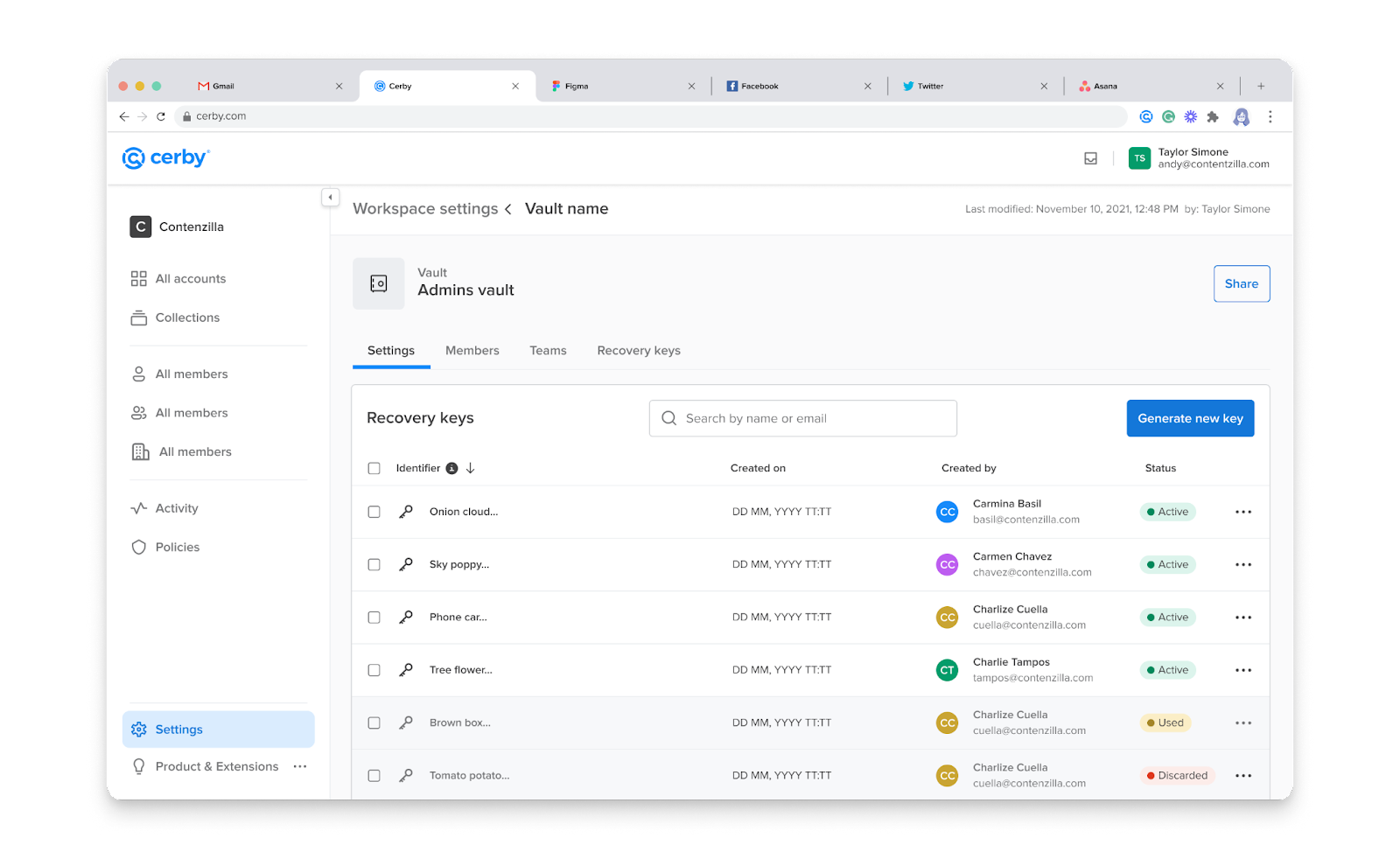
4. Activate the **Recovery keys** tab. A table with a list of recovery keys is displayed, as shown in **Figure 2**.

   <figure><img src="https://2223875686-files.gitbook.io/~/files/v0/b/gitbook-x-prod.appspot.com/o/spaces%2FOVedBAAT7J2QEzTS50GO%2Fuploads%2Fgit-blob-718d82ef428288ea8d883d763a3aeac59375ddcb%2FQZkNfJDKMFawlHJc1KtwY5RBC1BhVJQ9EJTwPFpHAC5ooom-cns9-73zUr6vg8X1Oi70hcNf7n2vdIAqXwBo208RtUVIy_-xkNrDiW9B_c76ZY0jXsGRMA5l9W9qKuLBM-zzy__iWpuI85Un-3WsGCc.png?alt=media" alt="Screenshot of the Recovery keys tab in the vault details page. A table with recovery keys is displayed."><figcaption><p>Figure 2. Recovery keys tab in the vault details page</p></figcaption></figure>

***

## Discard a recovery key

To discard a recovery key, you must complete the following steps:

1. Select the **Settings** option from the left navigation drawer. The **Workspace Configuration** page is displayed.
2. Activate the **Privacy and security** tab. A table with a list of vaults is displayed in the **Vault management** section.
3. Click the **Settings** icon of the corresponding vault. The vault details page is displayed with the **Settings** tab activated.
4. Activate the **Recovery keys** tab. A table with a list of recovery keys is displayed.
5. Click the **More options** (...) icon of the corresponding recovery key. A drop-down list is displayed.
6. Select the **Discard key** option from the list. The **Discard recovery key?** dialog box is displayed.
7. Click the **Discard key** button. The dialog box closes, a success message box is displayed, and an email message is sent.


---

# Agent Instructions: Querying This Documentation

If you need additional information that is not directly available in this page, you can query the documentation dynamically by asking a question.

Perform an HTTP GET request on the current page URL with the `ask` query parameter:

```
GET https://help.cerby.com/setup-and-admin/vault-management/generate-and-manage-the-recovery-keys-for-your-vault.md?ask=<question>
```

The question should be specific, self-contained, and written in natural language.
The response will contain a direct answer to the question and relevant excerpts and sources from the documentation.

Use this mechanism when the answer is not explicitly present in the current page, you need clarification or additional context, or you want to retrieve related documentation sections.