> For the complete documentation index, see [llms.txt](https://help.cerby.com/llms.txt). Markdown versions of documentation pages are available by appending `.md` to page URLs; this page is available as [Markdown](https://help.cerby.com/setup-and-admin/workspace-identity-federation/local-workspace/create-and-configure-a-local-workspace.md).
# Create a local workspace
This article describes how to create and configure a local workspace in which Cerby manages the identity and authentication of users.
With Cerby, you can configure a local workspace when you need Cerby to manage the identity and authentication of users instead of leveraging an identity provider (IdP) such as Okta or Azure AD.
In local workspaces, users are added via direct invites from Cerby to their email addresses, and user management is performed through the **All members** page. In regular workspaces, the IdP acts as the authoritative source of user identity, and changes in user accounts, attributes, or permissions are synchronized downstream to Cerby via the System for Cross-Domain Identity Management (SCIM) specification.
Regarding authentication, users authenticate directly to Cerby with credentials, username and password, managed by Cerby in local workspaces. In regular workspaces, users are redirected to their IdP's authentication page to log in to Cerby.
The user who creates and configures a local workspace becomes the **Workspace Owner**. They can add users to the workspace and assign them the **Workspace Admin** or **Workspace User** roles. For more information about roles, read the article [Roles and permissions](https://help.cerby.com/getting-started/concepts/user-management/roles-and-permissions).
In addition to editing the workspace details, **Workspace Admins** can perform the following user management tasks in local workspaces:
* Add new users to the workspace.
* Remove users from the workspace.
* Edit the workspace-level role of users.
* Reset multi-factor authentication and password for users.
Local workspaces can be used when businesses collaborate with external parties who don’t belong to their business domain, such as contractors, agencies, partners, vendors, and clients. With the Partners feature, a regular workspace can securely share accounts, secrets, and collections with a local workspace. For more information about this feature, read the [How to use Partners](https://help.cerby.com/cerby-web-app/partners/host-guest/add-a-host-guest-partnership) article.
This article describes how to configure a local workspace.
***
## Requirements
The following are the requirements to create and configure a local workspace:
* An email invite sent by the Cerby team to create a workspace
* An authentication app installed on your mobile phone, such as Google Authenticator, Okta Verify, Microsoft Authenticator, Duo Mobile, or Authy
**NOTE:** Ask your IT or Security department for the authorized authentication app.
***
## Create and configure a local workspace
To create and configure a local workspace, you must complete the following main steps:
1. [Create your Cerby account and workspace](#id-1.-create-your-cerby-account-and-workspace)
2. [Install the Cerby mobile app and browser extension](#id-2.-install-the-cerby-mobile-app-and-browser-extension)
3. [Turn on MFA for your Cerby account](#id-3.-turn-on-mfa-for-your-cerby-account)
The following sections describe each main step.
### 1. Create your Cerby account and workspace
To create your Cerby account and the local workspace, you must complete the following steps:
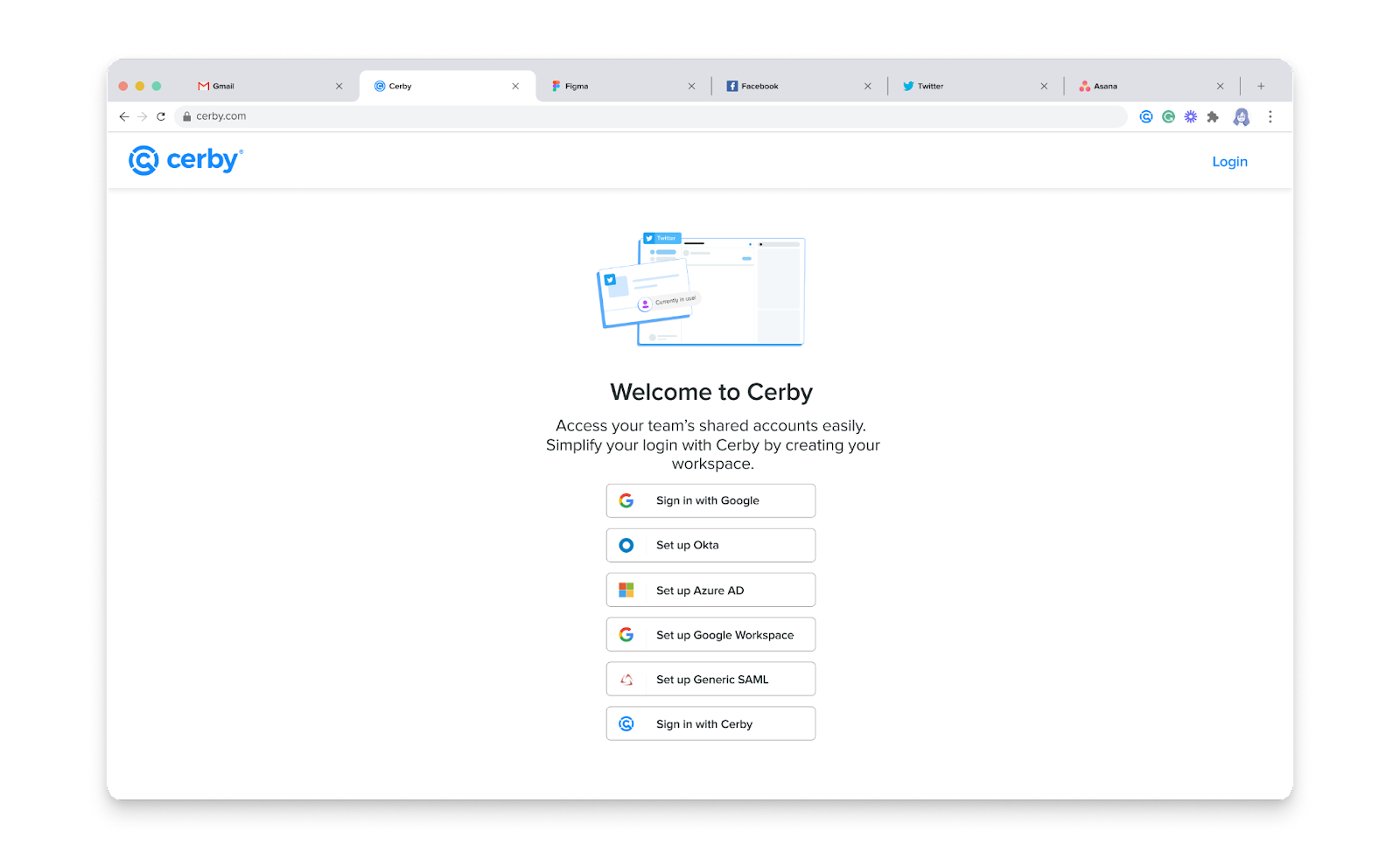
1. Click the **Create your Workspace** button from the invite that Cerby sent to your email address. The **Welcome to Cerby** page is displayed, as shown in **Figure 1**.
Figure 1. Welcome to Cerby page
2. Click the **Sign in with Cerby** button. The **Let’s create your workspace** page is displayed.
3. Enter the name of your workspace in the **Workspace name** field.
4. Click the **Create Workspace** button. The **Create your account** page is displayed.
5. Create your Cerby account by entering the following information in the corresponding fields:
* **Name**
* **Last name**
* **Email**
* **Confirm Email**
* **Password**
* **Confirm Password**
6. Click the **Create my account** button. The **Your Workspace** page is displayed with a success message and the domain of your workspace, for example, **contentzilla.cerby.com**.
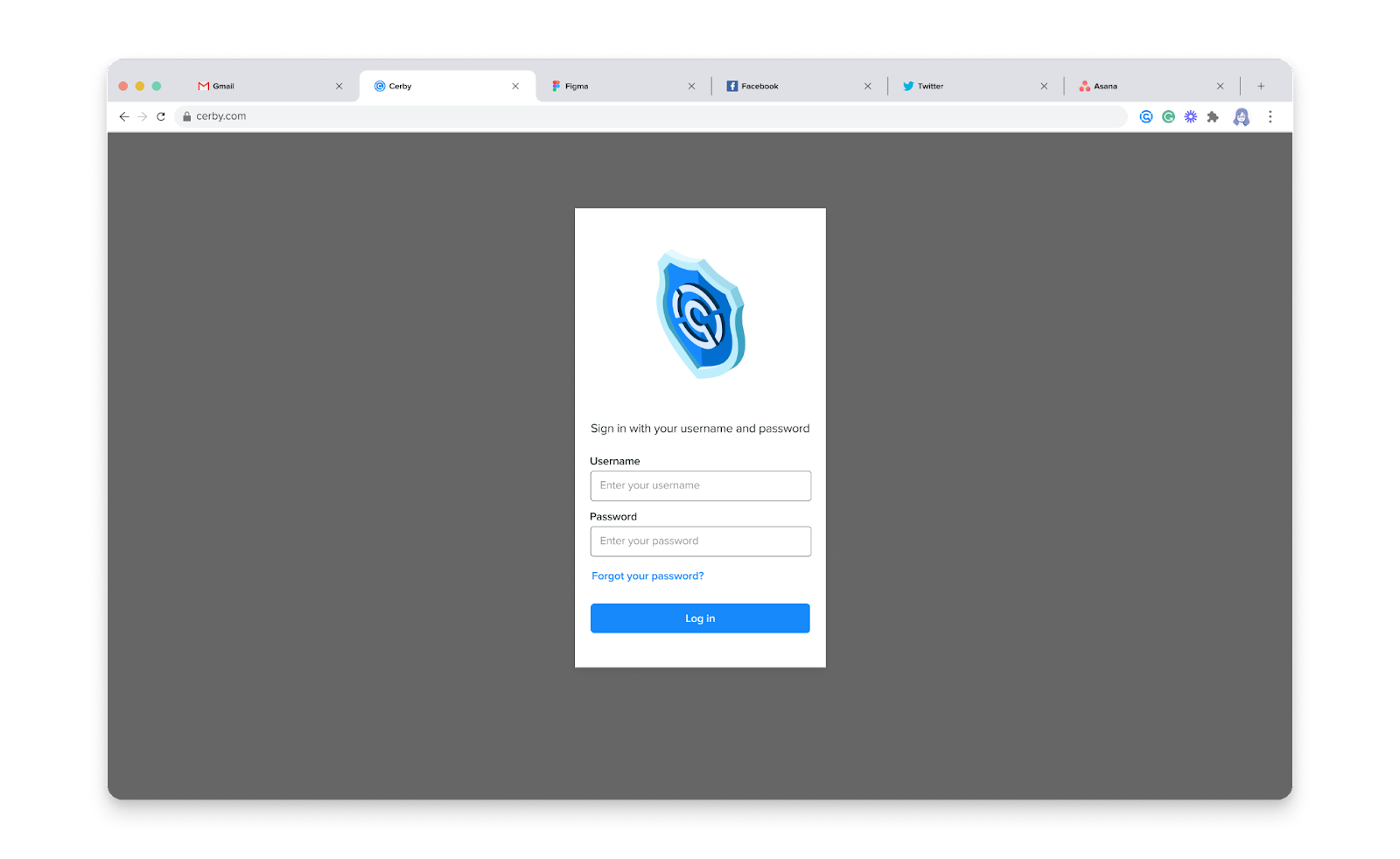
7. Click the **Login** button. The authentication page for Cerby is displayed, as shown in **Figure 2**.
Figure 2. Authentication page for Cerby
8. Enter your Cerby account credentials in the corresponding fields:
* Your email address in the **Username** field
* Your password in the **Password** field
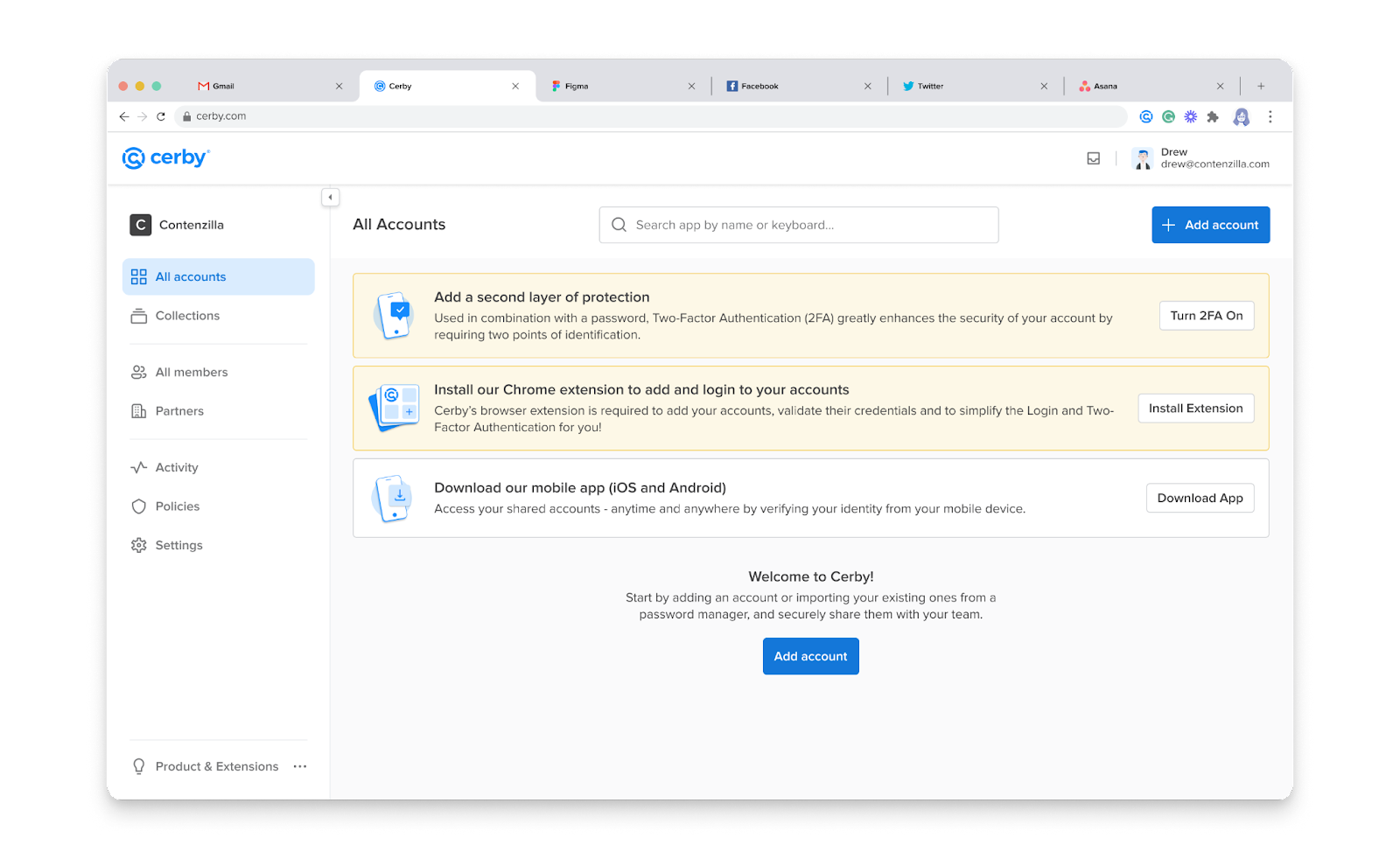
9. Click the **Sign in** button. The homepage of the Cerby dashboard is displayed, as shown in **Figure 3**.
Figure 3. Homepage of the Cerby dashboard
Your local workspace is now created. The next step is [2. Install the Cerby mobile app and browser extension](#id-2.-install-the-cerby-mobile-app-and-browser-extension).
### 2. Install the Cerby mobile app and browser extension
To install the Cerby mobile app and browser extension for an optimal experience with the platform, you must complete the instructions from the corresponding articles:
* [Install the Cerby browser extension](https://help.cerby.com/cerby-browser-extension/installation/install-the-cerby-browser-extension)
* [Install and configure the Cerby mobile app on Android](https://help.cerby.com/cerby-mobile-app/installation/install-and-configure-the-cerby-mobile-app-on-android)
* [Install and configure the Cerby mobile app on iOS](https://help.cerby.com/cerby-mobile-app/installation/install-and-configure-the-cerby-mobile-app-on-ios)
The next step is [3. Turn on MFA for your Cerby account](#id-3.-turn-on-mfa-for-your-cerby-account).
### 3. Turn on MFA for your Cerby account
To turn on multi-factor authentication (MFA) for your Cerby account with an authentication app, you must complete the instructions in the article [Turn on MFA for your Cerby account](https://help.cerby.com/cerby-web-app/users/turn-on-mfa-for-your-cerby-account).
When you are done. It’s time to start adding your accounts to Cerby and sharing them with your colleagues.
***
## Join Cerby from an invite
After being added to a local workspace by a **Workspace Owner** or **Workspace Admin**, all users receive an invite through email to join Cerby and set up their account.
To join Cerby from an invite, you must complete the following steps:
1. Open the message Cerby sent to your email address. The message contains the following information:
* Workspace name
* Username
* Temporary password
2. Click the **Join now** button from the message. The Cerby authentication page is displayed.
3. Enter your username and temporary password in the corresponding fields.
4. Click the **Sign in** button. The **Change Password** page is displayed.
5. Enter a new password for your Cerby account and your profile information in the corresponding fields:
* **New Password**
* **Enter New Password Again**
* **Name**
* **Family name**
6. Click the **Send** button. The Cerby dashboard is displayed.
To start using Cerby, all users must complete the following steps from the [Create and configure a local workspace](#create-and-configure-a-local-workspace) section:
1. [Install the Cerby mobile app and browser extension](#id-2.-install-the-cerby-mobile-app-and-browser-extension)
2. [Turn on MFA for your Cerby account](#id-3.-turn-on-mfa-for-your-cerby-account)
***
## Troubleshooting: “We couldn’t turn MFA on for your profile” message
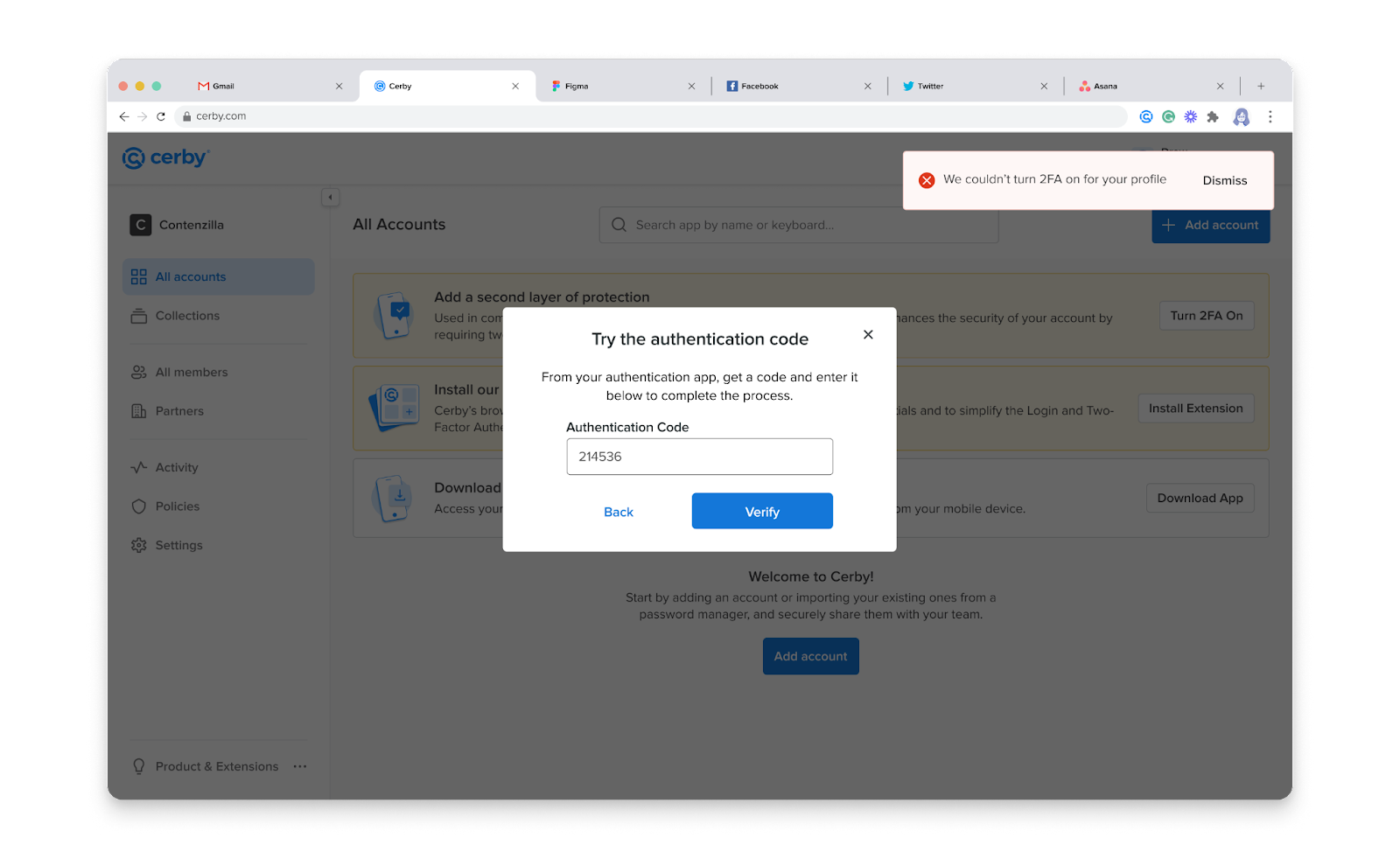
When you try to turn on MFA for a Cerby account that belongs to a local workspace, and you haven’t set your mobile phone time as automatic, the “We couldn’t turn MFA on for your profile” message may appear, as shown in **Figure 5**.
Figure 5. “We couldn’t turn MFA on for your profile” message
The error message is displayed when you verify the authentication code that your authentication app provides after scanning the QR code. This error occurs because the authentication app generates time-based codes that expire; therefore, when your mobile phone has a different time, the code could have expired or is not yet valid.
To solve this problem, set the time settings to automatic on your mobile phone by following the corresponding instructions:
* [Set time, date & time zone](https://support.google.com/android/answer/2841106?hl=en) (Android)
* [Change the date and time on iPhone](https://support.apple.com/guide/iphone/change-the-date-and-time-iph65f82af3e/ios) (iOS)
Now, try again turning on 2FA by following the instructions in the article [Turn on MFA for your Cerby account](https://help.cerby.com/cerby-web-app/users/turn-on-mfa-for-your-cerby-account).
***
## Related articles
The following articles describe the actions and steps to manage local workspaces:
* [Add a local user](/setup-and-admin/workspace-identity-federation/local-workspace/add-a-local-user.md)
* [Edit the name of a local workspace](/setup-and-admin/workspace-identity-federation/local-workspace/edit-the-name-of-a-local-workspace.md)
* [Reset MFA for a local user](/setup-and-admin/workspace-identity-federation/local-workspace/reset-mfa-for-a-local-user.md)
* [Force password reset for a local user](/setup-and-admin/workspace-identity-federation/local-workspace/force-password-reset-for-a-local-user.md)
* [Remove a local user](/setup-and-admin/workspace-identity-federation/local-workspace/remove-a-local-user.md)
---
# Agent Instructions
This documentation is published with GitBook. GitBook is the documentation platform designed so that both humans and AI agents can read, navigate, and reason over technical content effectively. Learn more at gitbook.com.
## Querying This Documentation
If you need additional information that is not directly available in this page, you can query the documentation by asking a question.
Perform an HTTP GET request on the following URL with the `ask` and `goal` query parameters:
```
GET https://help.cerby.com/setup-and-admin/workspace-identity-federation/local-workspace/create-and-configure-a-local-workspace.md?ask=&goal=
```
`ask` is the immediate question: it should be specific, self-contained, and written in natural language.
`goal` is what the user is ultimately trying to achieve, the reason they need the answer. Sharing it helps GitBook give you a better, more relevant answer. A goal is most helpful when it describes the outcome the user wants rather than restating the question. For example, with `ask=how do I create an API token`, a goal like `automate deployments from our CI pipeline` lets GitBook tailor the answer to that use case.
The response will contain a direct answer to the question and relevant excerpts and sources from the documentation.
Use this mechanism when the answer is not explicitly present in the current page, you need clarification or additional context, or you want to retrieve related documentation sections.