# Troubleshooting: "Try going manual" message

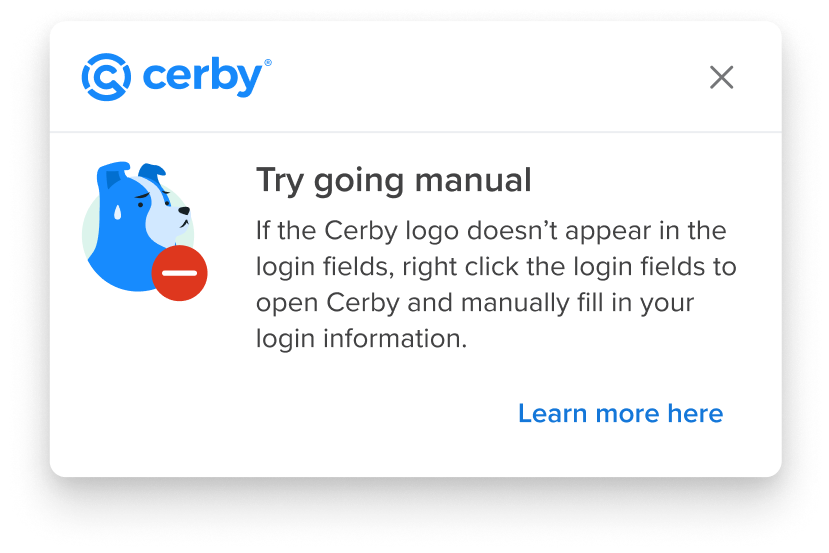
When the Cerby browser extension cannot complete the automatic login flow for your account in your web browser, an in-context alert may display the following message: “Try going manual,” as shown in **Figure 1**.

<figure><img src="/files/Fd8RRuMciWgPn6SFoAGf" alt="Screenshot of an in-context alert of the Cerby browser extension displaying the"><figcaption><p>Figure 1. “Try going manual” message in the in-context alerts of the Cerby browser extension</p></figcaption></figure>

To solve this issue, close the in-context alert and log in manually to your account by filling each input field with the help from the Cerby browser extension as follows:

1. Open the Cerby browser extension popup.
2. Search for the account.
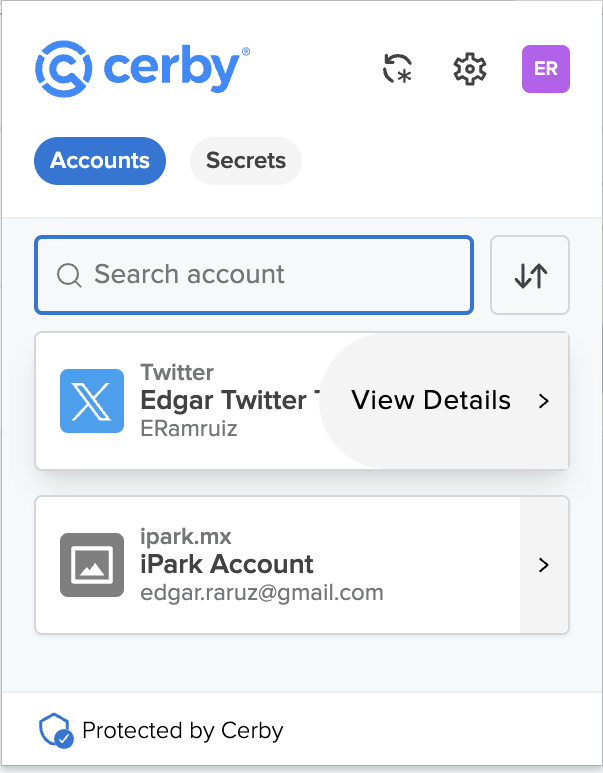
3. Click the **View Details** button that is displayed by hovering over the right arrow of the corresponding account card, as shown in **Figure 2**. The account details page is displayed in the popup.

   <figure><img src="/files/gKBhPnxf1a3dtHuU5ydC" alt="Screenshot of the Cerby browser extension popup with the View Details button displayed over an account card."><figcaption><p>Figure 2. View Details button of an account card in the Cerby browser extension popup</p></figcaption></figure>
4. Click the corresponding **Copy** icon of the **Username** and **Password** fields that you need to fill in. The field content is copied to the clipboard.
5. Paste the content in the corresponding fields of the login page that was left open.
6. Click the **Log in** or **Sign in** button.
7. Enter the verification code if multi-factor authentication (MFA) is turned on.\
   **NOTE:** When Cerby manages the verification methods for MFA (email address, phone number, and authenticator app), copy the code from the Cerby browser extension as follows:
8. Open the Cerby browser extension popup. The account details page is displayed in the popup.
9. Click the **Inbox** icon in the **MFA Code** field. The inbox page of the account is displayed in the popup with the **Verification codes** and **Recently received codes** sections.
10. Click the **Copy** icon of the corresponding verification method. The code is copied to the clipboard.
11. Paste the code in the corresponding field of the login page that was left open.
12. Click the corresponding button to complete the login.

Now you are done.


---

# Agent Instructions: Querying This Documentation

If you need additional information that is not directly available in this page, you can query the documentation dynamically by asking a question.

Perform an HTTP GET request on the current page URL with the `ask` query parameter:

```
GET https://help.cerby.com/tips-and-troubleshooting/troubleshooting/cerby-browser-extension/troubleshooting-try-going-manual-message.md?ask=<question>
```

The question should be specific, self-contained, and written in natural language.
The response will contain a direct answer to the question and relevant excerpts and sources from the documentation.

Use this mechanism when the answer is not explicitly present in the current page, you need clarification or additional context, or you want to retrieve related documentation sections.